Congratulations on your new ONEXPLAYER ONEXFLY! Embark on a unique gaming journey – a fusion of cutting-edge technology and powerful portable gaming awaits. With the ONEXFLY, you’re not just stepping into a world of portable gaming; you’ve got a powerful Windows PC experience at your fingertips. Our Getting Started guide is designed to help you fully understand the capabilities of your handheld gaming PC, combining the essence of classic gaming with the unmatched performance and customisability of modern gaming computers.
At DROIX, we celebrate and support the spirit of retro gaming. We also stand by the principle of empowering our users. So, if you find any issues and feel confident enough to handle them, we fully support your Right to Repair! With no effect on your device warranty! But remember, DROIX Customer Support is always happy to help with any queries or assistance.
What’s Inside the Box?
When setting up your portable gaming PC, it’s important to ensure you have all the necessary components and accessories for a smooth start. Please remember to check all compartments of the box, as other essential items are often placed there. Make sure to thoroughly inspect the entire box to find all the components you need for a complete and enjoyable setup experience. With your purchase, you should find:
- 1x ONEXPLAYER ONEXFLY
- 1x Power Adapter
- 1x USB Type-C Cable
- 1x User Manual
ONEXFLY Device Overview
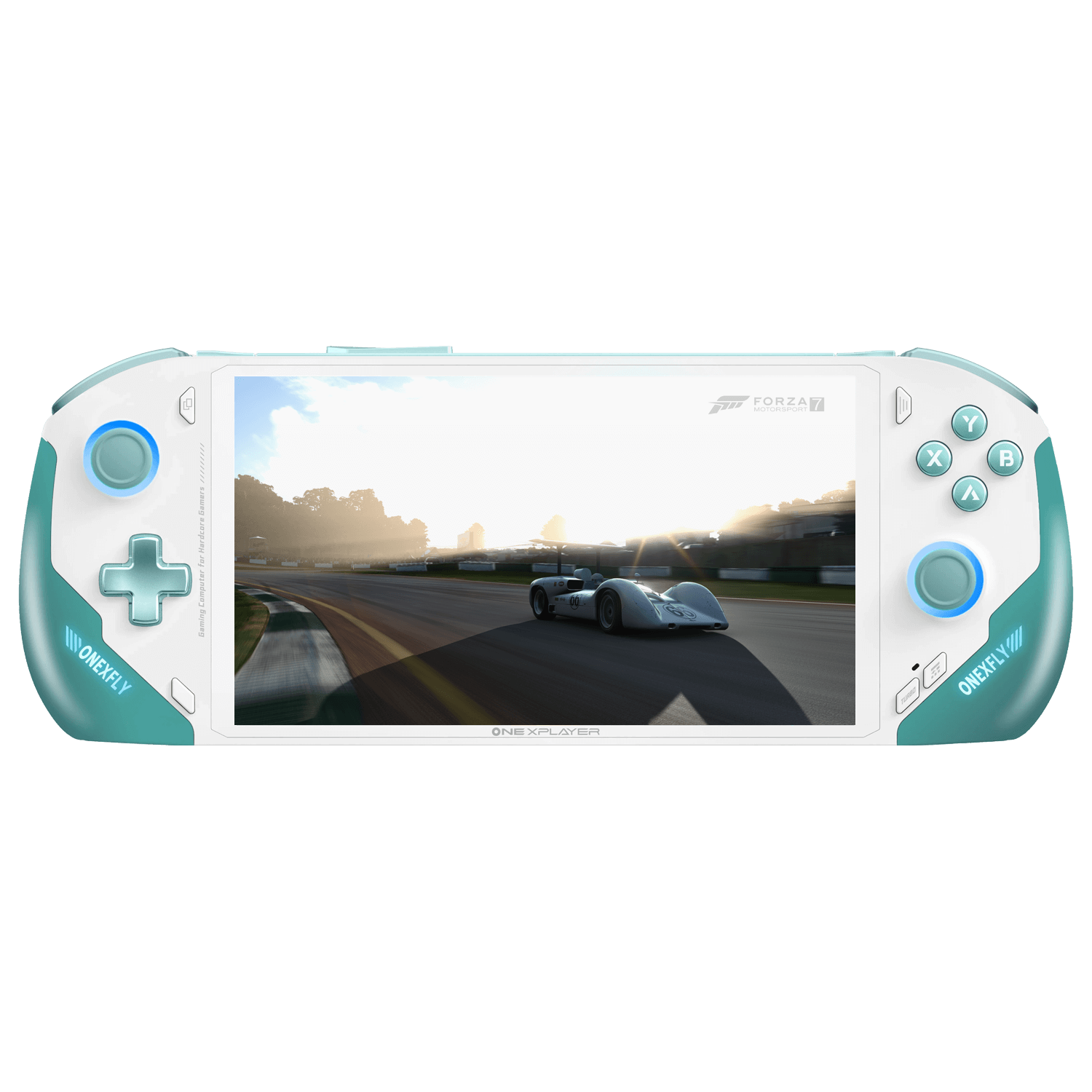
- ONEXFLY Front
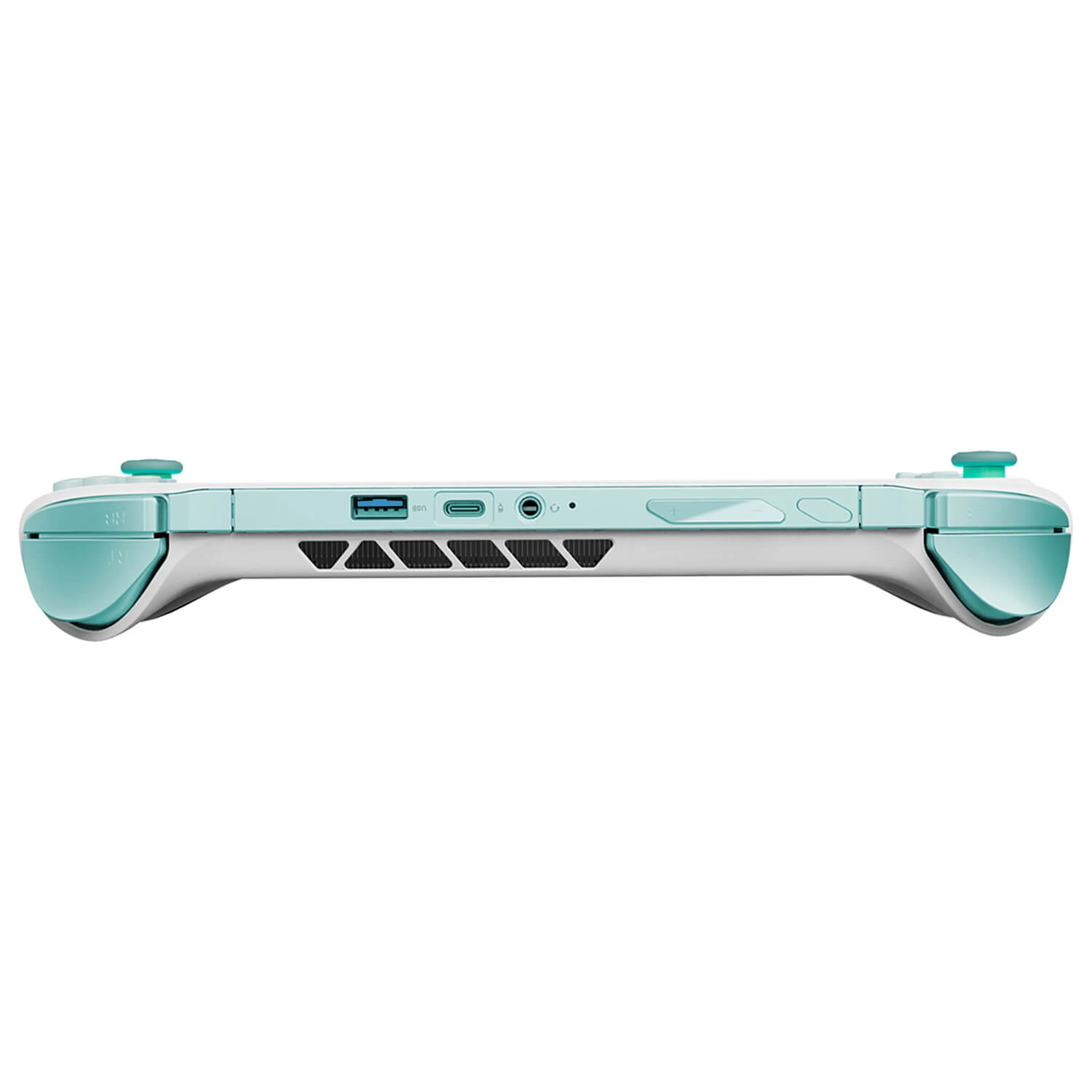
- ONEXFLY Top
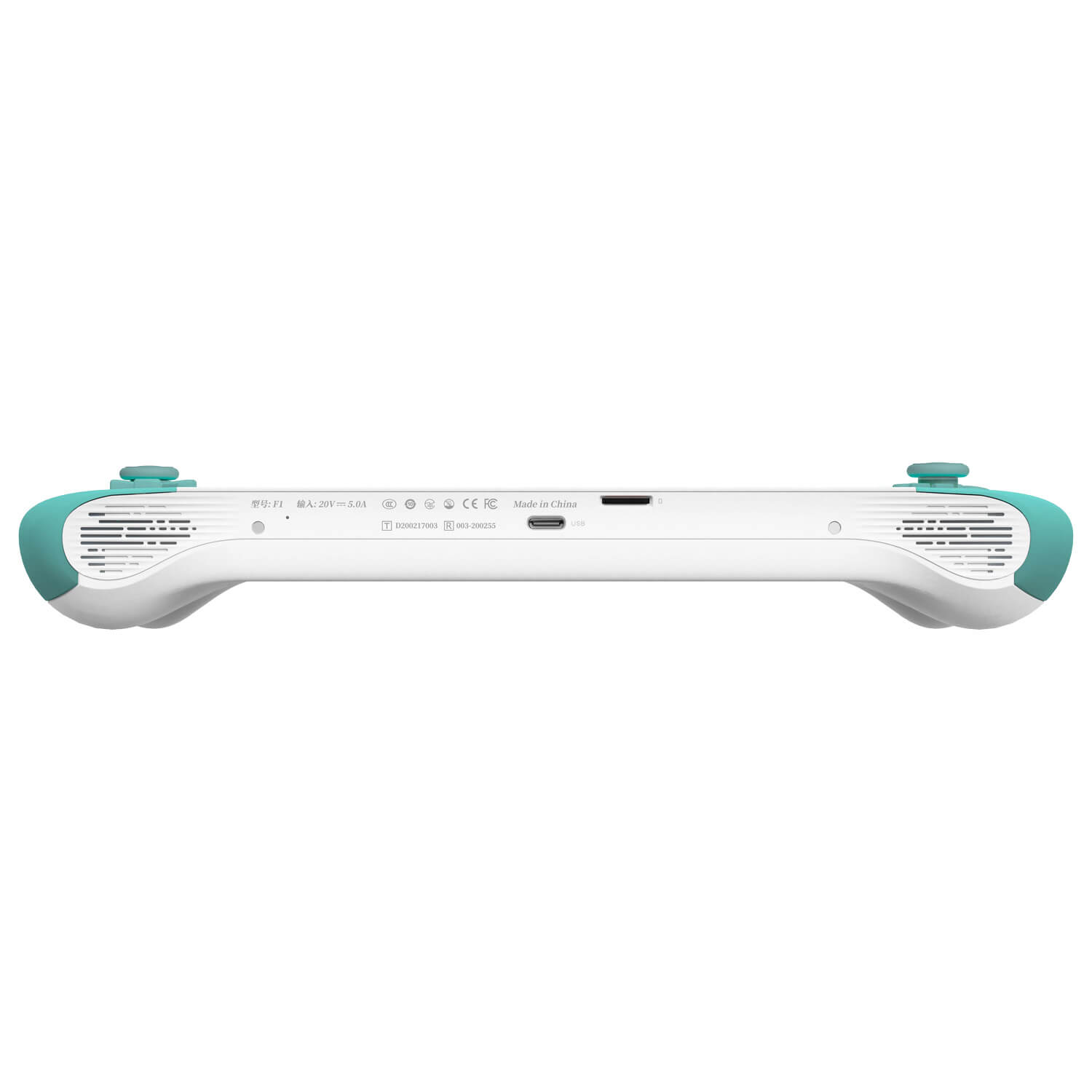
- ONEXFLY Bottom
Setting Up Windows
All our portable gaming PCs, including the ONEXFLY, come with Windows 11 pre-installed, making them ready for setup right out of the box. The setup process for Windows may vary slightly depending on the version installed on your device. However, it’s generally straightforward and guided by on-screen prompts. These steps include selecting your country, choosing the keyboard layout, and entering your user details. You also have the option to connect to the internet during setup, allowing your device to automatically download and install the latest updates. There’s no need to worry too much as all of these settings can be adjusted at any point later on.

Windows Setup Screen
During the setup process, the handheld may reboot once or twice. Once complete, you will be able to log into Windows.
Update Windows, Firmware & Drivers
As you embark on your journey with the ONEXPLAYER ONEXFLY, one of the essential steps is to ensure you’re running the latest software and firmware. This isn’t just about accessing new features or enhancing performance; it’s also crucial for security. Staying updated is key to safeguarding your device against the latest digital threats. So, a friendly reminder: always keep your devices updated!
We’ve already got detailed articles covering everything on how to update Windows, how to install AMD divers and more. You can find links to the guides and any other necessary Firmware, Drivers below.
| Firmware & Drivers | Download Link |
| OneXConsole (Game Center) | Download, Alternative Link |
How to uninstall old AMD graphics drivers and install new ones
Stress Testing Your ONEXFLY
Now that your handheld gaming computer is set up, complete with the latest firmware and drivers, you might be wondering just how far it can be pushed. Do you want to take your device to its limits? Are you curious to see what your handheld is truly capable of? If that’s the case, we’ve got you covered. Dive into our comprehensive guide below, where we detail everything you need to know about stress testing your Windows device. This guide will help you safely explore the limits of your handheld’s performance, ensuring you get the most out of your gaming experience.
Software
Handheld Companion
Remember, the ONEXPLAYER ONEXFLY is still a Windows device, meaning that if the preinstalled companion app doesn’t quite suit your taste, you’re free to explore and install any compatible software. One launcher we recommend is the Handheld Companion app. This app enhances your ONEXFLY experience by unlocking full control over the settings controlled by the default companion app.
With Handheld Companion, your gaming experience becomes more tailored and interactive. Set up hotkeys for quick access to functions, monitor your device’s performance with a fully customisable on-screen overlay, and dive deeper into your games with adjustable motion controls. These features not only add convenience but also improve your personal experience.
The utility of the Handheld Companion app was so significant to us that we’ve partnered with them to ensure its compatibility and support for the devices we offer. For a deeper understanding, check out our article here on how you can improve your experience with Handheld Companion, or watch our video below.
Operating Systems
If you’re comfortable with the process and understand the associated risks, you have the option to install alternative operating systems on your ONEXPLAYER ONEXFLY. While it’s unlikely to cause hardware damage, this route typically involves uninstalling Windows and configuring a new OS, which can be a complex task. Be prepared for potential bugs and compatibility issues, as many of these alternative operating systems may be continuously developed and may not be fully optimized.
We can recommend HoloISO as a viable option for those who want to try an Operating System similar to SteamOS. However, it’s crucial to thoroughly review the requirements, understand potential challenges, and follow the setup instructions carefully before proceeding. Please keep in mind that we do not provide support for, and are unable to assist with issues arising from the use of alternate operating systems.
Game Stores
Windows is by far the best platform for gaming. It’s the gold standard that others like SteamOS aspire to match. On your ONEXPLAYER ONEXFLY, you have the advantage of running full-fledged Windows 11, bringing the complete gaming PC experience into the palm of your hands. With full support for Steam, XBOX Game Pass, GeForce Now, Epic Games, EA, Radeon Games, GOG Galaxy and many, many, many more… You won’t have an issue adding to your library of games.
Launchers
Prefer a less traditional desktop setup? Or maybe you’re seeking a console-like interface? No problem. There are numerous launchers available that can transform your experience into one that’s seamless, visually appealing, and focused squarely on gaming. Options like Steam Big Screen, Playnite, and GOG Galaxy curate all of your libraries into one cohesive and stunning user interface. Whether it’s from Steam, Epic Games, EA, XBOX or locally installed titles, these launchers enable you to effortlessly organize, locate, and launch any game on your ONEXFLY.
Retro Gaming
If you feel like reliving the golden age of gaming, your ONEXFLY offers the perfect platform. With emulator frontends like RetroArch, or specialized emulators such as Dolphin, you can immerse yourself in the classics… ones that you definitely own! By adding ROMs, the ONEXFLY allows you to bring all of your favourite titles from the past into the present.
And the good news doesn’t stop there. We’ve put together a detailed guide to walk you through every step of how to install and set up RetroArch on your ONEXFLY. This guide is designed to simplify the process, ensuring you can get started with your retro gaming journey as smoothly as possible.
How to install and set up RetroArch on your Windows or Android devices
https://droix.net/knowledge-base/article/retroarch/embed/#?secret=tmpbXiILb6#?secret=5gd0ZgvV9t
Connecting The GPD G1 eGPU
The GPD G1 eGPU docking station is a game-changer, not only offering additional USB ports, HDMI, and DisplayPort for connecting to your monitor or TV. But its standout feature is the built-in Radeon RX 7600M XT GPU, which elevates your gaming experience with higher FPS and improved visual quality. When hooked up to an external monitor, this eGPU flexes its muscles, enabling even the most demanding games to run at higher resolutions.
For those with an Oculink port on their handheld, the GPD G1 allows you to leverage the fastest data transfer speeds. However, if your device doesn’t have this port, there’s no need to worry. The GPD G1 eGPU docking station is still fully functional via the USB 4.0 port on your ONEXFLY. To get the most out of this powerful accessory, don’t miss our comprehensive guide on Getting Started with the GPD G1 eGPU Docking Station, where we delve into everything from setup to advanced usage tips with the GPD G1.
Accessories and Add-Ons
It’s incredible, right? Your new gaming handheld can do so much already, what more is there? Believe me, there’s more. With additional accessories and add-ons available, you can take your device to an even higher level, and keep it running for years to come.
GPD G1 eGPU Docking Station: This docking station not only provides the usual USB, DisplayPort, and HDMI port expandability but its main feature is the built-in graphics card. The GPD G1 houses a high-performance Radeon RX 7600M XT eGPU, capable of running the latest games at higher graphics settings and resolutions on an external monitor. Dive into our full review for more details.
DROIX NH8 USB Hub with NVMe: The NH8 is a versatile, portable accessory that not only extends your ONEXFLY’s connectivity but also includes a PCIe NVMe Slot for additional storage. It’s equipped with various ports, including HDMI, USB Type-A, USB Type-C, and SD card readers, ensuring compatibility with a wide array of peripherals.
15.6″ 4K portable monitor with Adobe RGB: Experience stunning 4K resolution on a 15.6″ display with these portable monitors. They utilize 100% Adobe RGB Colour Gamut, making them an excellent choice for gamers, artists, and media enthusiasts alike. Not only is it a choice for enhancing your ONEXFLY experience, but these monitors’ slim and lightweight design is ideal for on-the-go use, complementing your portable gaming handheld perfectly.
Your ONEXPLAYER ONEXFLY should now be successfully set up and running smoothly. Whether you’ve opted for the default settings or ventured into more technical personalisation, like installing different operating systems, we trust this guide has provided you with the knowledge you need for a confident and enjoyable gaming experience on your mobile gaming PC. Enjoy exploring all the possibilities and happy gaming!