If you are having issues updating to the latest AMD graphics drivers, or having a compatibility issue then you may need to first uninstall the old drivers, to install others. This easy-to-follow guide will show the process.
Uninstall graphics drivers
AMD has provided an easy-to-use application that does all the work for you to uninstall their old graphics drivers. You can download their Cleanup Utility software here.
Run the AMD Cleanup Utility application. If you are prompted for Administrator rights, click YES.
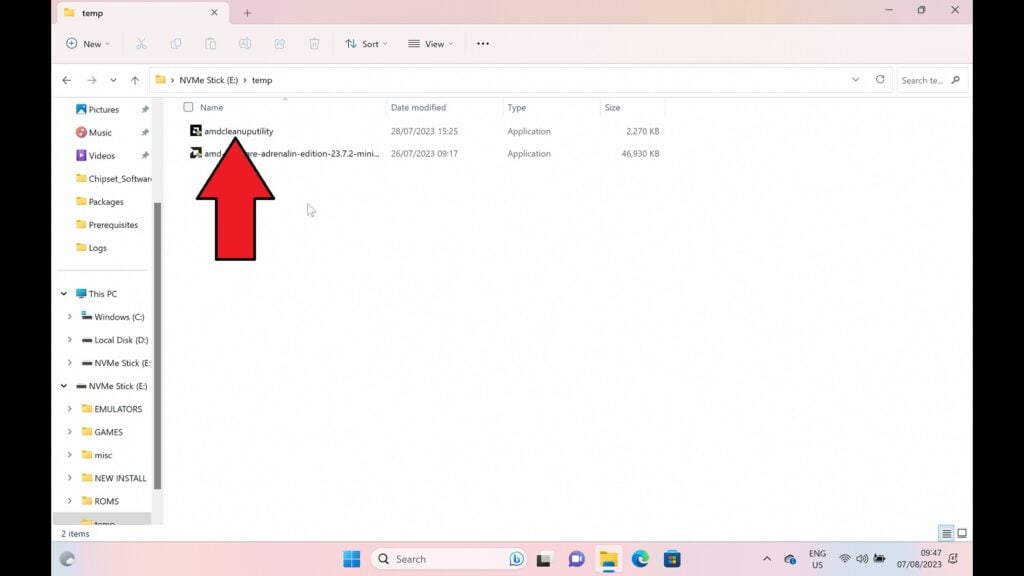
Open the Cleanup Utility software
After a moment or two, you will be prompted to reboot your device to boot into Windows Safe Mode. Windows Safe Mode does not use any system drivers and is easier to uninstall any drivers when not in use. Click on YES to boot into safe mode.
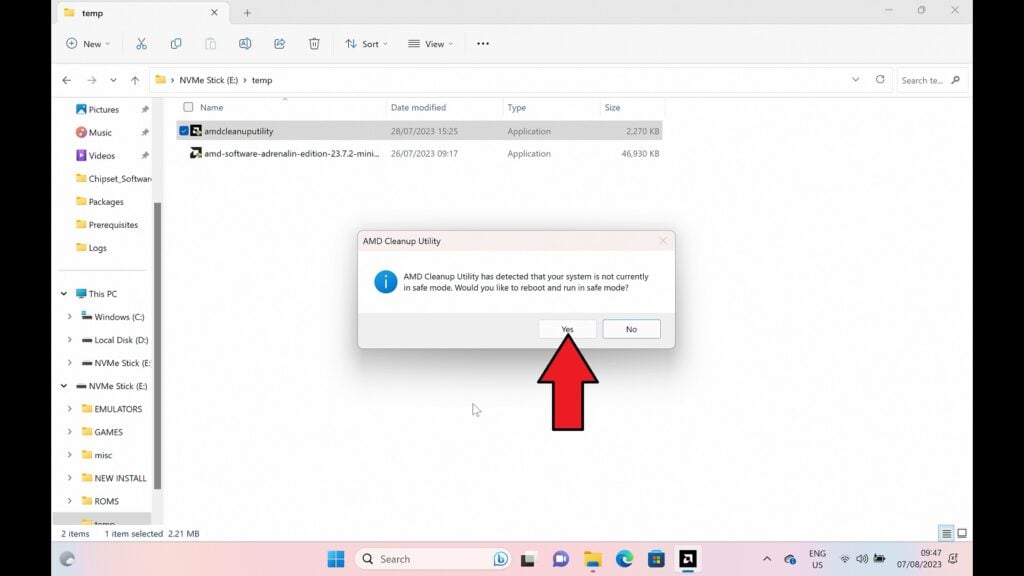
Click Yes when prompted to boot to safe mode
Your device will now reboot, it may take a little longer to boot into Windows than usual. Once it has been booted, the Cleanup Utility software should automatically start and prompt you to proceed with the uninstallation. Choose YES.
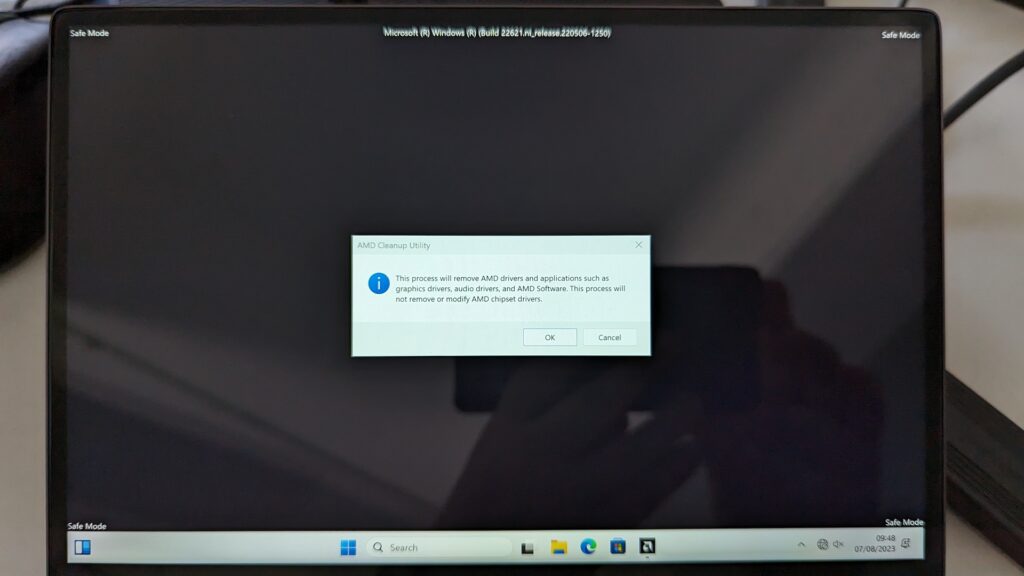
Click Yes to start the uninstallation
It may take a minute or two for the drivers to be uninstalled, do not close the software or shut down Windows during this time. Once the process has been completed you will be informed that it has been completed, click on FINISH to proceed.
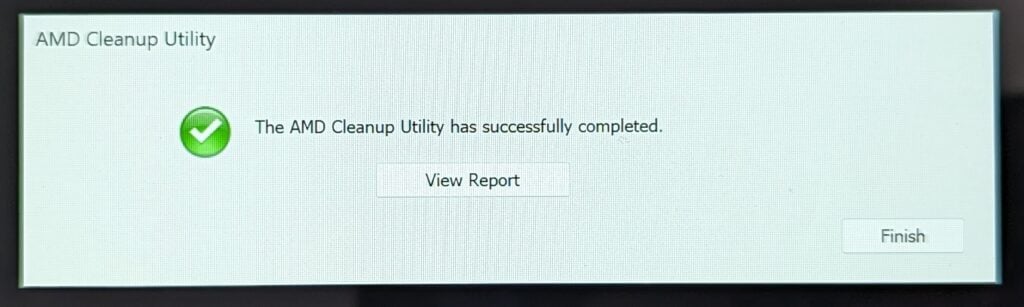
Click Finish to complete the uninstallation
You will now be prompted to reboot back to normal Windows. Choose YES to proceed.
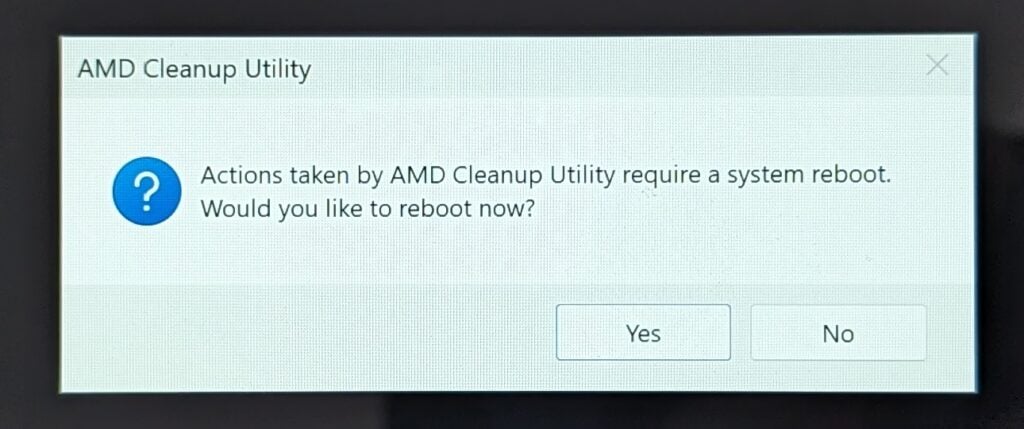
Choose Yes to reboot Windows
Once you have rebooted to Windows, the graphics driver uninstallation process is finished.
Installing AMD graphics drivers
You will first need to download the latest graphics drivers from here. We recommend downloading the “Auto-Detect and Install Driver Updates for AMD Radeon™ Series Graphics and Ryzen™ Chipsets“. This will find, download and install the correct drivers for your device. However, if this does not work, you can choose your “Processor With Graphics” for handhelds and usually mini PCs, from the menus lower down their website.
Once you have downloaded the driver software, you can run the file.
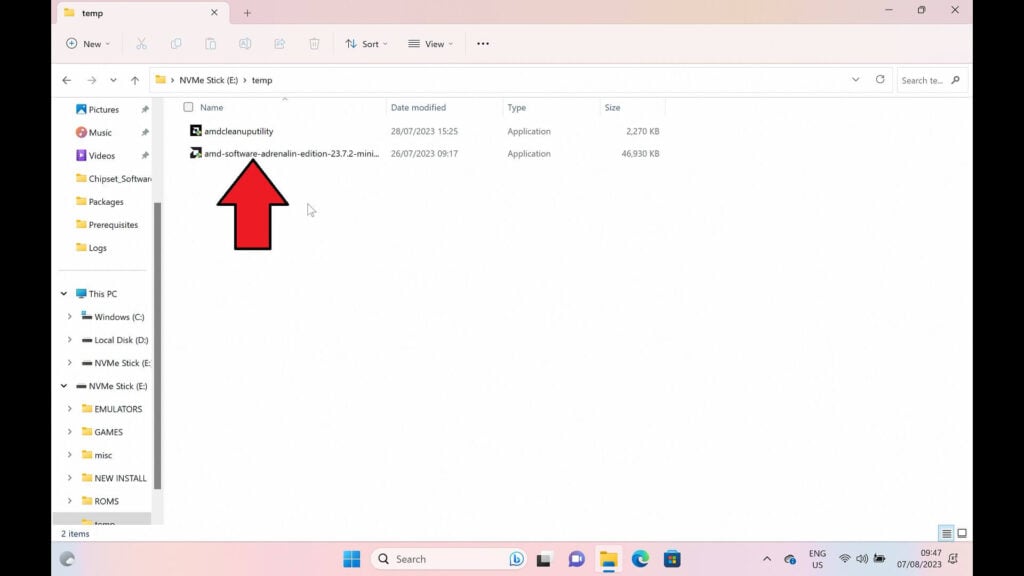
Open the graphics driver installation file
The software may prompt you to enter an installation path, you can choose the default path. The software will install and then scan your system for the graphics. This may take a few minutes.
You will be shown what graphics card has been found on your device. In this example, it is the AMD Radeon 760M Graphics from the Ryzen 5 7640U on the GPD WIN MAX 2 2023. Click on NEXT to proceed.
The software may visually look slightly different to what we show as there are different versions depending on the auto-detect or manual-detect downloads.
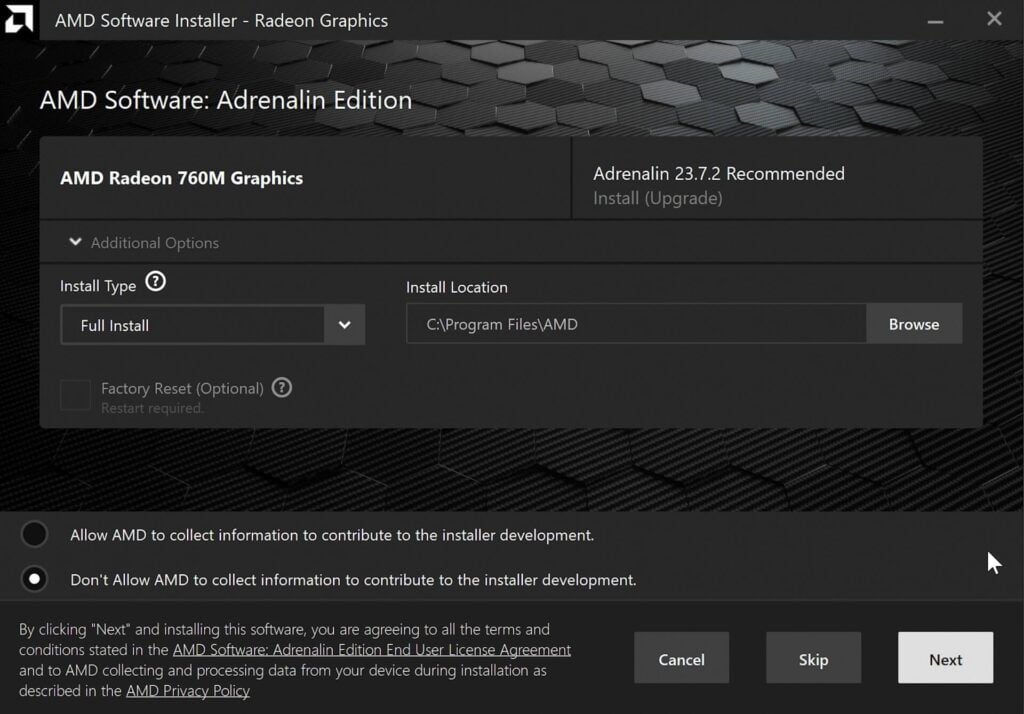
Check that it has found your graphics and click Next
You will then be prompted if you wish to install the Privacy View tool, this is optional so you can decide whether to install it or not. Click on Next to proceed.
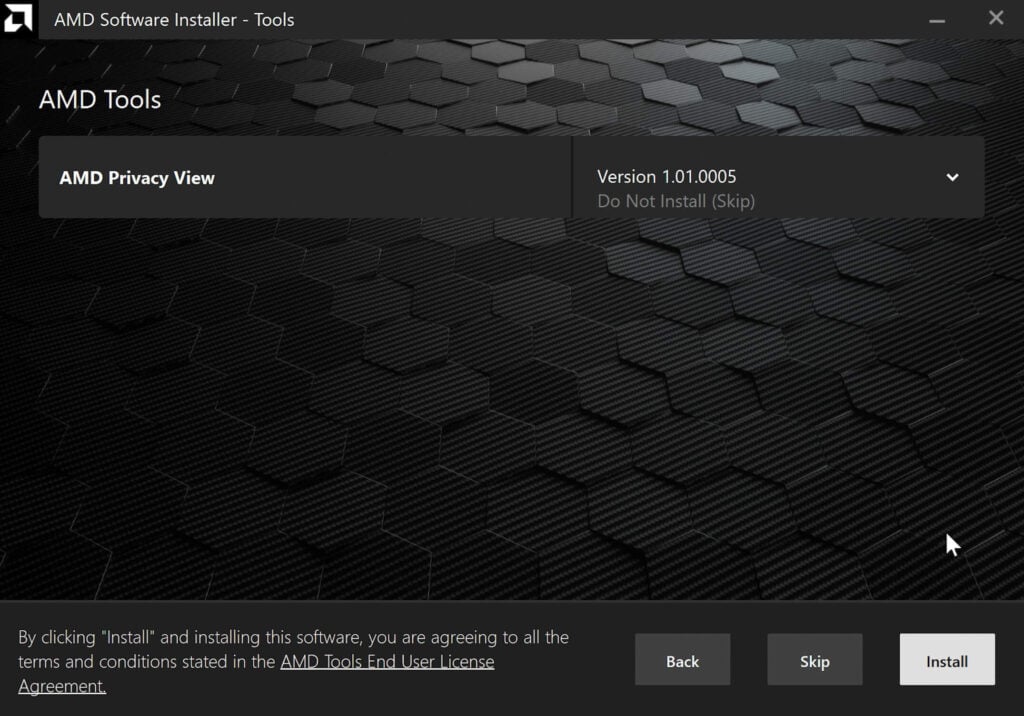
You can optionally install Privacy View
You may next be prompted to install Chipset drivers. We recommend installing the latest versions, so tick all of them and then Install to proceed.
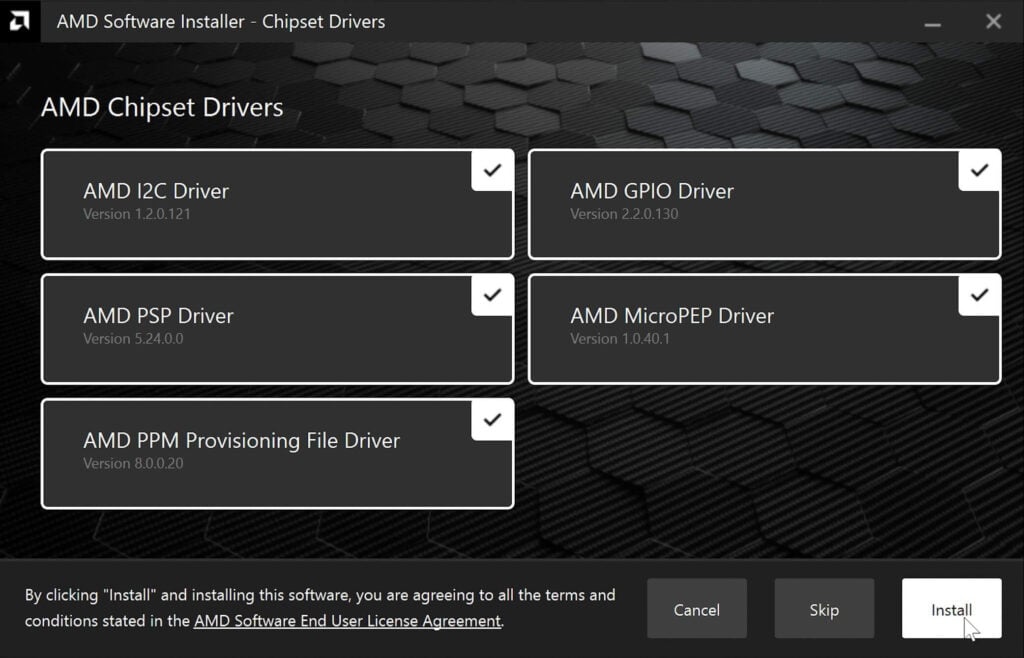
Install all the latest Chipset Drivers
The software will now download and install the latest drivers for your graphics. This may take several minutes depending on your internet speed for example. Please let the software download and install. Your device’s display may go black during the process while the graphics drivers are installed.
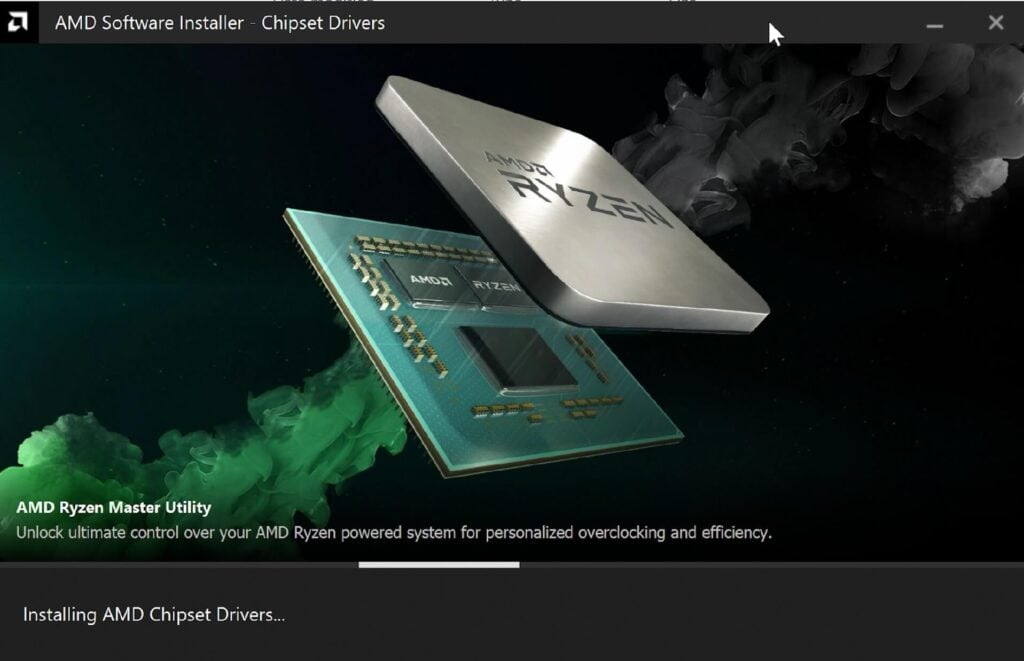
Graphics Drivers installing
Once the process has finished you will be prompted to Finish or Restart your device. We recommend Restarting to finish to process correctly.
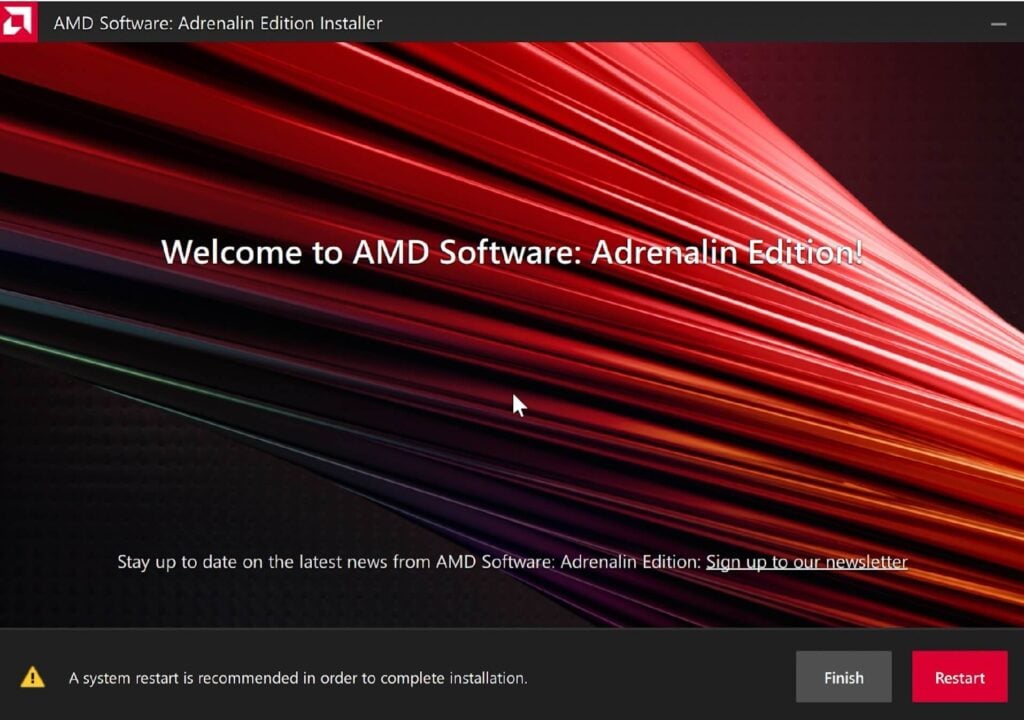
Restart Windows to complete the installation
Once your device has rebooted, your drivers are now installed!