The guide will show step by step on how to install the LED control software for your RockTek GX1 Android gadget. Once installed, the software will be able to switch off/on the LED as well as change the colour of the LED when it is switched on.
Download the GX1 LED Control APP And Server.zip file, extract the contents and copy the files to a USB drive. Any size drive will be suitable as the files are small. You will have the files as shown below.
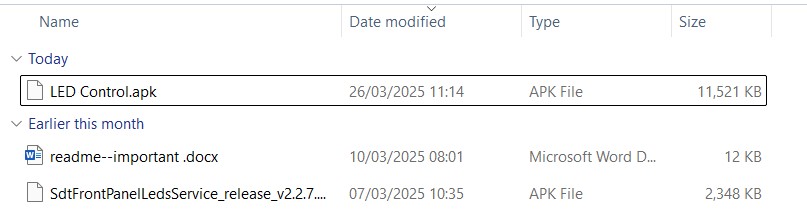
RockTek GX1 LED controls files
Insert the USB drive into a USB port on the RockTek GX1. Next we need to download a File Manager, navigate to Apps (Step 1). Scroll down the list until you see the File Manager + app and click on the icon (Step 2).
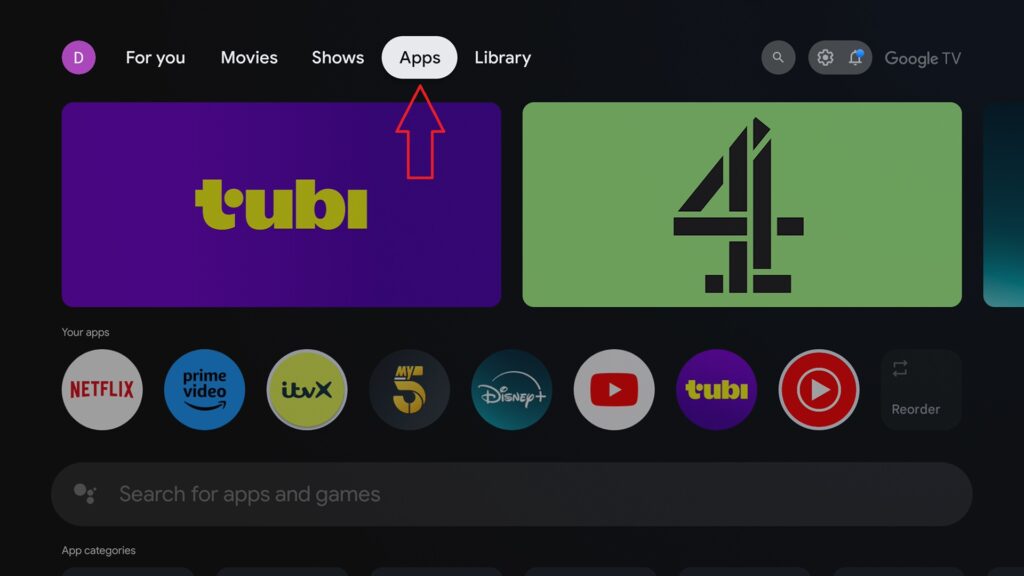
Download File Manager -Step 1
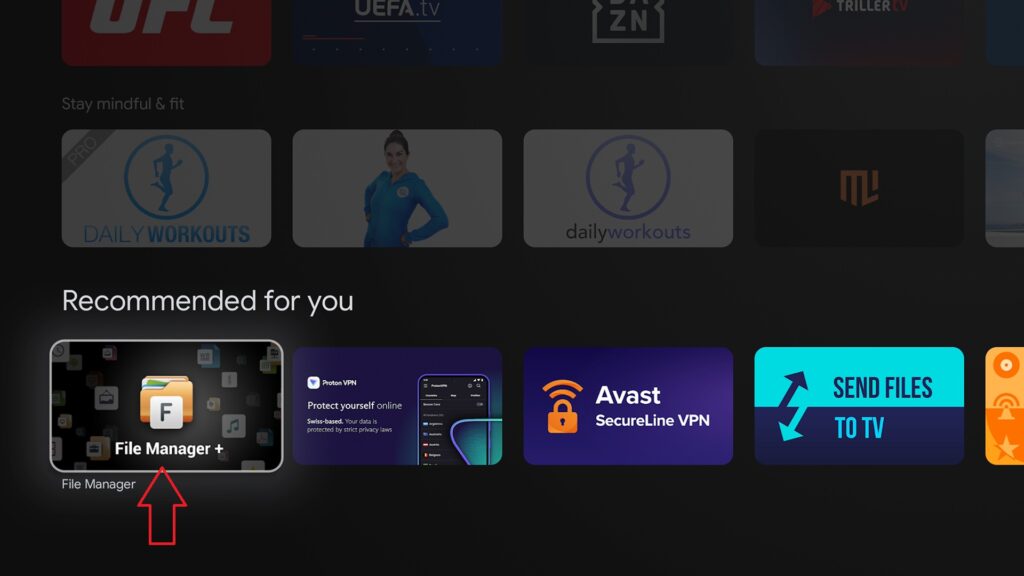
Download File Manager – Step 2
You will now be prompted to download and install the File Manager + app. Choose Install (Step 3) and give it a few moments to download and install. Once completed you will be prompted to Open the app (Step 4).
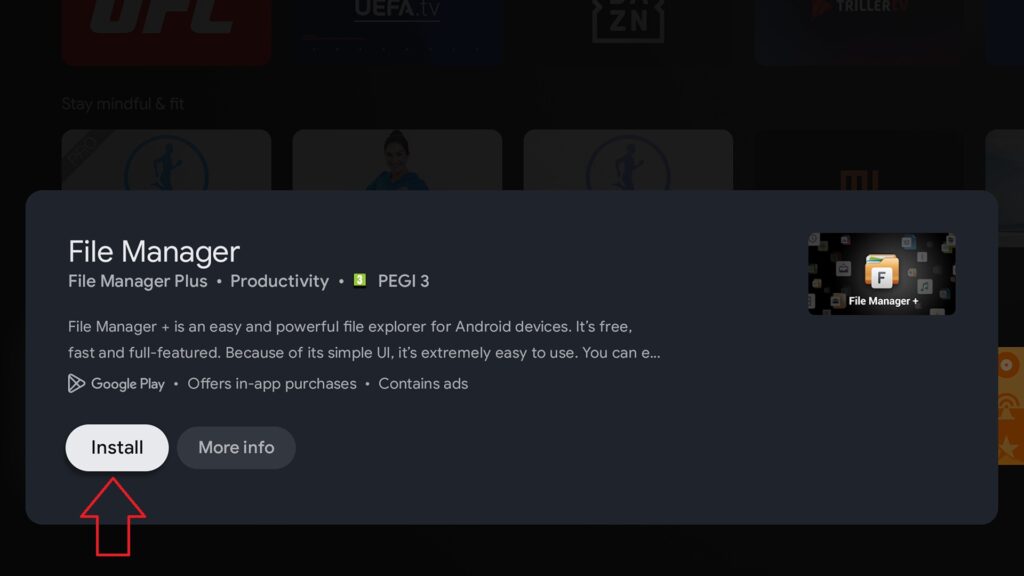
Download File Manager – Step 3
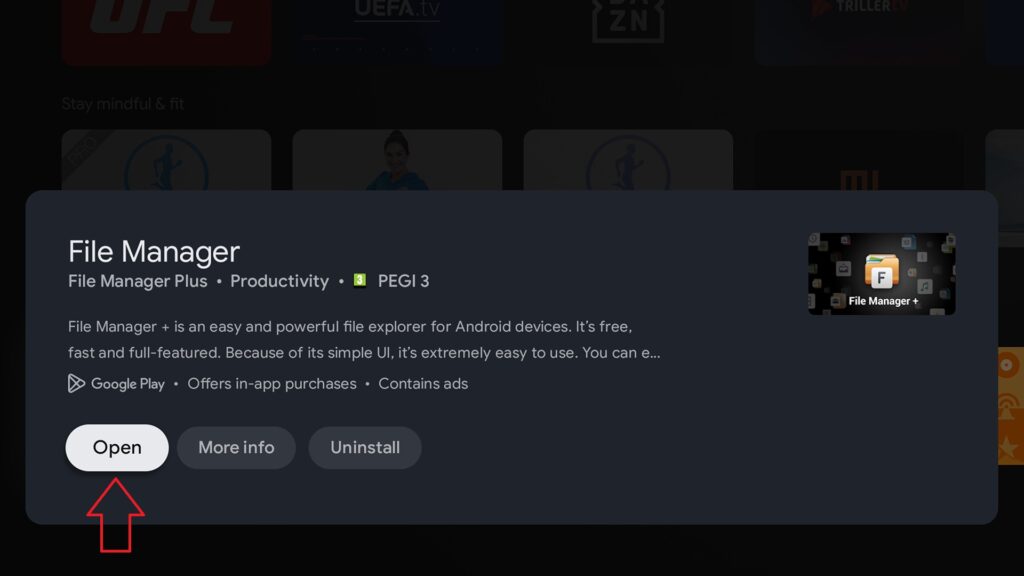
Download File Manager – Step 4
You will now be prompted to give permissions for the File Manager + app to access files on your USB drive. Scroll down the menus and choose Permissions (Step 1). Next navigate to the Files and Media option and select this (Step 2). Then select Allow management of all files (Step 3).
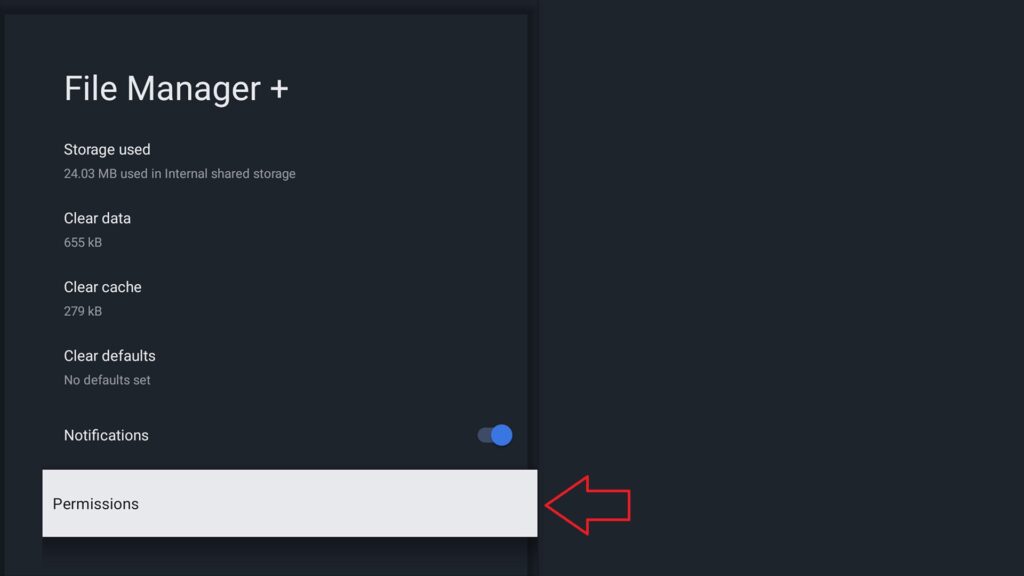
File Manager Permissions – Step 1
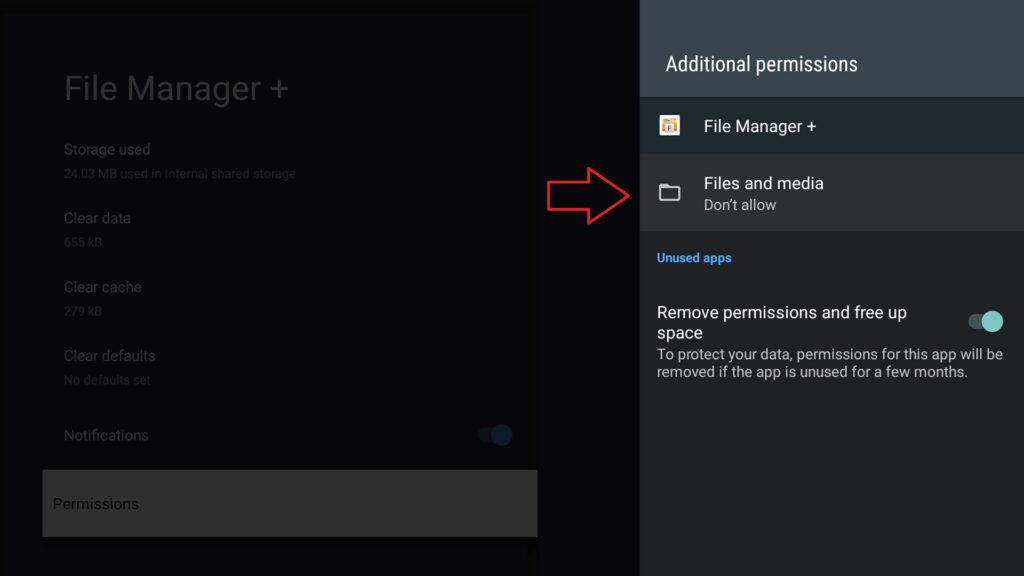
File Manager Permissions – Step 2
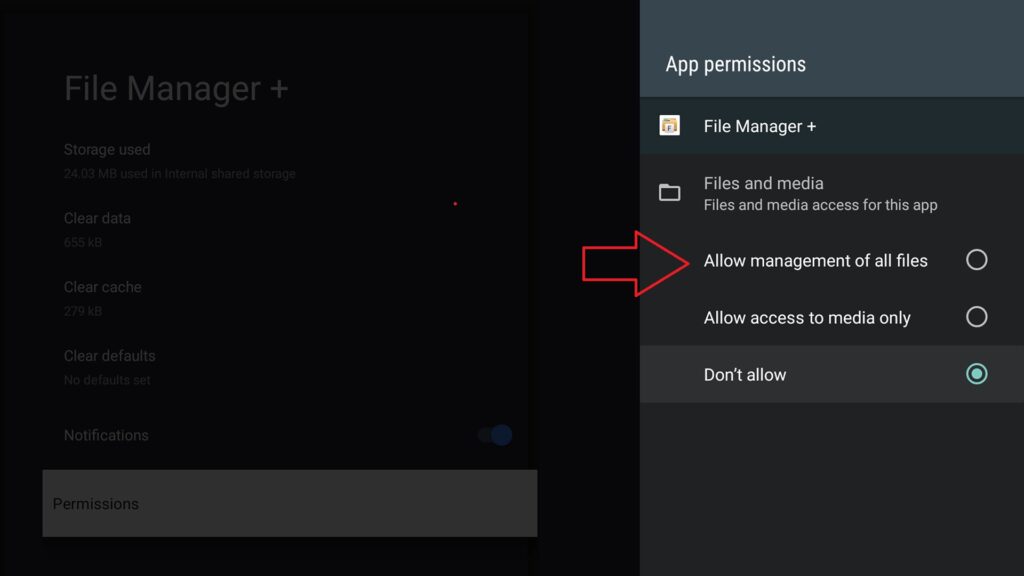
File Manager Permissions – Step 3
Once completed, you can press the Home button on the remote to return to the Home screen.
On your Apps shortcut list, navigate to the File Manager + app and select it.
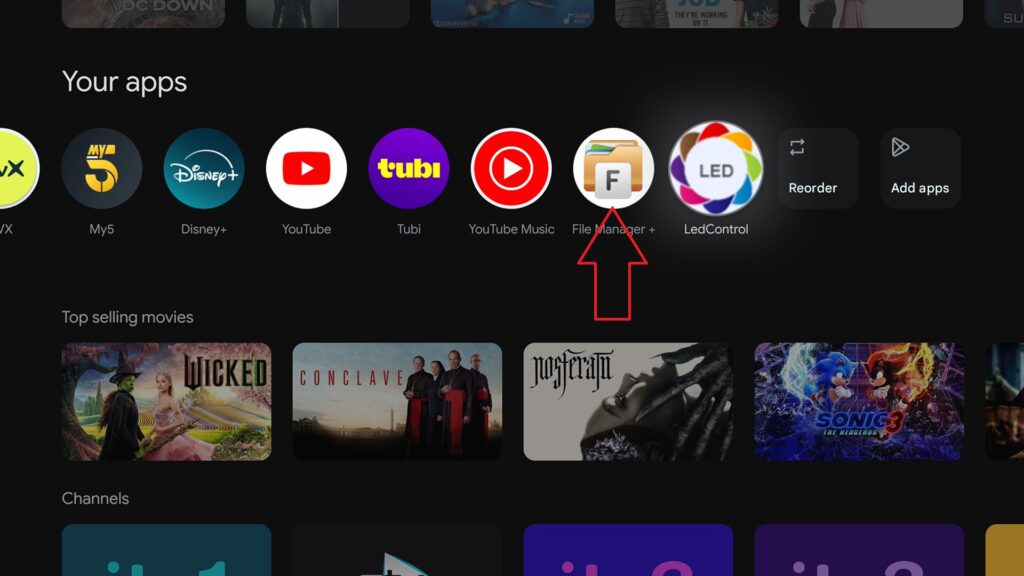
Home Screen
Navigate to the USB drive and select it (Step 1), then scroll down the list until you find the SdtFrontPanelLedsService_release_v2.2.7.apk file, select this (Step 2).
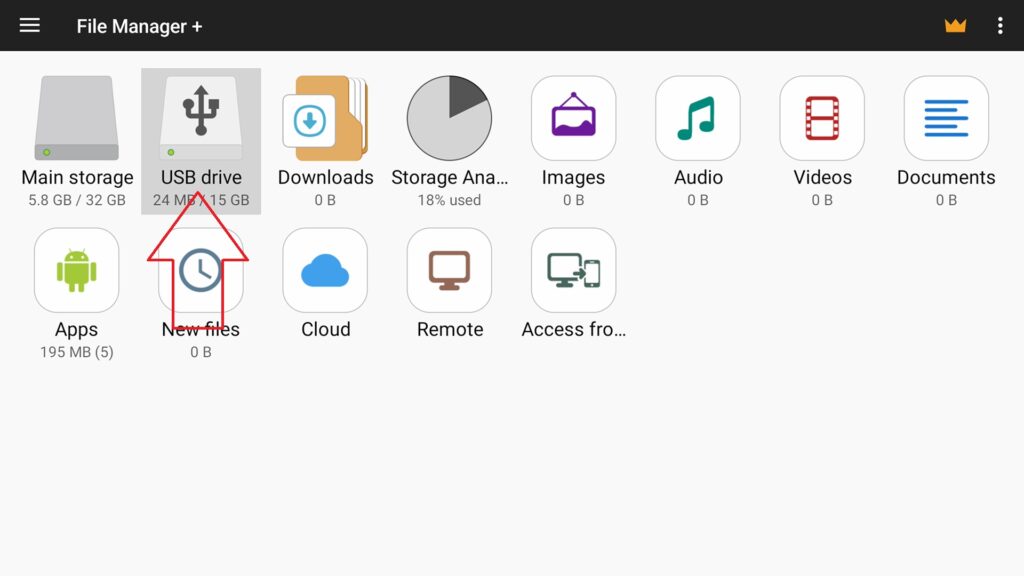
File Manager App – Step 1
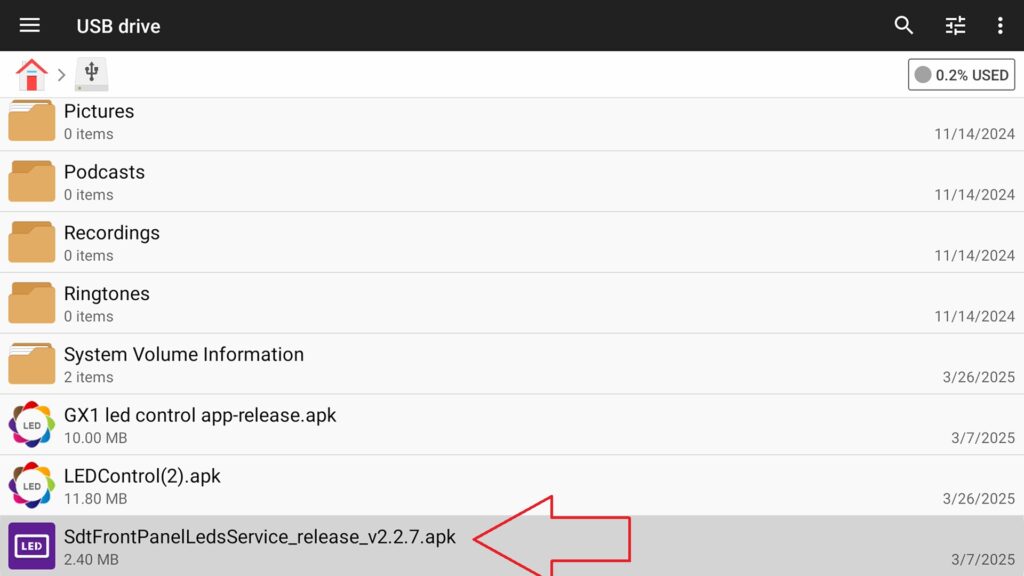
File Manager App – Step 2
You may be prompted to provide permission for File Manager + to install apps, if so choose Settings (Step 3). Navigate to the File Manager + menu option and select it (Step 4). You will be prompted to install or update the app, select this option (Step 5).
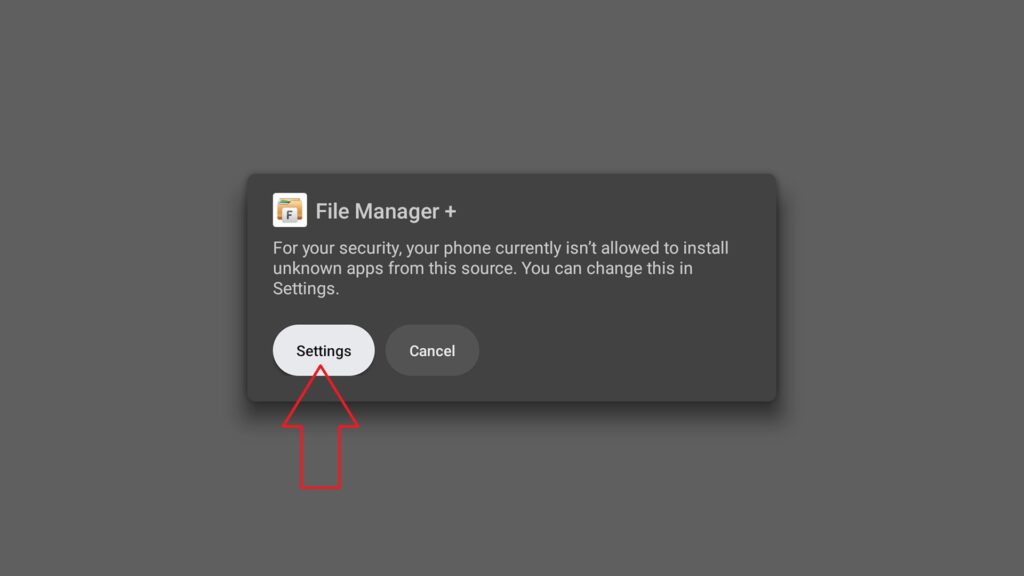
File Manager App – Step 3
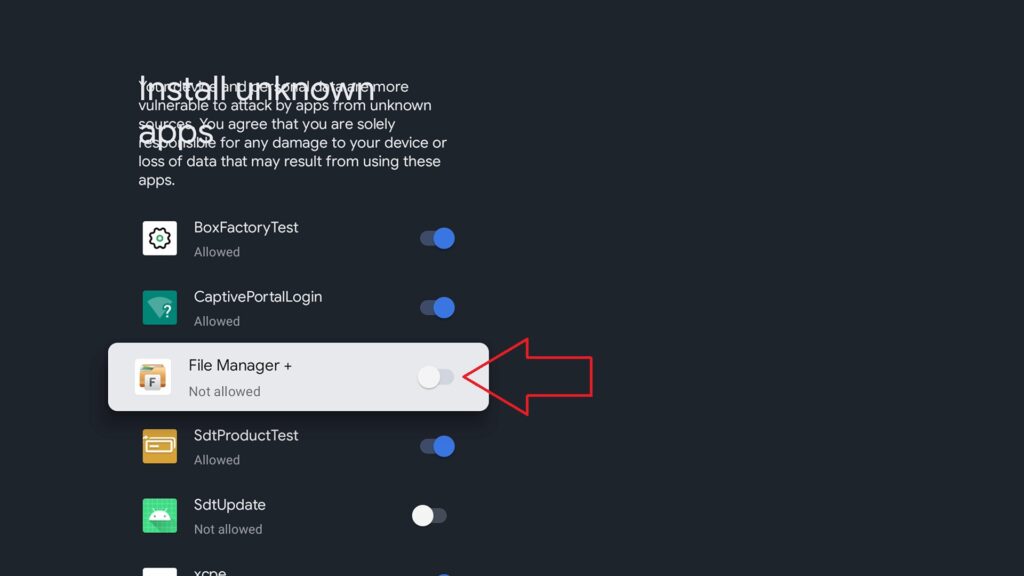
File Manager App – Step 4

File Manager App – Step 5
Once installed, you can now choose the LED Control.apk file and it should install without any more permission requirements.
Once this has finished installing, you can press the Home button on your remote to return to the home screen. On the App shortcut you will see the LED Control app icon, select this.
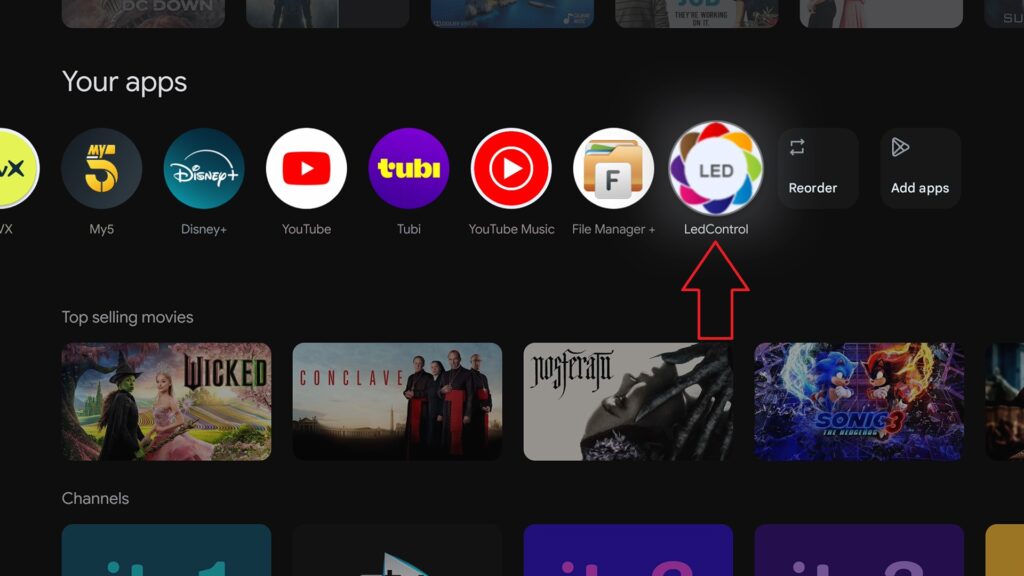
Home Screen – LED Control
The LED Control app will now load and show the following on screen.
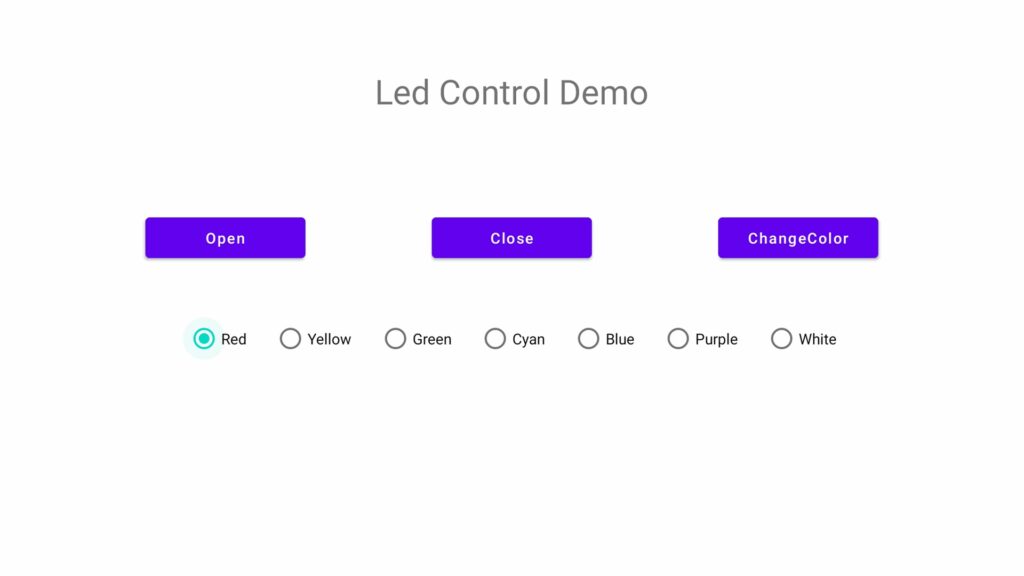
RockTek GX1 LED – LED Control App
The Open and Close options will switch On or Off the LED. You can also choose any colour from the options and then choose Change Colour and the LED will switch to that colour.
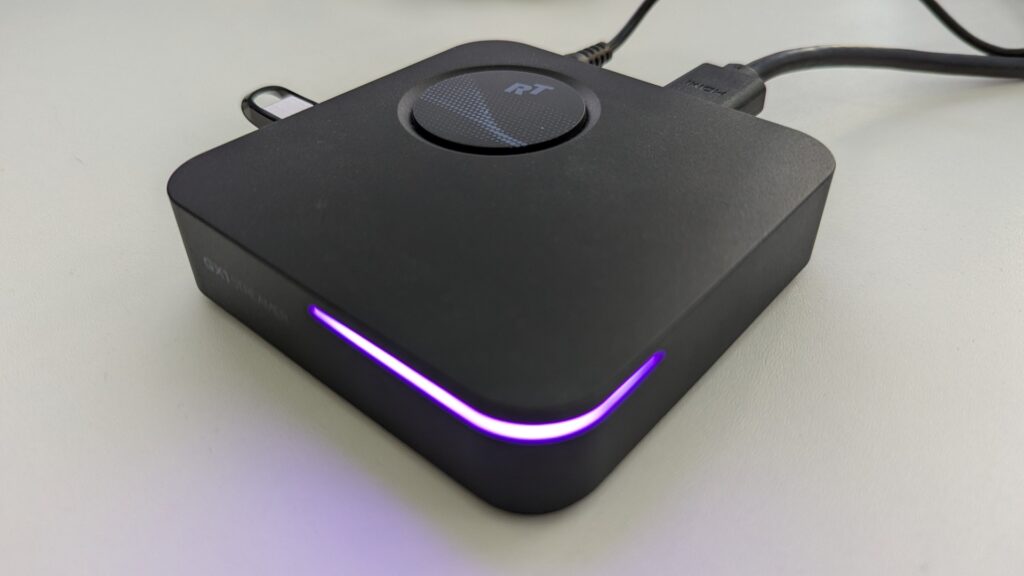
RockTek GX1 now with Purple LED
Enjoy!