The Problem: Unexpected System Instability
A significant issue has emerged for users attempting to install or run the Windows 11 version 24H2 update, manifesting as disruptive Blue Screen of Death (BSOD) errors. These system crashes appear specifically linked to certain 2TB NVMe Solid State Drives (SSDs) from Western Digital (WD) and its subsidiary, SanDisk. Reports highlight systems becoming unstable, frequently crashing, or getting stuck in boot loops, making them difficult to use. This problem could potentially affect users across various systems, including high-performance laptops or specialized GPD handheld gaming PCs like the GPD WIN MAX 2 2025 if equipped with one of the specific drives.
Fortunately, Western Digital has acknowledged the problem and pinpointed the cause. A corrective firmware update is now available for the specific SSD models involved, designed to resolve the incompatibility with Windows 11 24H2. WD strongly advises users whose systems contain the affected SSDs (detailed below) to apply this update as soon as possible. The timing suggests that changes within the Windows 11 24H2 update exposed or triggered a pre-existing issue in the SSD firmware. The severity, ranging from occasional BSODs to continuous crash cycles, highlights the need for immediate action.

GPD WIN MAX 2 2025 Gaming Handheld PC
Applying this firmware update is not just a fix for currently unstable systems; it’s also a crucial preventative step. Users with potentially affected SSDs, perhaps in devices like the GPD Duo, should consider updating the firmware before upgrading to Windows 11 24H2 to avoid encountering these BSODs. There are indications Microsoft might block the 24H2 update on systems with the older, problematic firmware, further emphasizing the update’s importance. This guide will help you identify if your drive is affected, understand the technical reason, and walk you through the update process safely.
Identifying the Issue: Symptoms and Affected Models
The most prominent sign of this problem is the appearance of frequent BSOD crashes following the installation or attempted installation of the Windows 11 24H2 update. These crashes might happen during regular use, amidst the update procedure, or soon after booting the system.
Specific error messages often accompany these BSODs, with “CRITICAL_PROCESS_DIED” being common, and “KERNEL_DATA_INPAGE_ERROR” appearing occasionally. Checking the Windows Event Viewer (System log) may also reveal recurring “stornvme” errors (Event ID 11), often mentioning controller errors on “\Device\RaidPort1” or “\Device\RaidPort2”. These specific indicators strongly point towards the firmware incompatibility issue, potentially impacting users of various devices, including compact systems like the GPD Pocket 4.

GPD Pocket 4 Mini Laptop
It’s vital to understand that this issue is confirmed only for specific 2TB capacity models within certain WD and SanDisk NVMe SSD product lines. Drives from the same product lines but with different capacities (like 1TB or 4TB) and other WD/SanDisk SSD models (including all WD SATA SSDs) are reportedly not affected by this particular Windows 11 24H2 HMB-related firmware problem.
The table below lists the known affected 2TB models and the required updated firmware version for each:
Table 1: Affected WD and SanDisk 2TB NVMe SSD Models Requiring Update
| MODEL NAME | MODEL NUMBER | REQUIRED UPDATE FIRMWARE VERSION |
|---|---|---|
| WD_BLACK SN770 NVMe SSD | WDBBDL0020BNC, WD0E | 731130WD |
| WD_BLACK SN770M NVMe SSD | WDBDNH0020BBK, WD0G | 731130WD |
| WD Blue SN580 NVMe SSD | WDBWMY0020BBL, WD0E | 281050WD |
| WD Blue SN5000 NVMe SSD | WDBS3F0020BNC, WD0E | 291020WD |
| SanDisk Extreme M.2 NVMe SSD | SDSSDX3N-2T00 | 731130WD |
You can usually find your SSD model in Windows using “System Information” or “Device Manager” (under Disk Drives). The model number is also printed on the SSD’s physical label. Compare your drive’s model and capacity against this table.
Technical Background: The Host Memory Buffer (HMB) Conflict
The instability stems from a conflict between how Windows 11 version 24H2 handles the Host Memory Buffer (HMB) feature and the original firmware on the affected 2TB WD/SanDisk SSDs.
HMB is a feature common in DRAM-less NVMe SSDs, which don’t have their own dedicated DRAM cache. It allows the SSD to use a small portion of the computer’s main RAM for caching essential data like mapping tables, boosting performance compared to drives with no cache mechanism.
Evidence suggests Windows 11 24H2 altered how it allocates RAM for HMB. While earlier Windows versions might have limited HMB allocation (potentially to 64MB ), version 24H2 seems to allocate a larger amount, possibly up to the size requested by the SSD firmware itself – around 200MB for these specific 2TB drives.
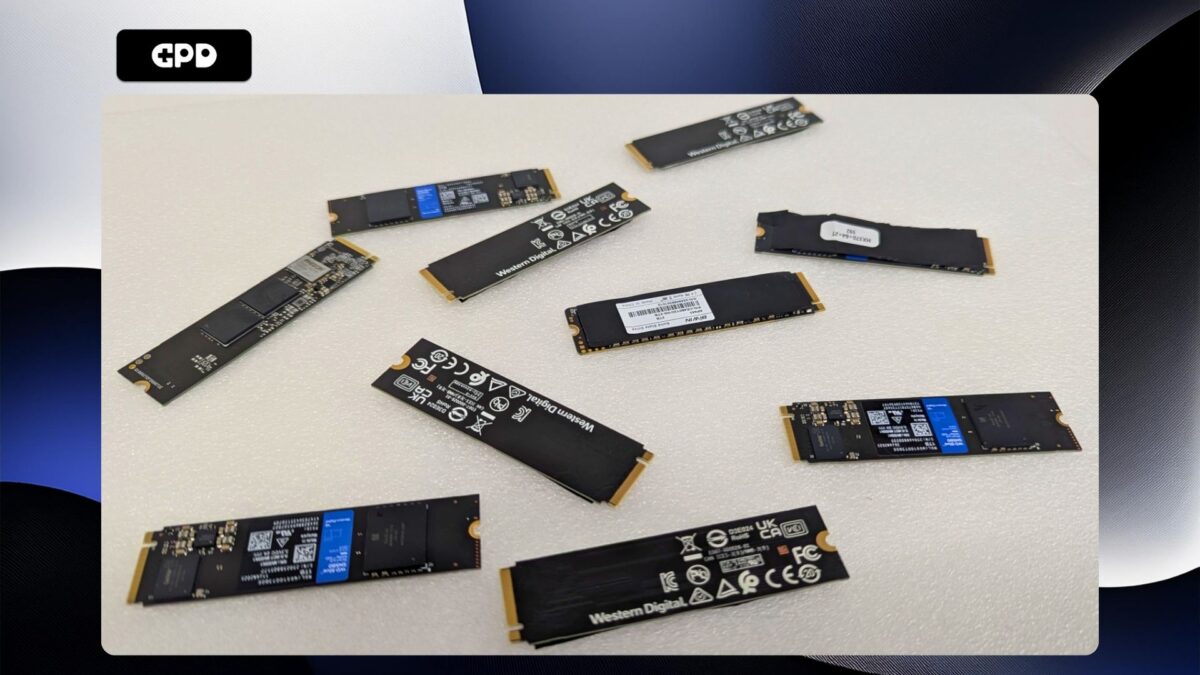
Some Western Digital SSDs
The problem is that the original firmware on these particular 2TB models was apparently unable to reliably manage this larger HMB allocation. When Windows 11 24H2 assigned the larger memory buffer, it caused errors within the SSD controller, leading to system freezes and the BSODs observed. This indicates a latent firmware flaw specific to these 2TB models, which only became apparent under the new conditions imposed by the 24H2 update. The fact that only these specific 2TB drives are affected reinforces this conclusion.
While some users found a temporary fix by editing the Windows Registry to force the older, smaller HMB allocation , this is not the official or recommended long-term solution and could potentially reduce SSD performance. Western Digital’s firmware update directly corrects the issue within the drive’s own software.
The Solution: Applying the Firmware Update
Updating the SSD firmware using Western Digital’s official software is the definitive fix. However, extreme caution and preparation are necessary. Follow these steps carefully:
Step 1: ABSOLUTELY CRITICAL – Back Up Your Data!
This cannot be stressed enough. Before you do anything else, back up every important file from the affected WD or SanDisk SSD. Copy your data to a separate storage location – another internal drive, an external USB drive, network storage, or a trusted cloud service.
Firmware updates, while generally safe, carry an inherent risk. Power loss during the update, unexpected software errors, or other interruptions could corrupt the firmware, potentially making the SSD unusable and causing total data loss. Western Digital explicitly recommends backing up data beforehand due to this risk. While data loss isn’t expected, it’s a possibility, especially given past instances of firmware issues causing data problems on WD/SanDisk drives. Your backup is your only safeguard if something goes wrong. Do not skip this step.
Step 2: Obtain and Install Western Digital Dashboard
The required tool is the “Western Digital Dashboard” software. This utility monitors drive status and allows firmware updates.
Download here only from the official WD support site to avoid malware. This software has been discountinued by WD, but you can download the Sandisk version here.
Install the software (compatible with Windows 10 and 11 ). Note that macOS users cannot use this tool for the update. Linux users would need a Windows environment or must resort to complex, unsupported command-line methods.
Step 3: VITAL REQUIREMENT – Internal Drive Installation
This is non-negotiable for the update process. The affected SSD must be installed directly inside your computer. It needs to be connected to an M.2 slot on the motherboard or via an appropriate internal PCIe adapter. This applies whether it’s in a desktop, a standard laptop, or a specialized device like the GPD WIN MAX 2 2025 or GPD Pocket 4. The WD Dashboard software will almost certainly fail to detect the SSD correctly or perform the update if the drive is connected via an external USB enclosure or adapter.
Step 4: Execute the Firmware Update via WD Dashboard
With your data safely backed up, the Dashboard installed, and the SSD confirmed as internally connected, proceed with the update:
- Open the Western Digital Dashboard application.
- Select the Drive: Ensure the correct affected 2TB SSD is chosen from the list or dropdown menu.
- Go to Tools: Click the “Tools” tab or section.
- Select Firmware Update: Find the “Firmware Update” option.
- Check for Updates: Click the “Check for Updates” button. The software will contact WD servers.
- Start Update: If a new firmware (matching the version in Table 1) is detected, click “UPDATE FIRMWARE”.
- Follow Instructions: Pay close attention to on-screen prompts. Crucially, do not interrupt the process (e.g., don’t shut down, close the app, or disconnect power).
- Restart Required: After the update finishes successfully, the Dashboard will likely ask you to shut down or restart your PC. This is essential for the new firmware to activate. Comply with the prompt.
- Verify (Optional): After restarting, you can reopen the Dashboard, select the drive, and check the “Firmware Version” on the status page. It should now reflect the updated version from Table 1.
Post-Update: Next Steps and Support
After restarting with the updated firmware, the BSOD crashes specifically linked to the Windows 11 24H2 HMB issue should cease. Your system, whether it’s a desktop PC or a device like the GPD WIN 4 2025, should now be stable, allowing you to run or install Windows 11 24H2 without the related “CRITICAL_PROCESS_DIED” or “stornvme” errors.
However, if BSODs continue after you’ve confirmed the correct firmware is successfully installed, or if you encountered errors during the update itself, you need to take further action:
- If you are a GPD Store customer and the SSD was included with your device, please get in contact with our customer service here.
- Contact WD Support: Reach out to Western Digital’s official customer support. They can assist with troubleshooting persistent problems or update failures. You can find contact details on the WD support website (e.g., http://support.wd.com ). Have your SSD’s serial number and system details ready.
- Investigate Other Causes: Remember, BSODs can have many causes beyond this specific firmware issue. If the update fixed the HMB problem but crashes persist, investigate other potential culprits like conflicting drivers, faulty RAM, overheating, power supply problems, or other hardware issues. The firmware update only addresses the specific WD/SanDisk 2TB HMB incompatibility.
Final Thoughts: Update for Stability
Western Digital’s firmware release offers a direct solution to the severe BSOD problems plaguing users of specific 2TB WD and SanDisk NVMe SSDs on Windows 11 24H2. This issue, caused by an interaction between the OS’s updated HMB handling and a flaw in the drives’ original firmware, necessitated this fix to restore system usability.
Using the Western Digital Dashboard is the official method, but requires careful preparation. Backing up all critical data beforehand is non-negotiable due to the small but real risk of data loss during firmware flashing. Equally important is ensuring the SSD is installed internally, as USB adapters are incompatible with the update process via the Dashboard.
By diligently following the steps – backup, internal install, using the WD Dashboard, and applying the correct firmware – users can regain system stability and ensure compatibility with Windows 11 24H2. Acting promptly is recommended for anyone with an identified affected drive.