If you do not wish to factory reset your GPD handheld gaming PC or mini laptop, you can alternatively do a complete reinstall of Windows. This how to reinstall Windows on your GPD guide will show in a step by step process.
What you will need
You will need a 16GB or larger USB stick to copy the Windows set up to. Download the correct Windows .ISO file for your device. If your device is not shown or download link is not working, please contact our customer service.
Please note: if you receive a notification that the file has been downloaded too many times please log in with your Google Account to Google Drive, and you will be able to download the file.
| DEVICE | DOWNLOAD |
| GPD WIN 5 (MAX+ 395 / MAX 385) | DOWNLOAD HERE |
| GPD WIN Mini 2023 & 2024 (7640U, 7840U, 8840U) | DOWNLOAD HERE |
| GPD WIN Mini 2025 (8840U / HX 365 / HX 370) | DOWNLOAD HERE |
| GPD WIN 4 2022 (6800U) | DOWNLOAD HERE |
| GPD WIN 4 2023 & 2024 (7640U, 7840U, 8840U) | DOWNLOAD HERE |
| GPD WIN 4 2025 (8840U / HX 370) | DOWNLOAD HERE |
| GPD WIN MAX 2 2022 (6800U) | DOWNLOAD HERE |
| GPD WIN MAX 2 2023 & 2024 (7640U, 7840U, 8840U) | DOWNLOAD HERE |
| GPD WIN MAX 2 2025 (8840U / HX 370) | DOWNLOAD HERE |
| GPD DUO (HX 370) | DOWNLOAD HERE |
| GPD DUO (8840U) | DOWNLOAD HERE |
| GPD POCKET 3 (1195G7, 1125G4, 7505) | DOWNLOAD HERE |
| GPD POCKET 3 (N6000) | DOWNLOAD HERE |
| GPD POCKET 4 (8840U / HX 365 / HX 370) | DOWNLOAD HERE |
| GPD WIN 3 (1195G7) | DOWNLOAD HERE |
| GPD MICROPC 2 (N250/N300) | DOWNLOAD HERE |
You will also need Rufus to create the bootable USB stick. You can download it from here, or GPDs own version here.
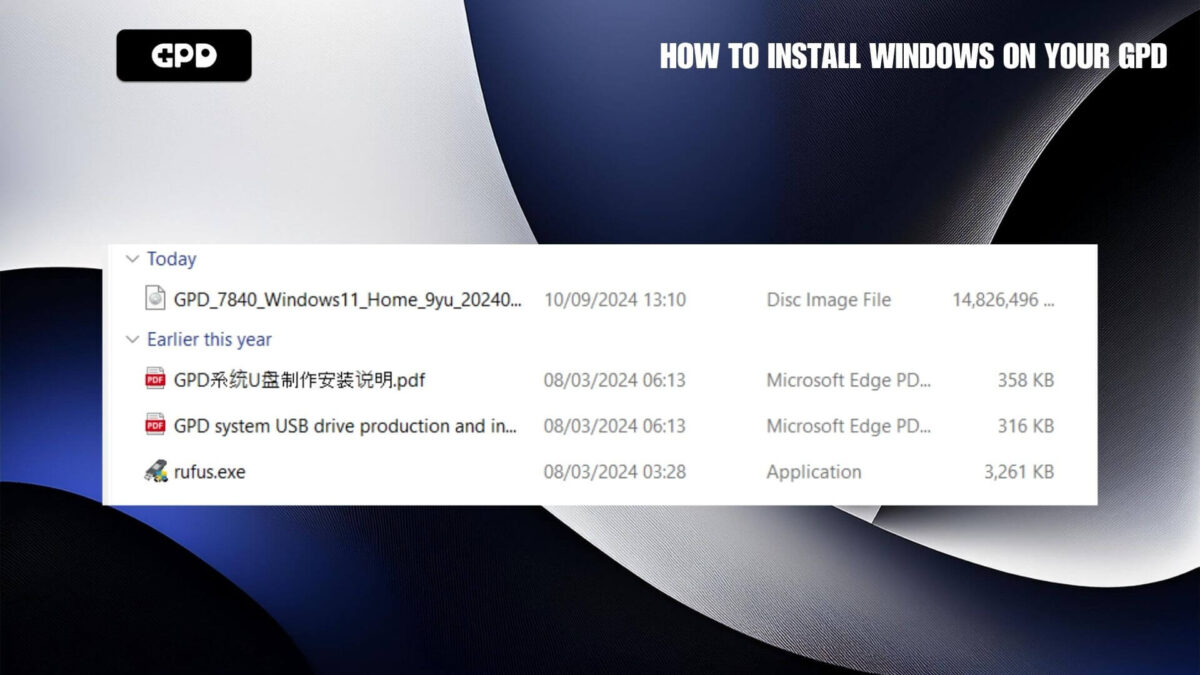
Files needed, Rufus and the correct Windows ISO
Prepare the USB stick
You should have Rufus and the Windows .ISO file for your GPD device. Load Rufus and if prompted click Yes to continue
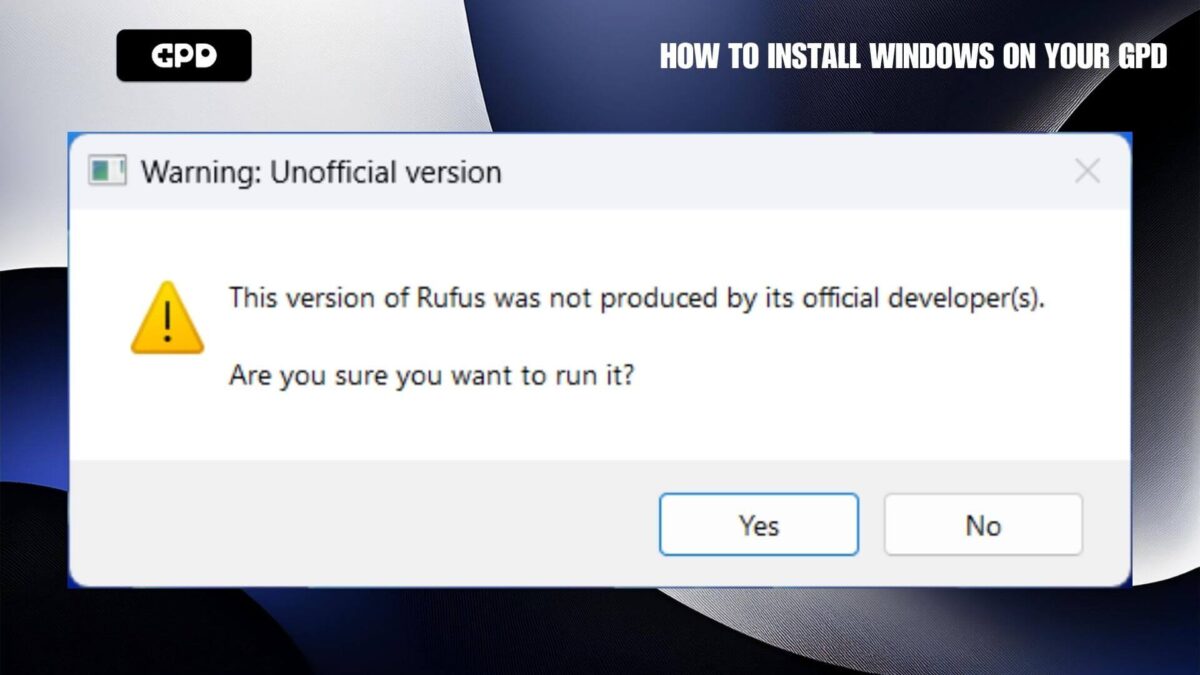
Running Rufus GPD version
On the device drop down box, select your USB stick drive. Double check to confirm it is the correct drive as the data will be wiped from it.
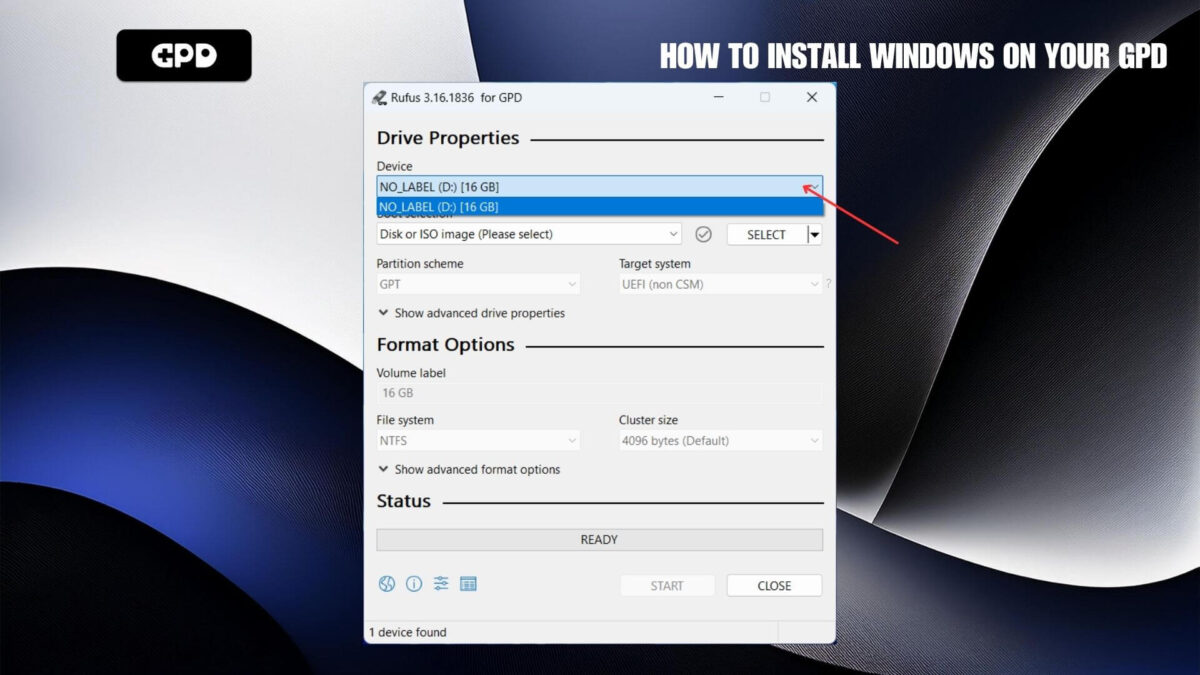
Choose your USB stick drive
Next, select the ISO file by clicking on the SELECT button.
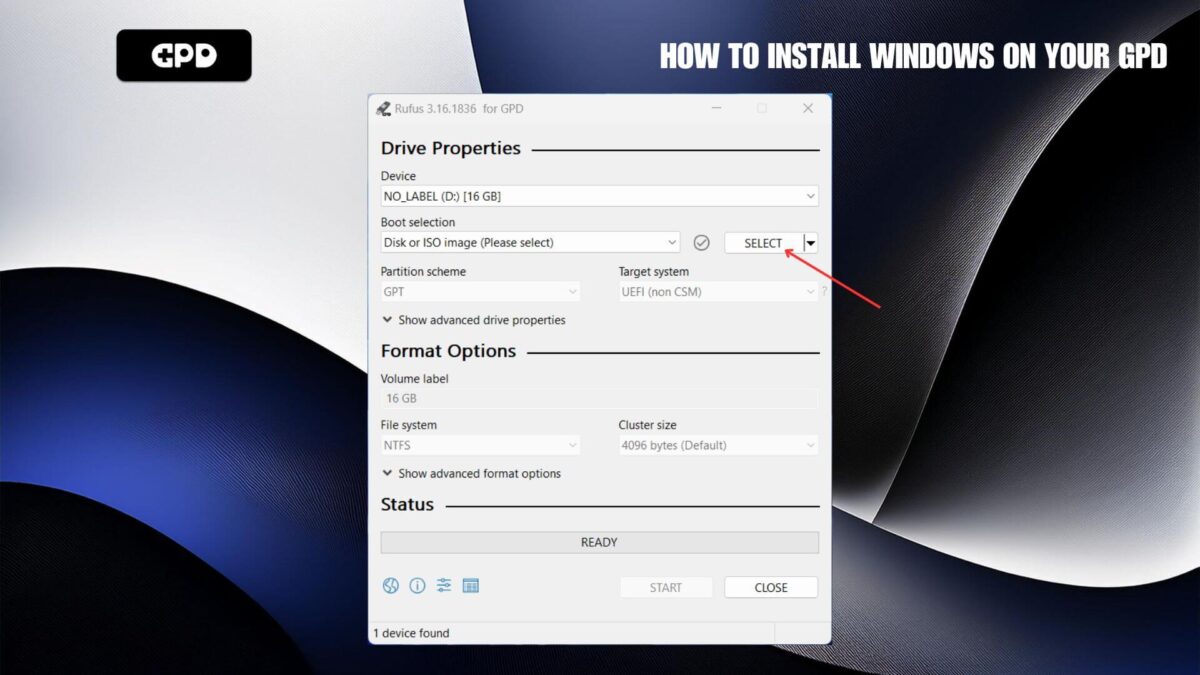
Press the SELECT button
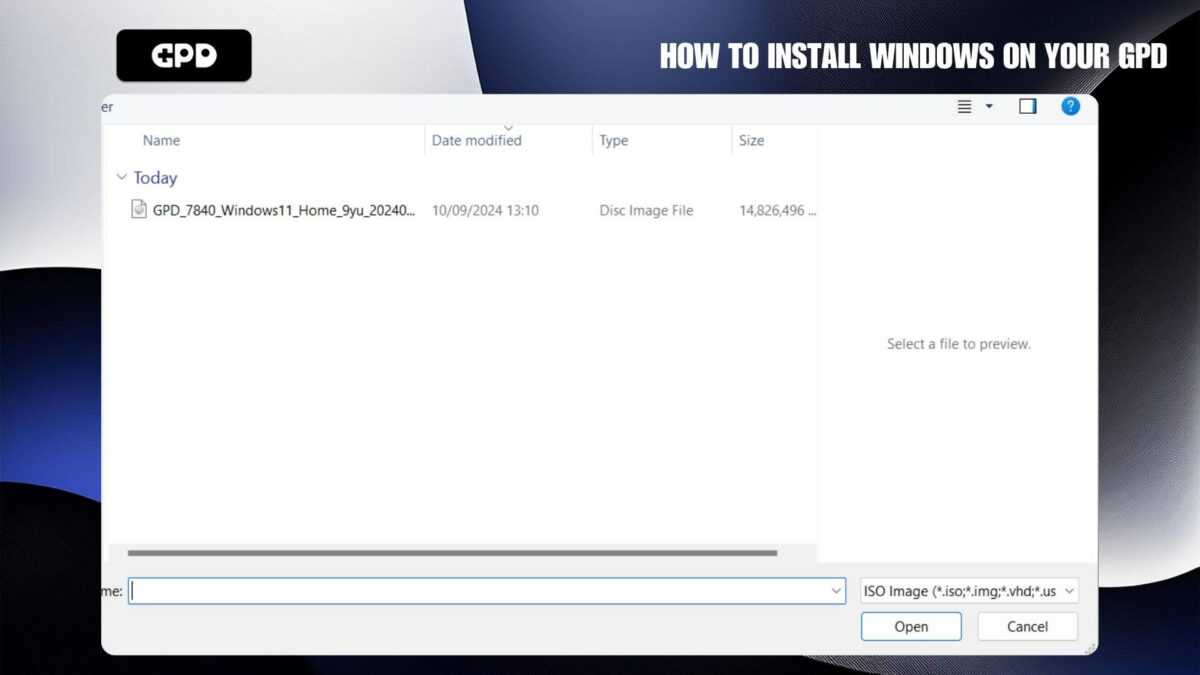
Select the ISO file
Double check you have selected the correct USB stick drive and then click on the START button.
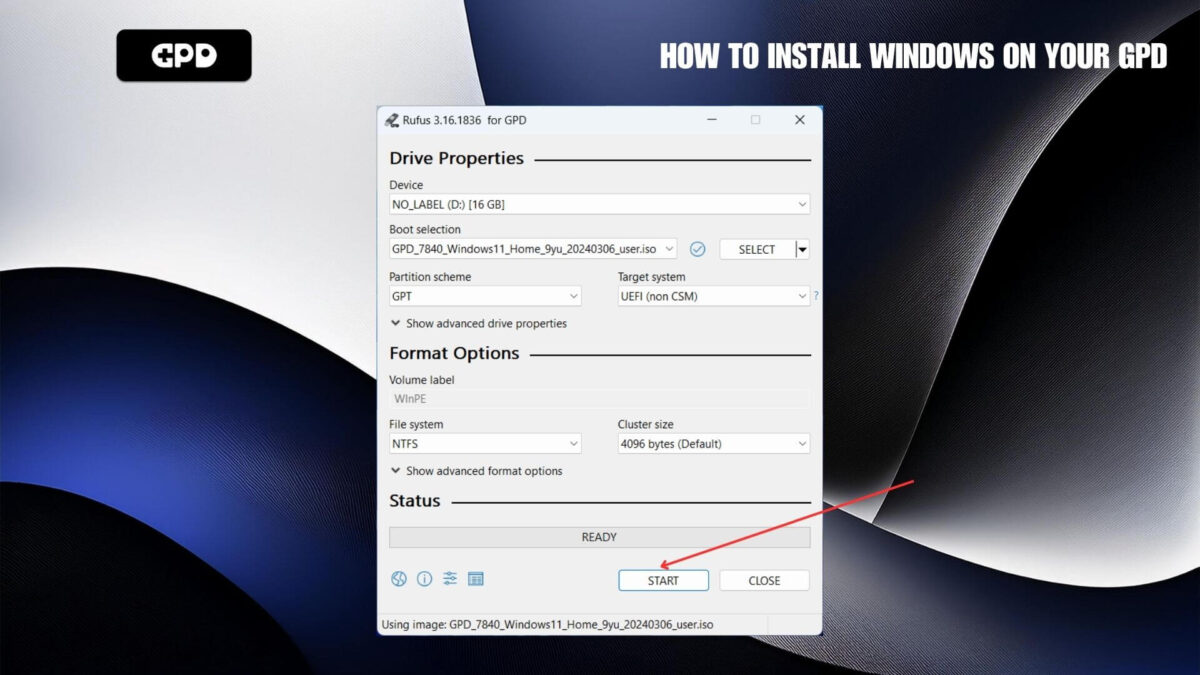
Press START when ready to proceed
And if you sure everything is correct, press OK to begin the process
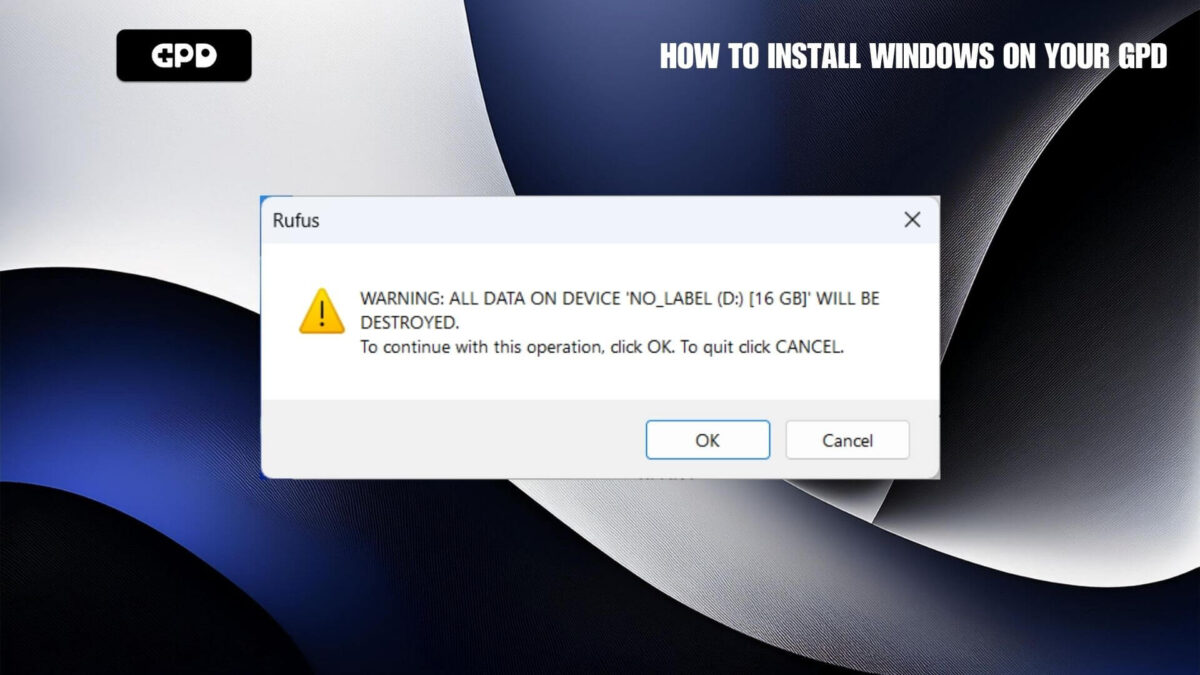
Click OK to proceed
The process will take around 20 minutes, faster or slower depending on the speed of your USB stick. Do NOT remove the USB stick until the process is completed.
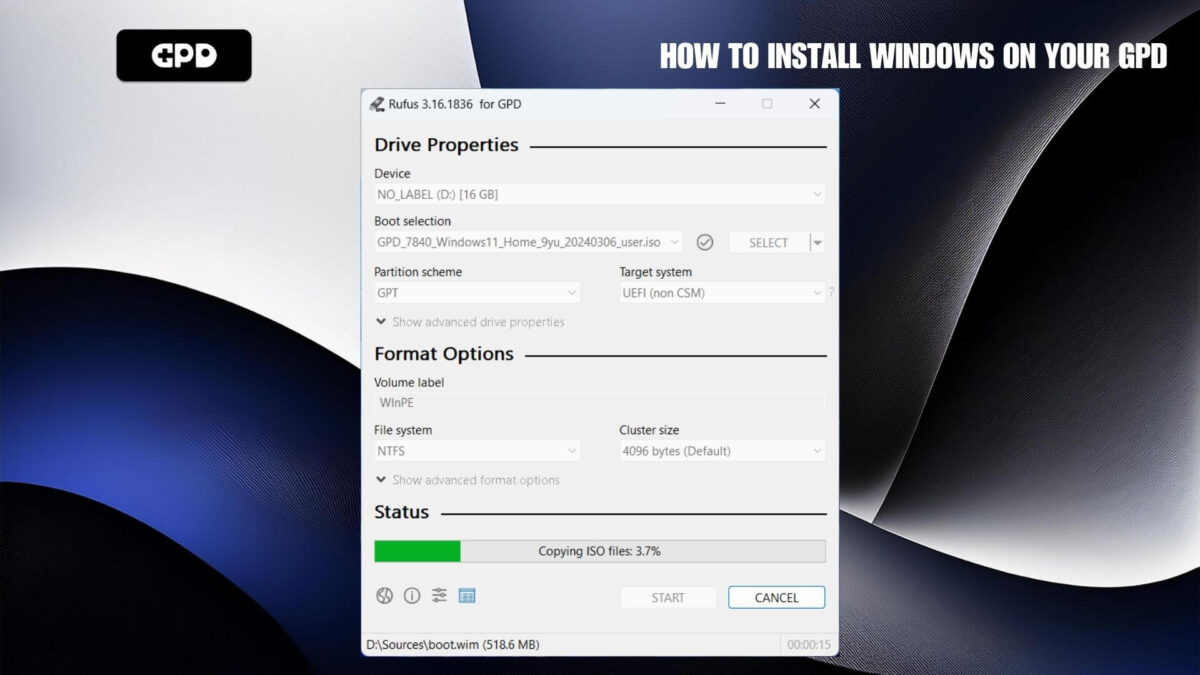
USB stick being prepared
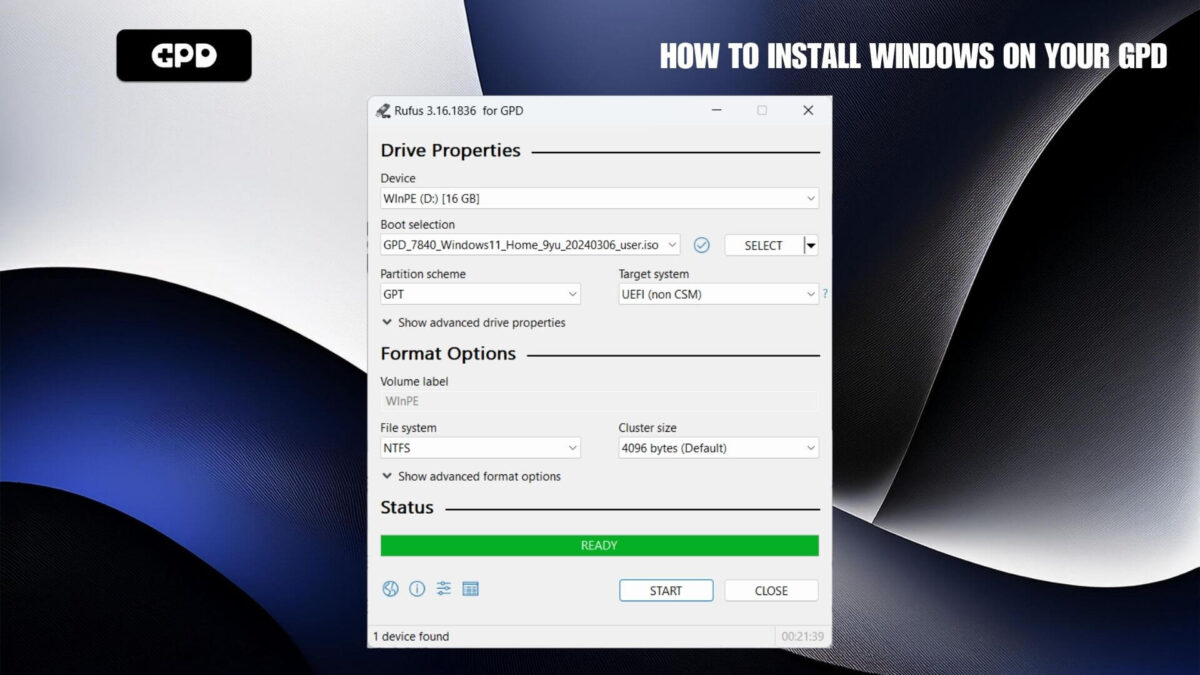
Preparation completed
When completed you can safely eject the USB stick.
Installing Windows
Insert the USB stick into a USB port on your GPD. Power on the device and press the F7 keyboard key repeatedly until the Boot Menu is displayed. Select the USB Stick from the menu and press Enter.
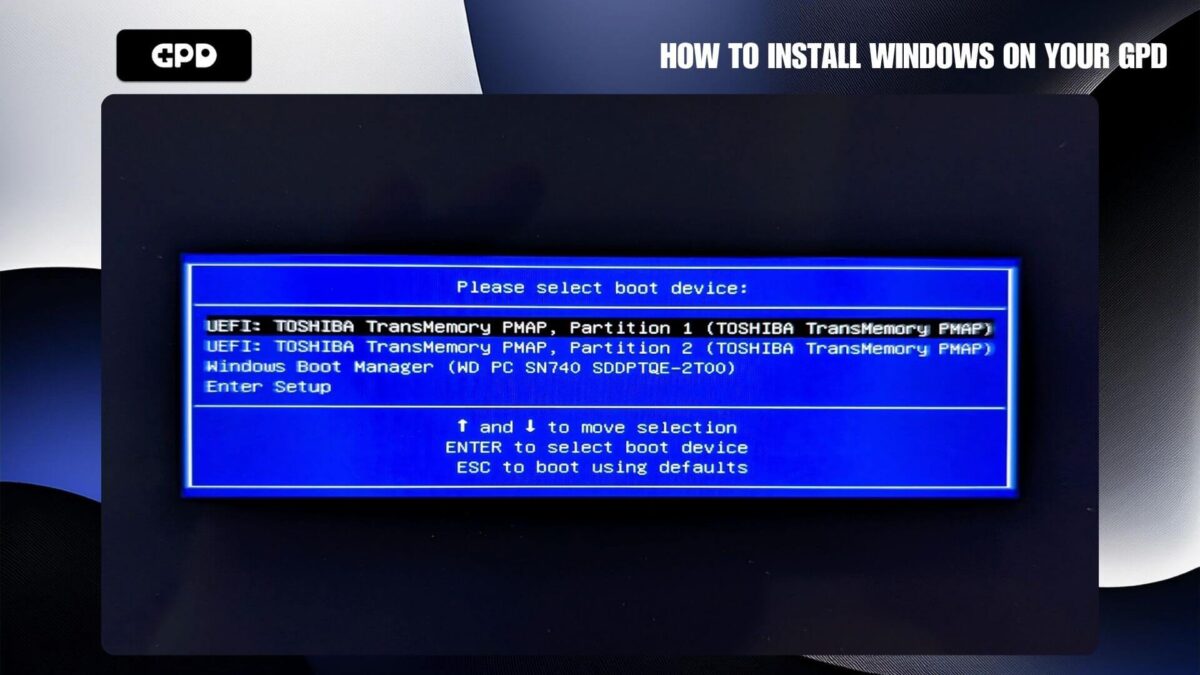
GPD Boot Menu
The device will reboot and load the software from the USB stick. This may take a few moments.
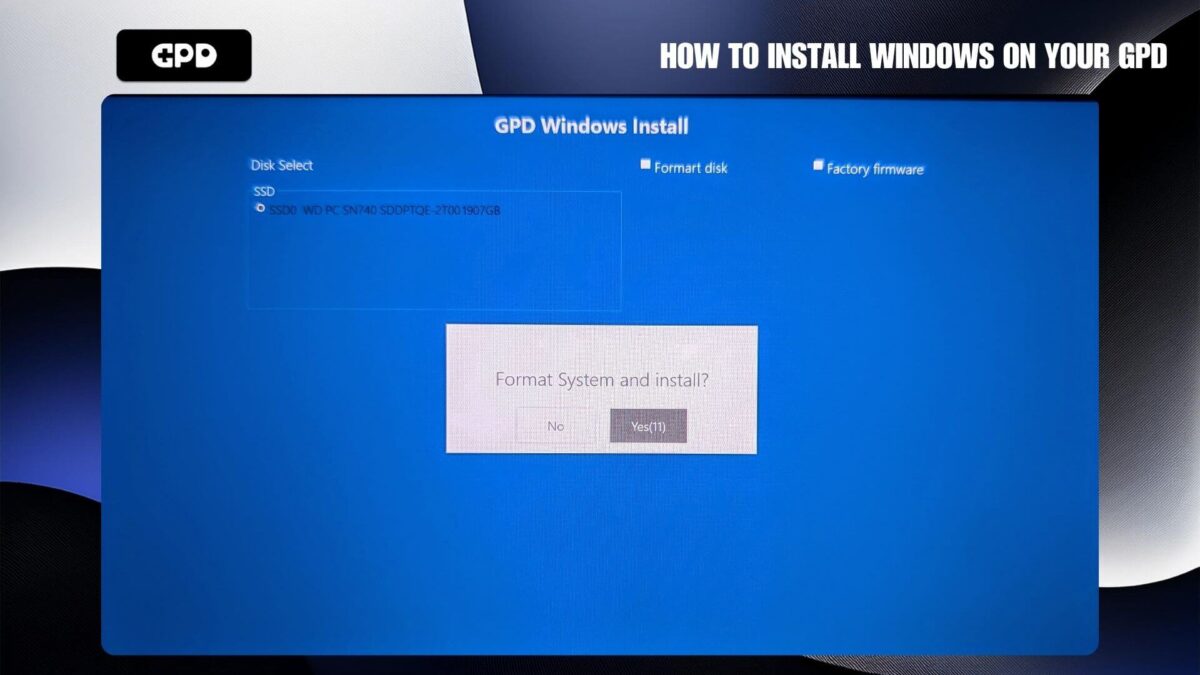
GPD Windows Install Menu
Tick the Format disk checkbox and enter the size of your devices storage size which is shown on the left side. You can choose the Factory firmware mode optionally. Next, press the START button to begin.
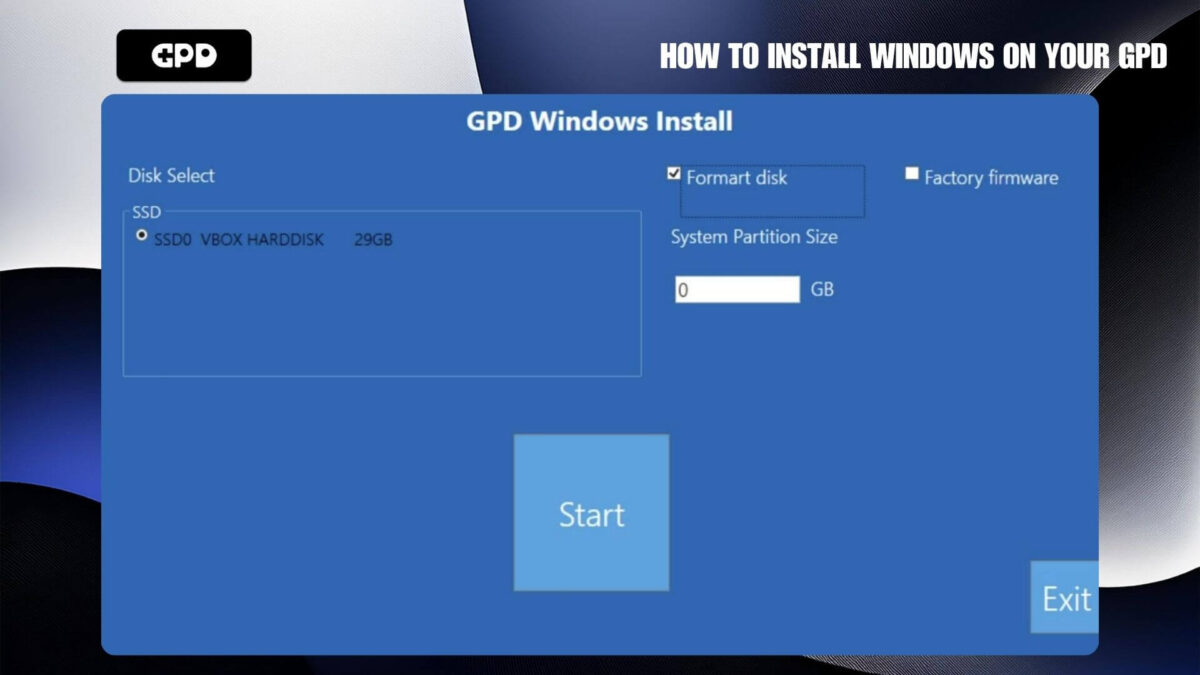
Choose Format Disk, enter the size and press the START button
It will then begin the process to install Windows, first copying the files then applying them. The process will take around 20 minutes, do not switch off the device or remove the USB stick until it has completed. Once completed, you will be notified that the device will reboot.
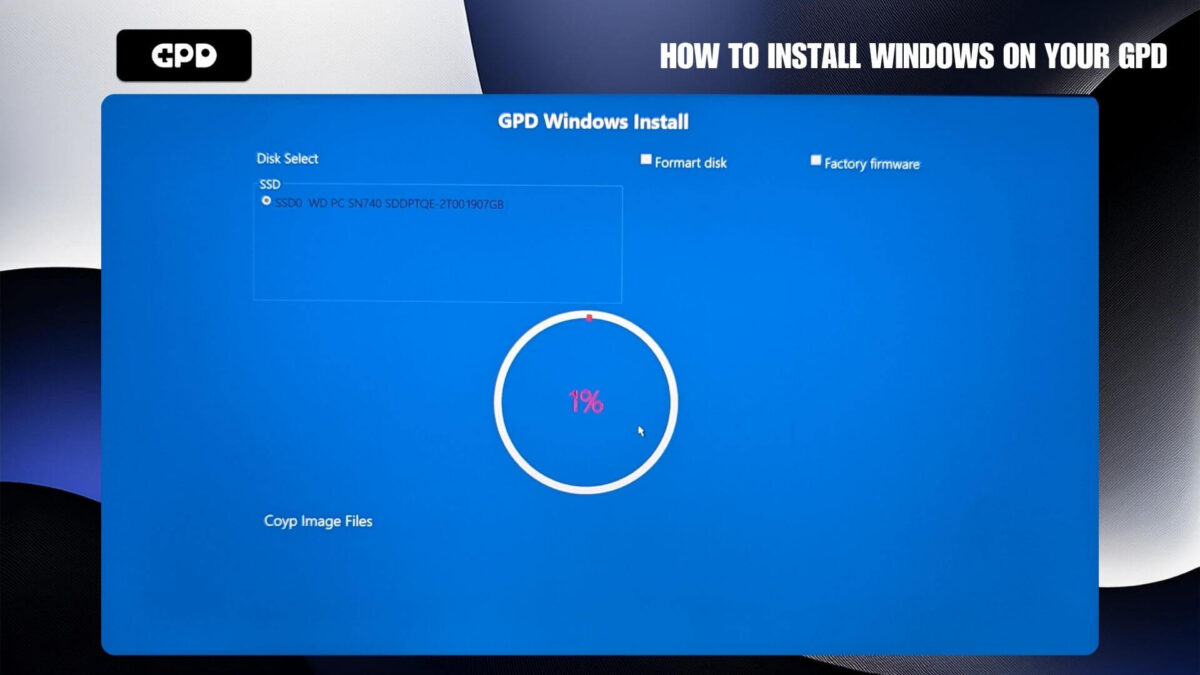
Copying the files
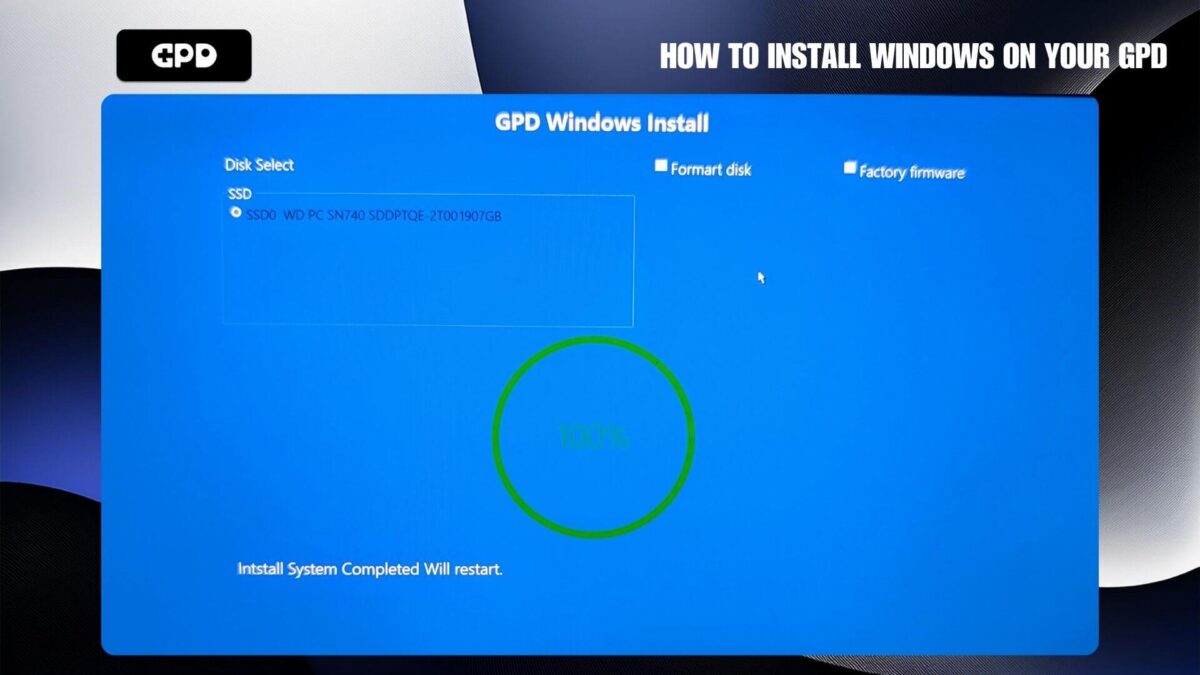
Device will restart once completed
The device may reboot once or twice, it will also take a little longer than usual to boot, this is fine and will return to normal boot speeds afterwards.
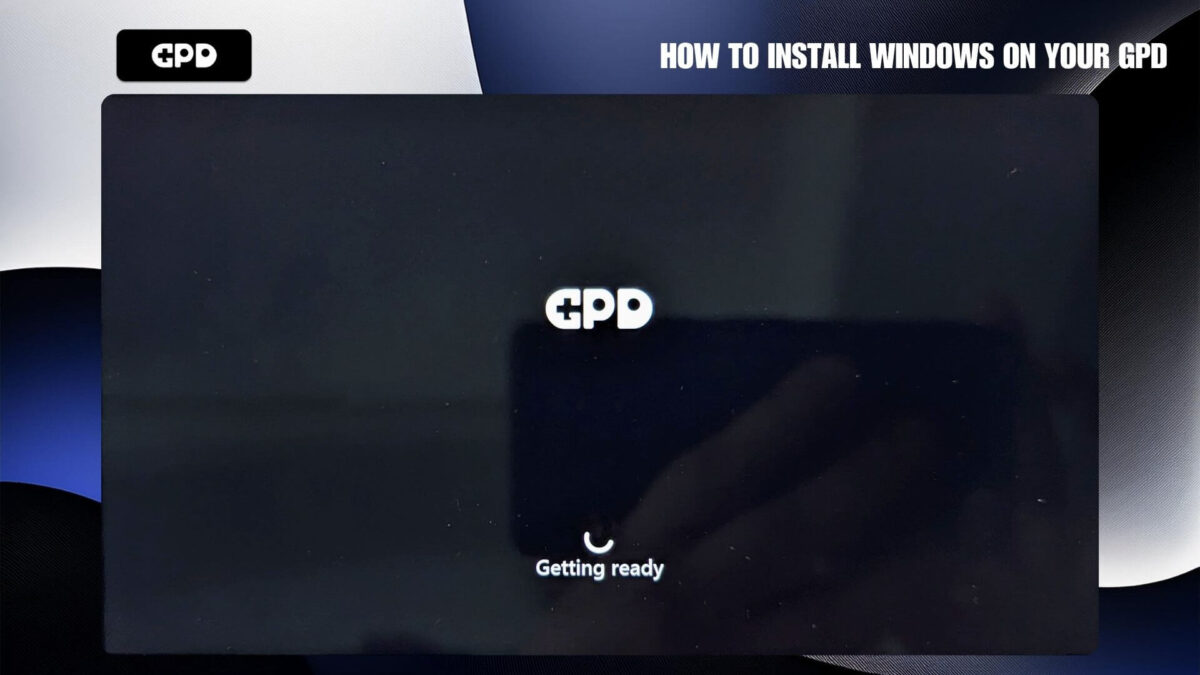
The first boot may take a bit longer to load than usual after rebooting
After a few moments, the Windows setup screen will display. Follow the prompts to set up Windows.
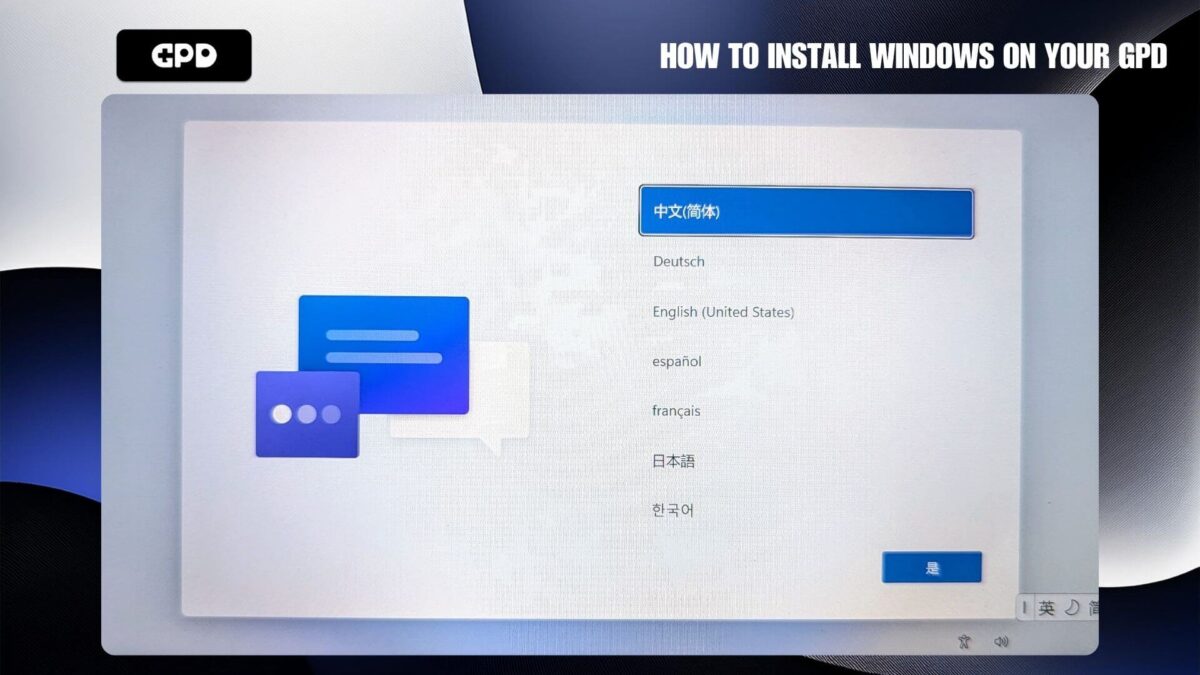
Windows ready to be set up