This guide will show how to change the RAM frequency on your GPD devices including GPD WIN 4 2025, GPD WIN MAX 2 2025, GPD WIN Mini 2025, GPD Pocket 4 and GPD Duo.
Please note, that some devices may allow you to change the RAM frequency above their suggested settings. We DO NOT recommend doing this as it may cause instability with random reboots, power offs and even more permanent damage.
GPD WIN 4 2025
Power on the GPD WIN 4 2025 and tap the DEL key on the keyboard until the BIOS Main page appears.
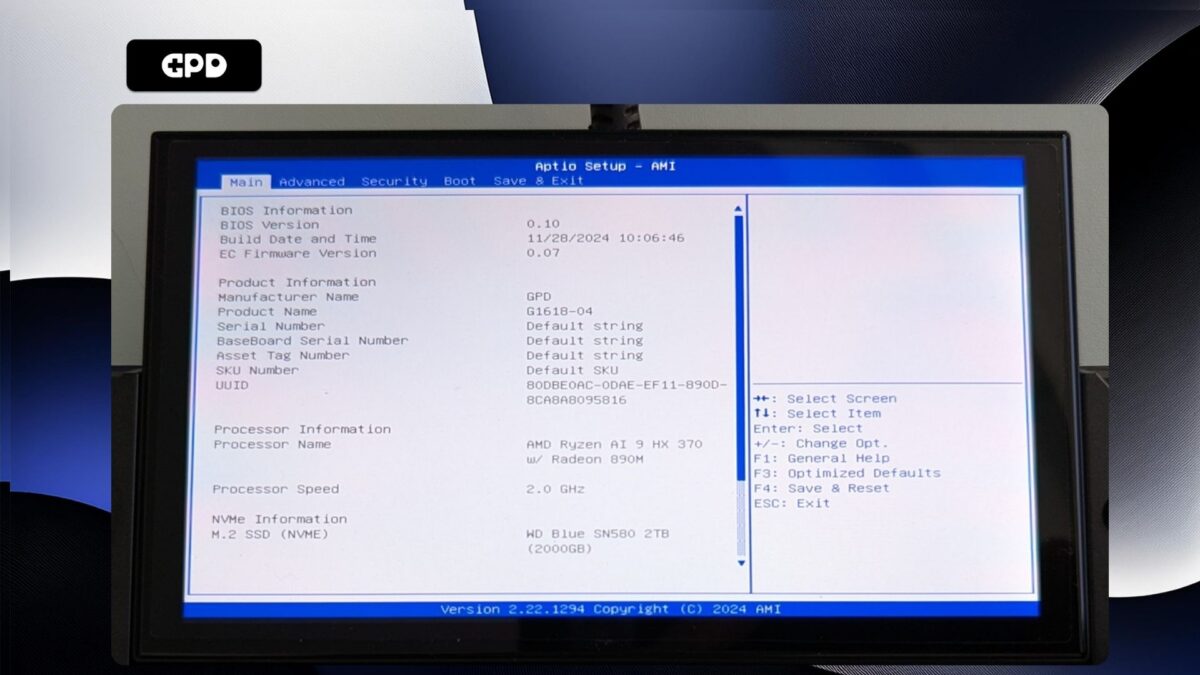
GPD WIN 4 2025 – BIOS Main
Press the Right arrow key to change the menu to Advanced. Then press the Down arrow key to highlight Memory Configuration and press the Enter key to select it.
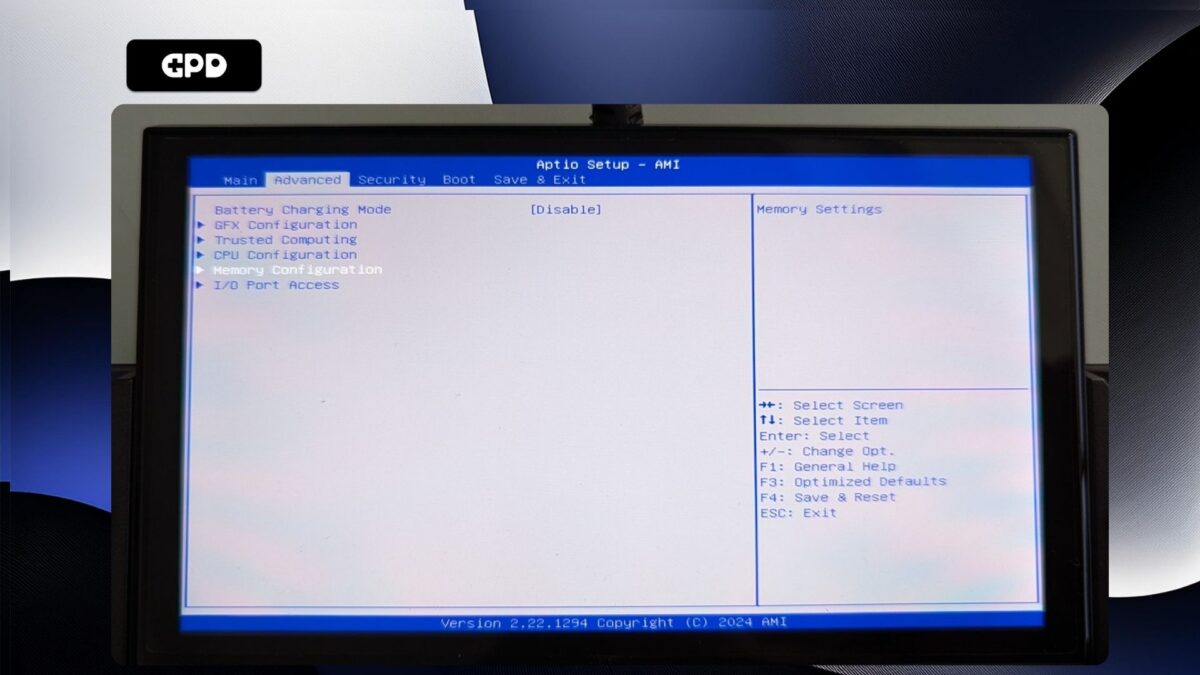
GPD WIN 4 2025 – Advanced
You will only be able to select Maximum Memory Data Clock Speed, press Enter to choose it. A menu with available clock speeds will display. Highlight the clock speed you want and press Enter to select it.
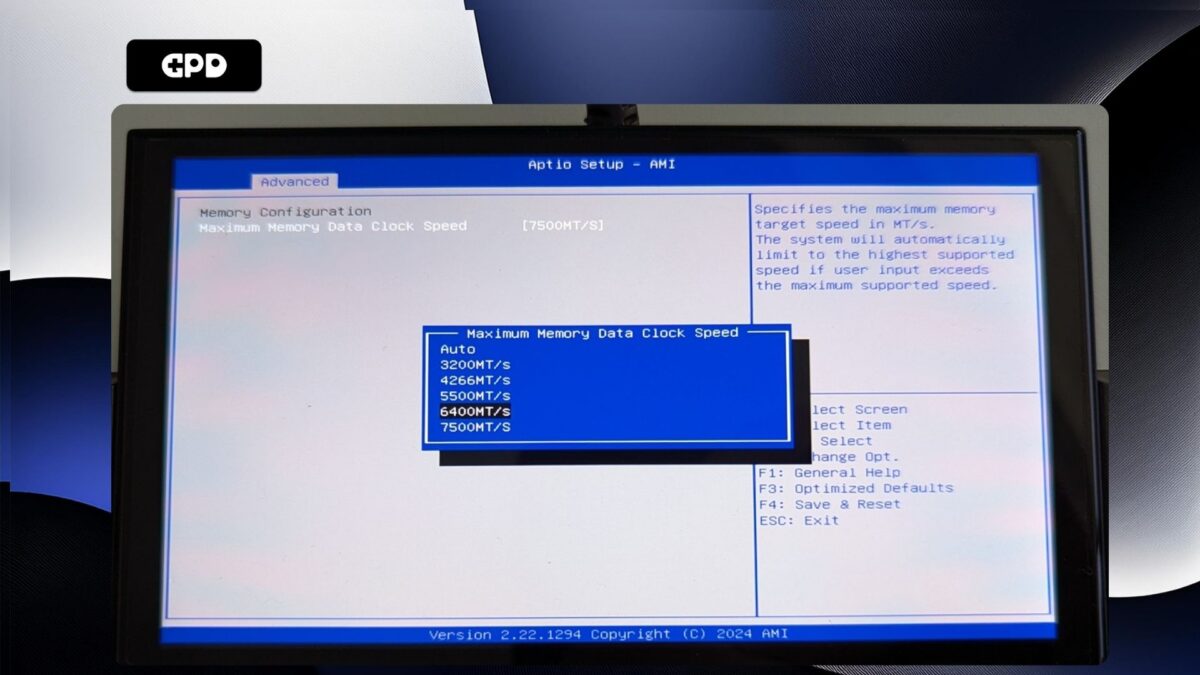
GPD WIN 4 2025 – Maximum Memory Data Clock Speed
Now press the ESC key until you return to the Advanced BIOS page. Press the Right arrow key to change to the Save & Exit menu. Highlight Save & Exit and then choose Yes to save the configuration and exit the BIOS.
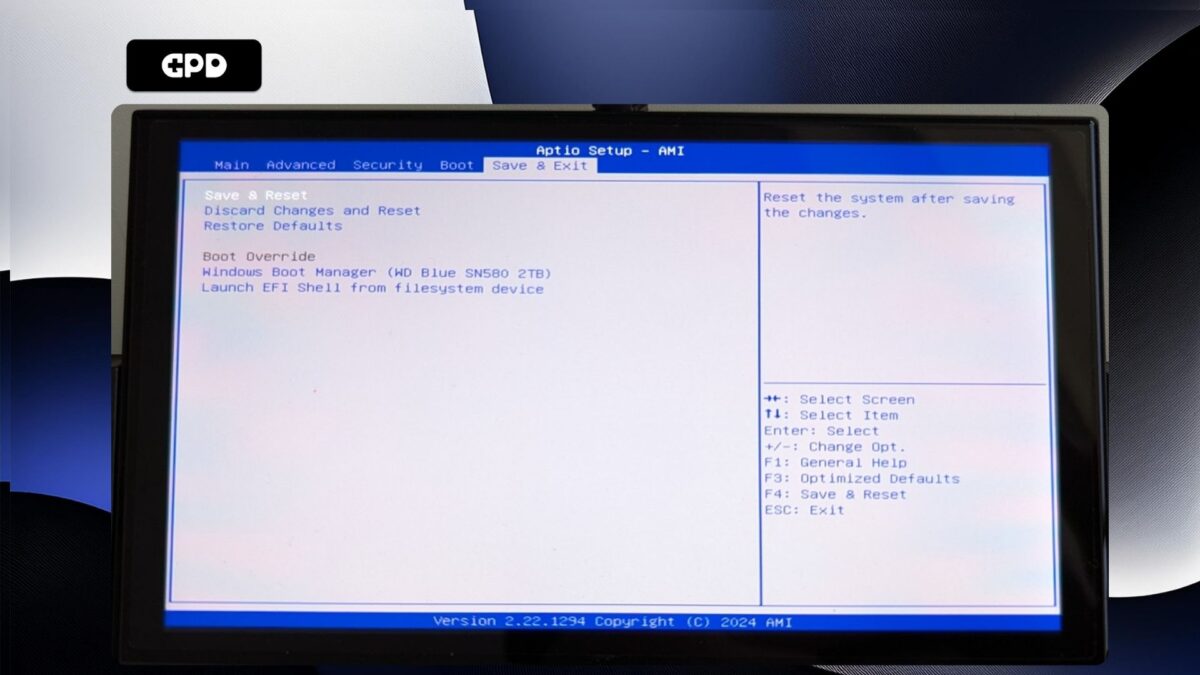
GPD WIN 4 2025 – Save and Reset
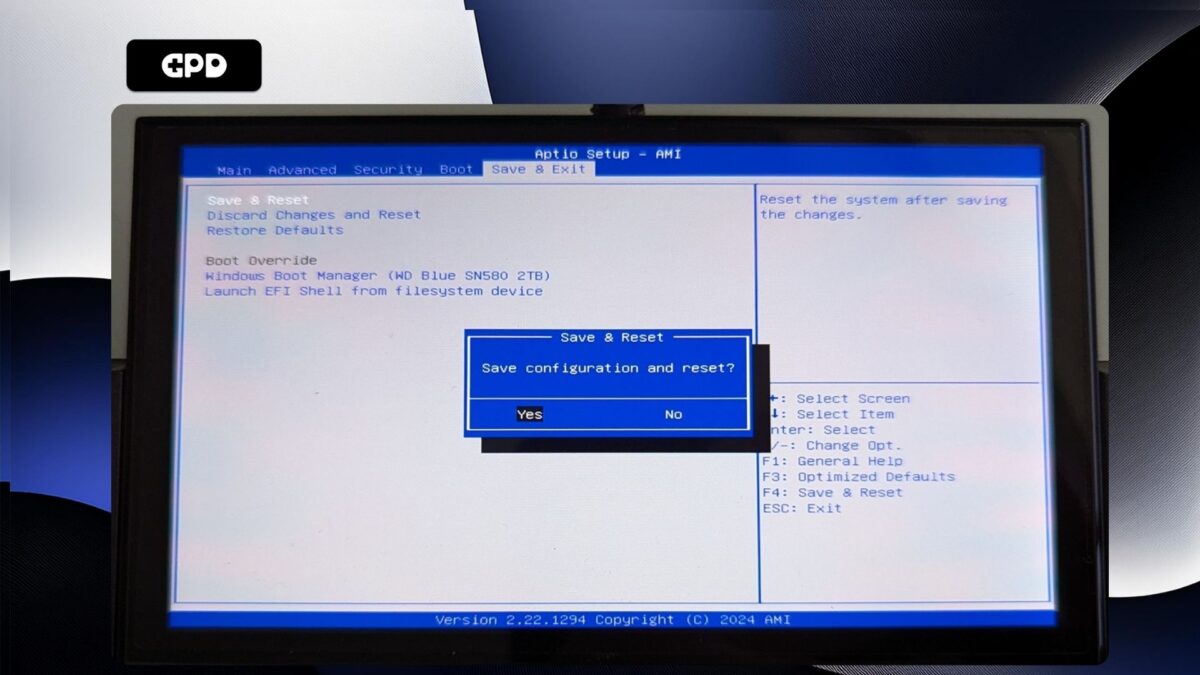
GPD WIN 4 2025 – Save and Reset Confirm
Your GPD WIN 4 2025 will now reboot. Occasionally it may take a little longer to boot the first time after making changes in the BIOS. Give it a few moments and you will be able to continue using your Pocket 4.
GPD Pocket 4
Power on the GPD Pocket 4 and tap the ESC key on the keyboard until the BIOS Main page appears.
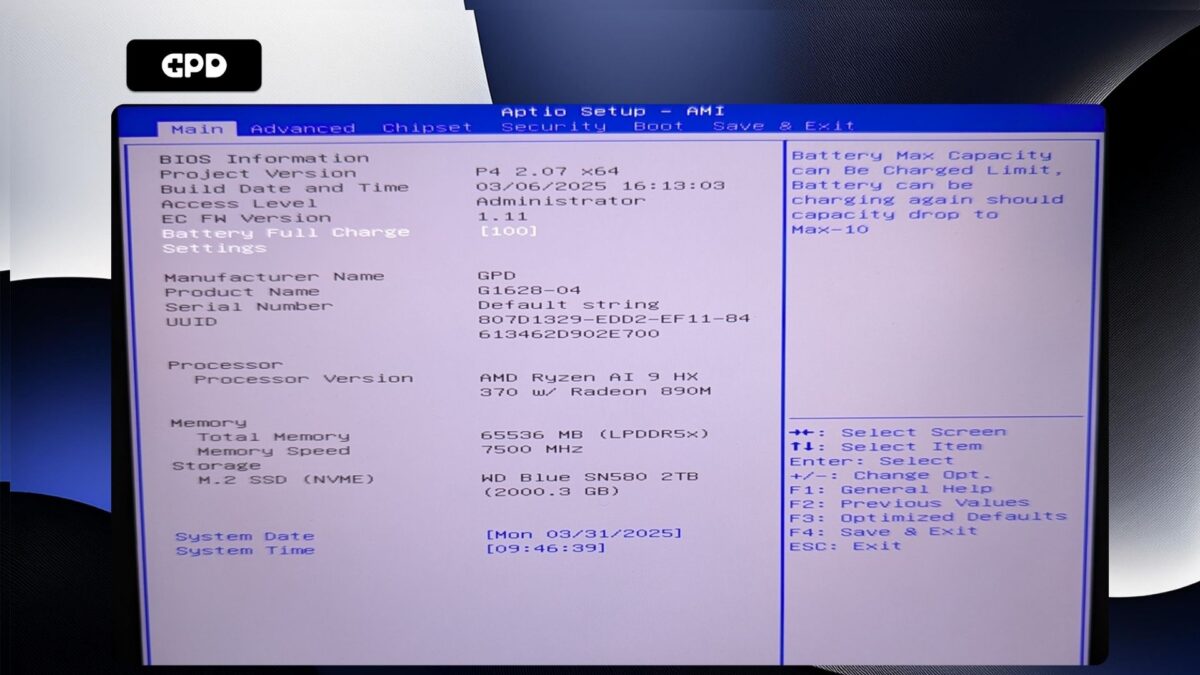
GPD Pocket 4 – BIOS Main
Press the Right arrow key to change the menu to Advanced. Then press the Down arrow key to highlight AMD CBS and press the Enter key to select it.
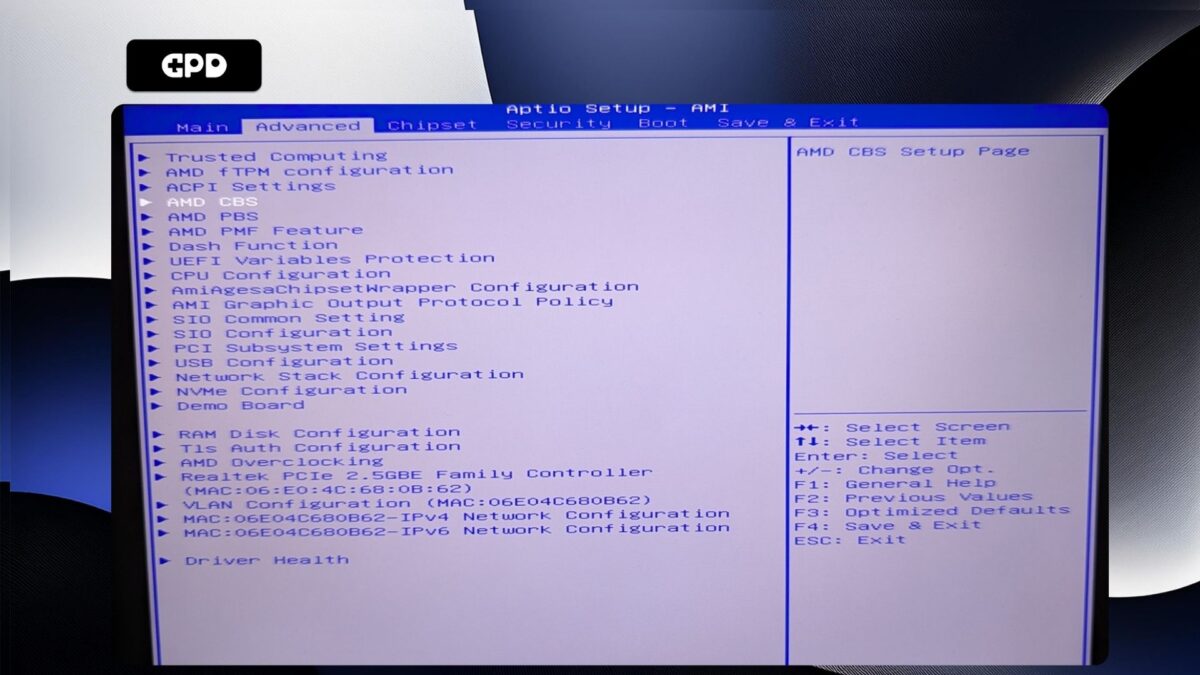
GPD Pocket 4 – Advanced Menu
Press the Down arrow key to highlight UMC Common Options and press Enter to select it.
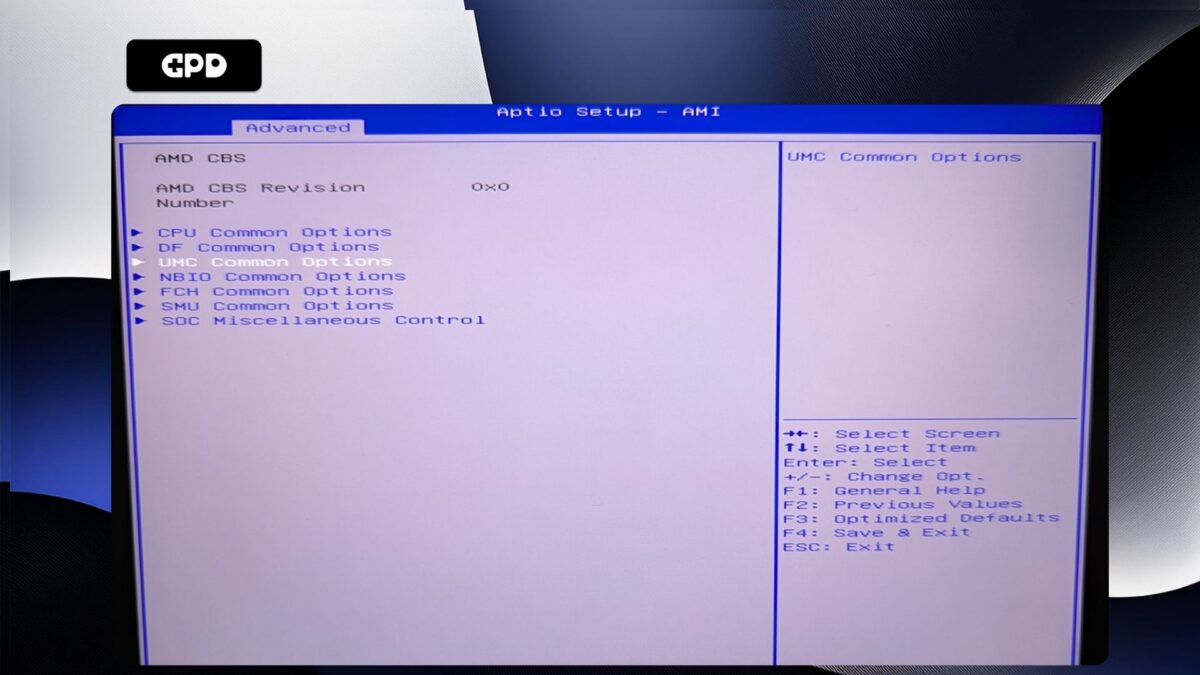
GPD Pocket 4 – AMD CBS Menu
Highlight LPDDR Timing Configuration and press Enter to select it.
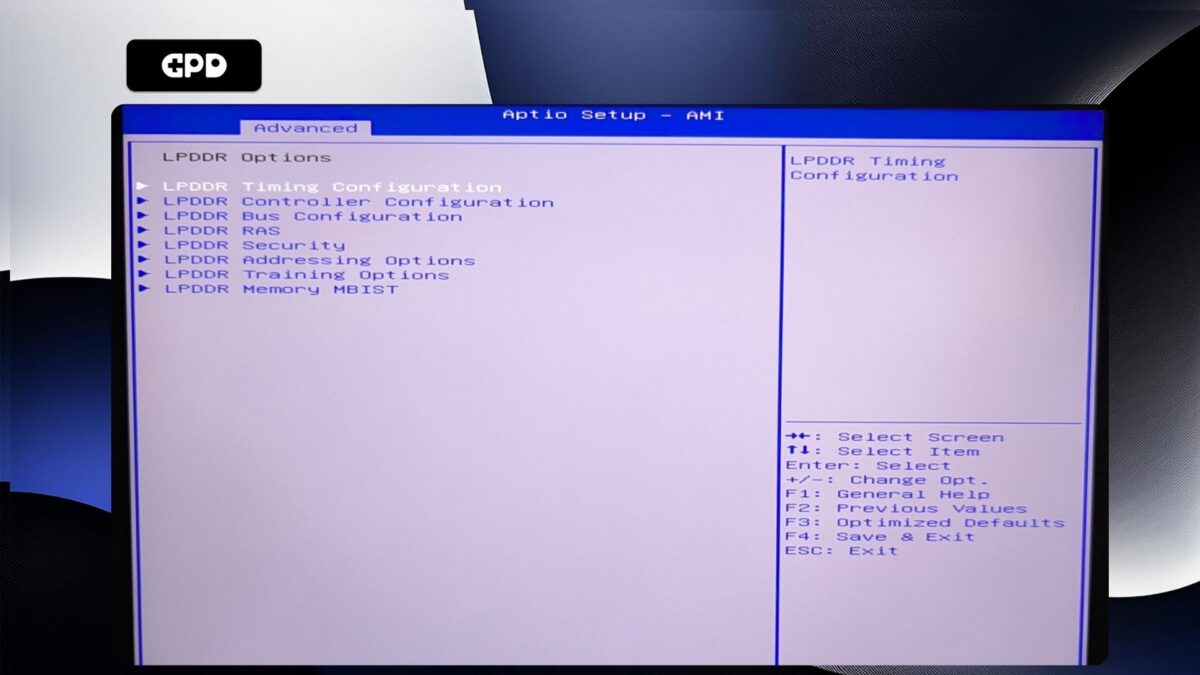
GPD Pocket 4 – LPDDR Options
You will now be presented with a warning screen. Please read through it and press the Down arrow key to scroll the text. Highlight Accept and press Enter to select it.
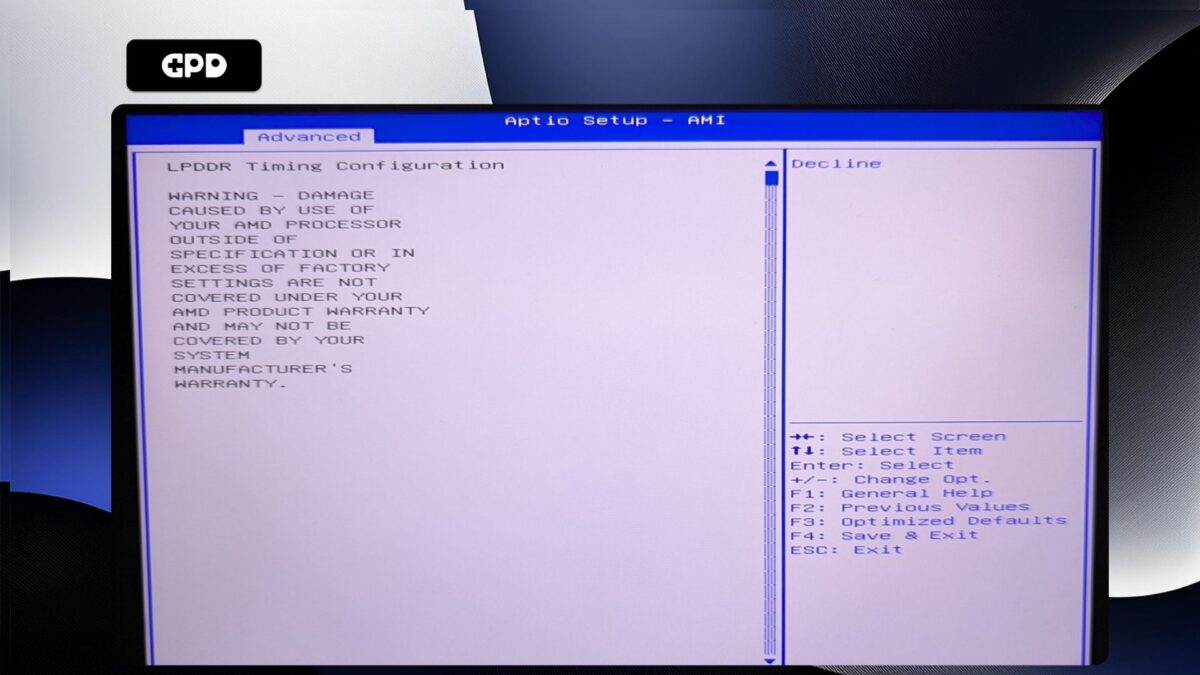
GPD Pocket 4 – LPDDR Timing Configuration 1
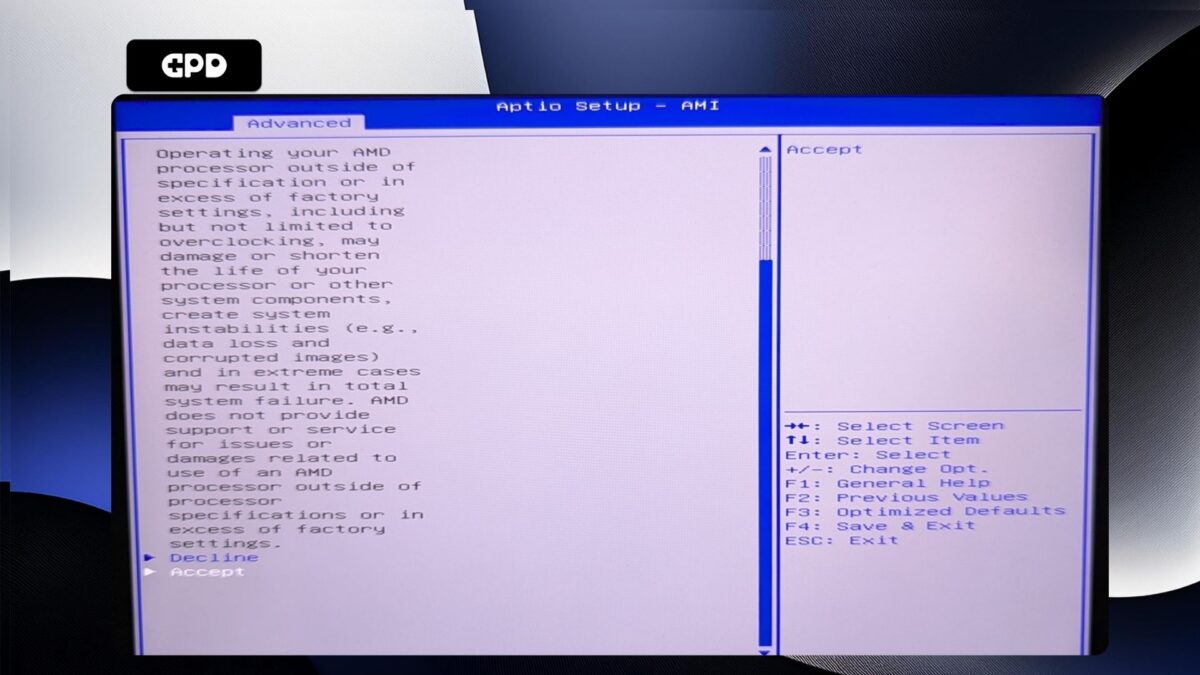
GPD Pocket 4 – LPDDR Timing Configuration 2
Highlight Active Memory Timing Settings and press Enter to select it. Then highlight Enabled and press Enter to select it.
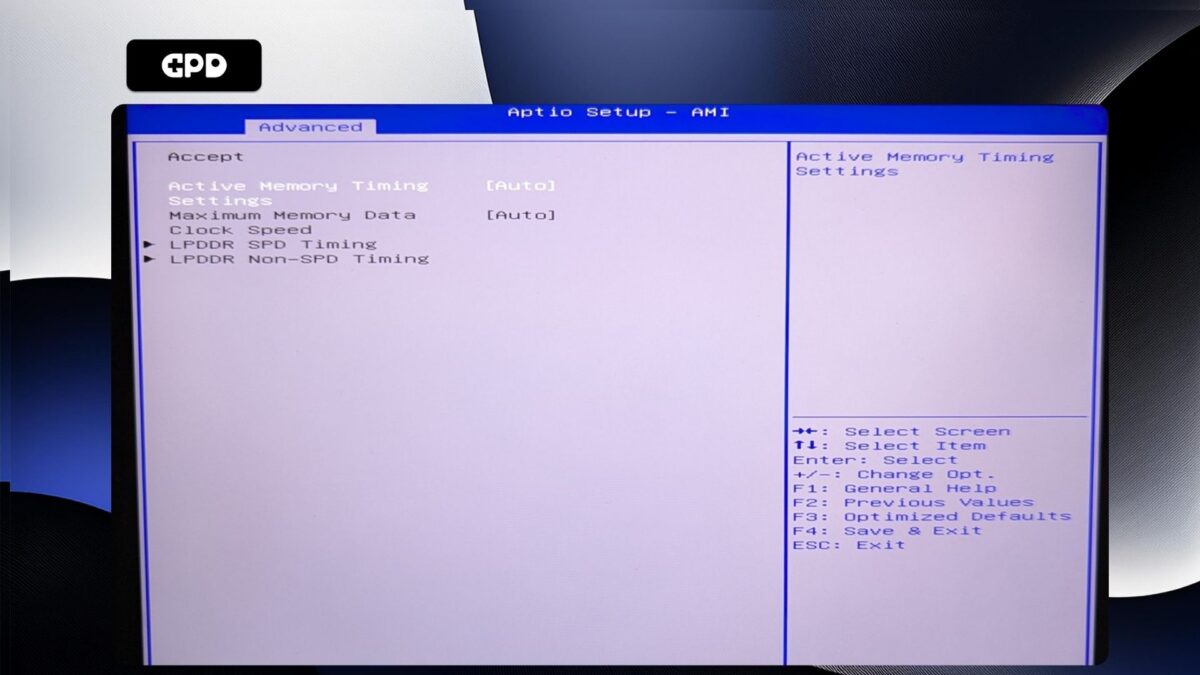
GPD Pocket 4 – Active Memory Timing Settings Auto
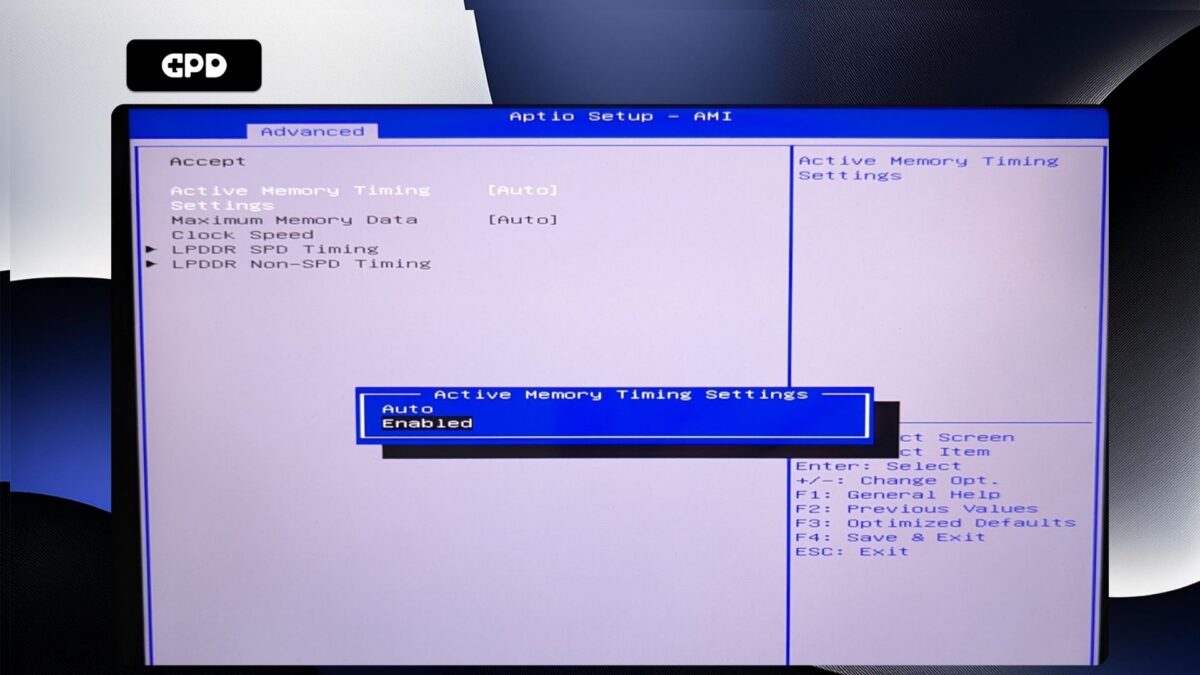
GPD Pocket 4 – Active Memory Timing Settings Enabled
Highlight Maximum Memory Data Clock Speed and press Enter to select it.
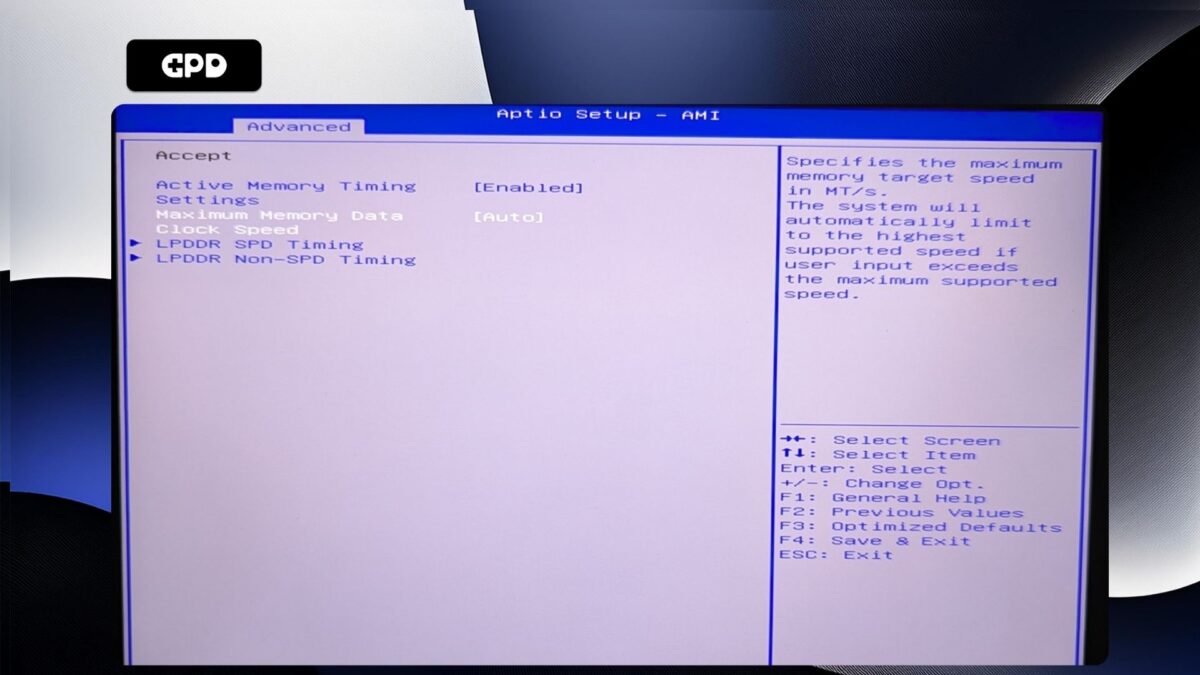
GPD Pocket 4 – Maximum Memory Data Clock Speed
A menu will appear with clock speed options. Highlight the clock speed you want and press Enter to select it. Please note, DO NOT set the clock speed higher than 7500MT/s as this will cause system instability with random reboots and shutdowns.
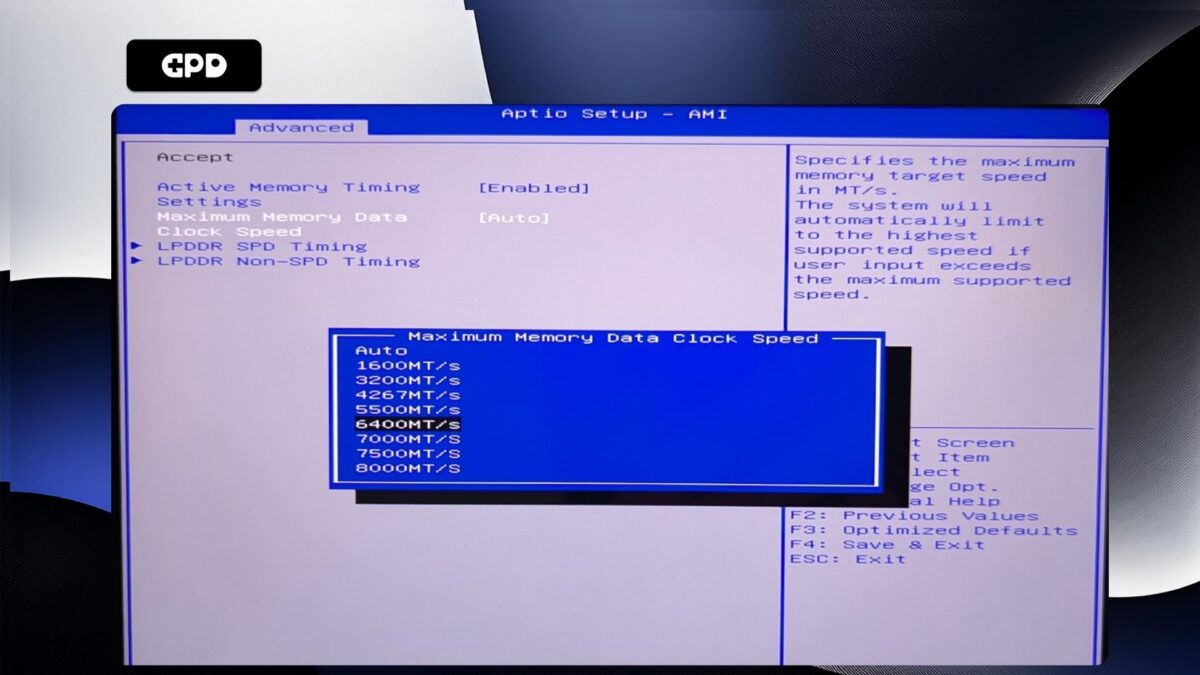
GPD Pocket 4 – Adjust the Maximum Memory Data Clock Speed
Now press the ESC key until you return to the Advanced BIOS page. Press the Right arrow key to change to the Save & Exit menu. Highlight Save & Exit and then choose Yes to save the configuration and exit the BIOS.
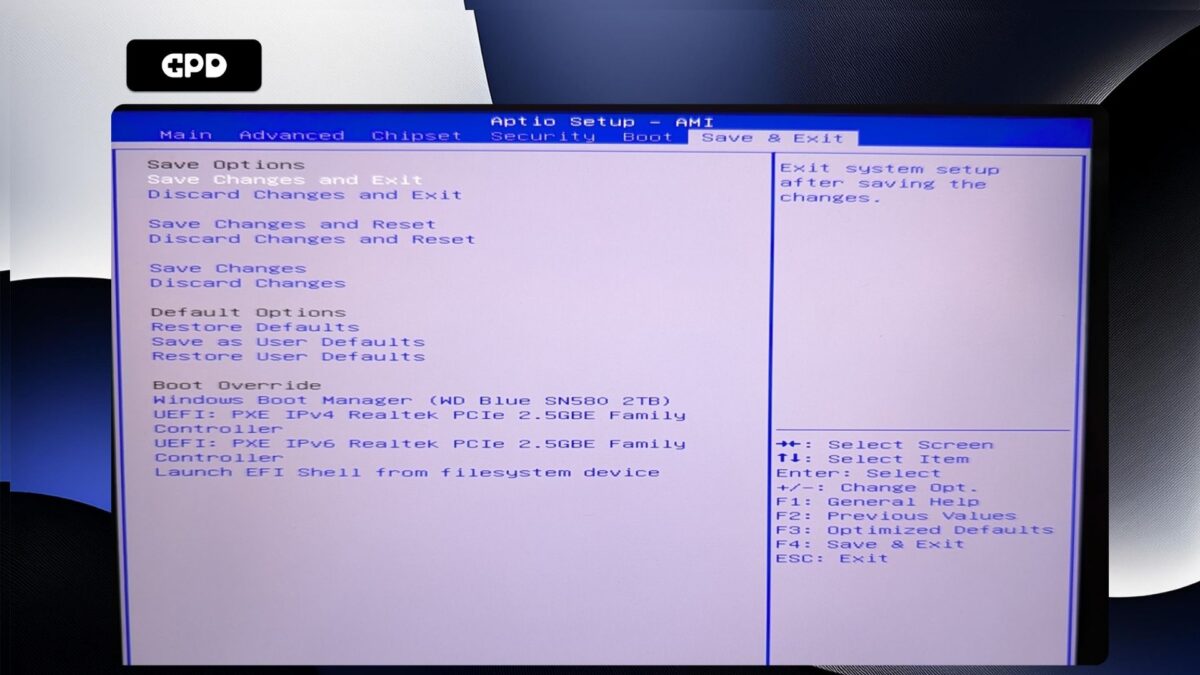
GPD Pocket 4 – Save and Exit
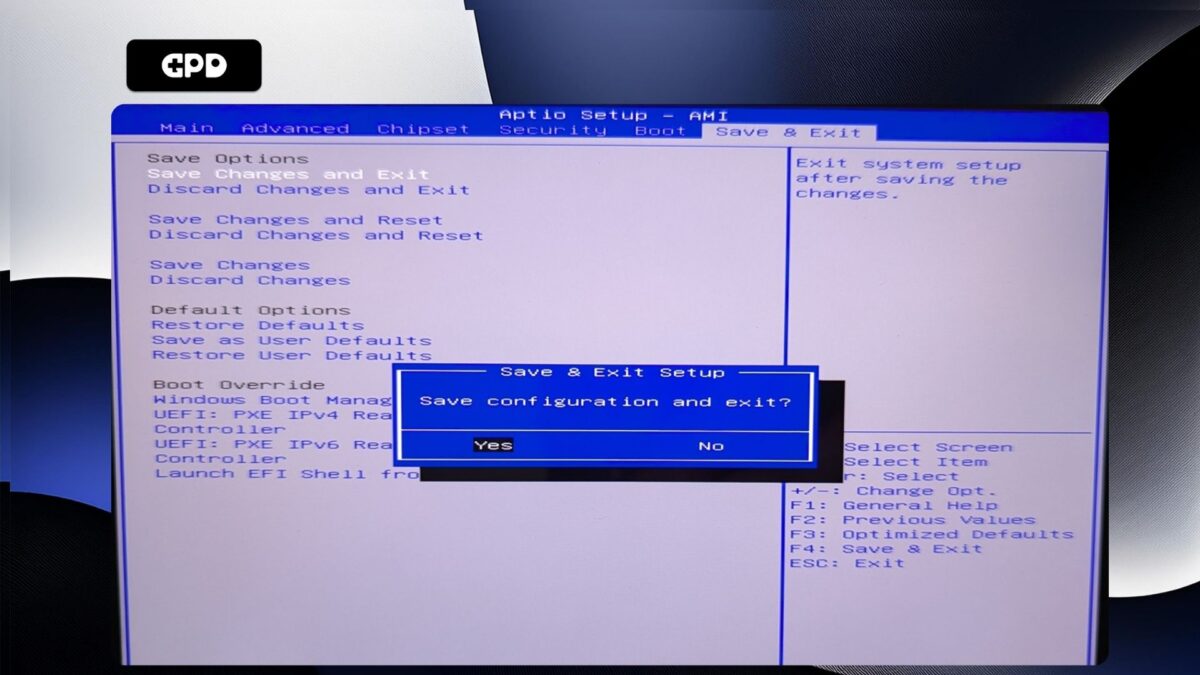
GPD Pocket 4 – Confirm Save and Exit
Your GPD Pocket 4 will now reboot. Occasionally it may take a little longer to boot the first time after making changes in the BIOS. Give it a few moments and you will be able to continue using your Pocket 4.
GPD WIN MAX 2 2025
Power on the GPD WIN MAX 2 2025 and tap the DELkey on the keyboard until the BIOS Main page appears.
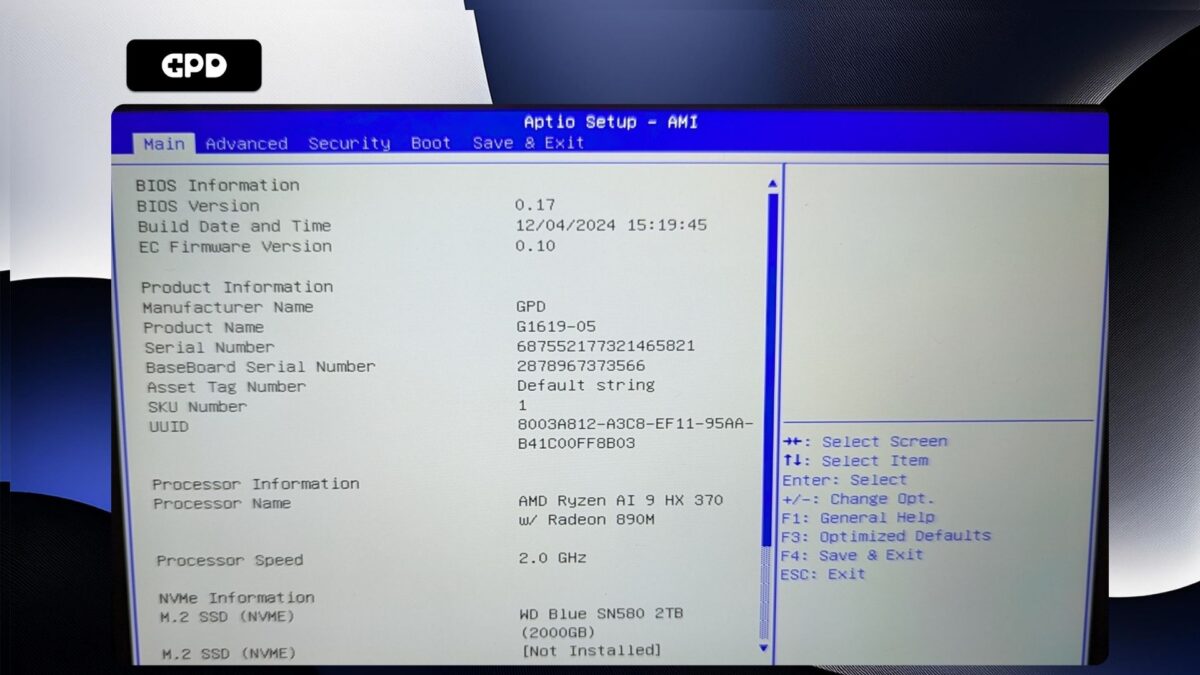
GPD WIN MAX 2 2025 – BIOS Main
Press the Right arrow key to change the menu to Advanced. Then press the Down arrow key to highlight Memory Configuration and press the Enter key to select it.
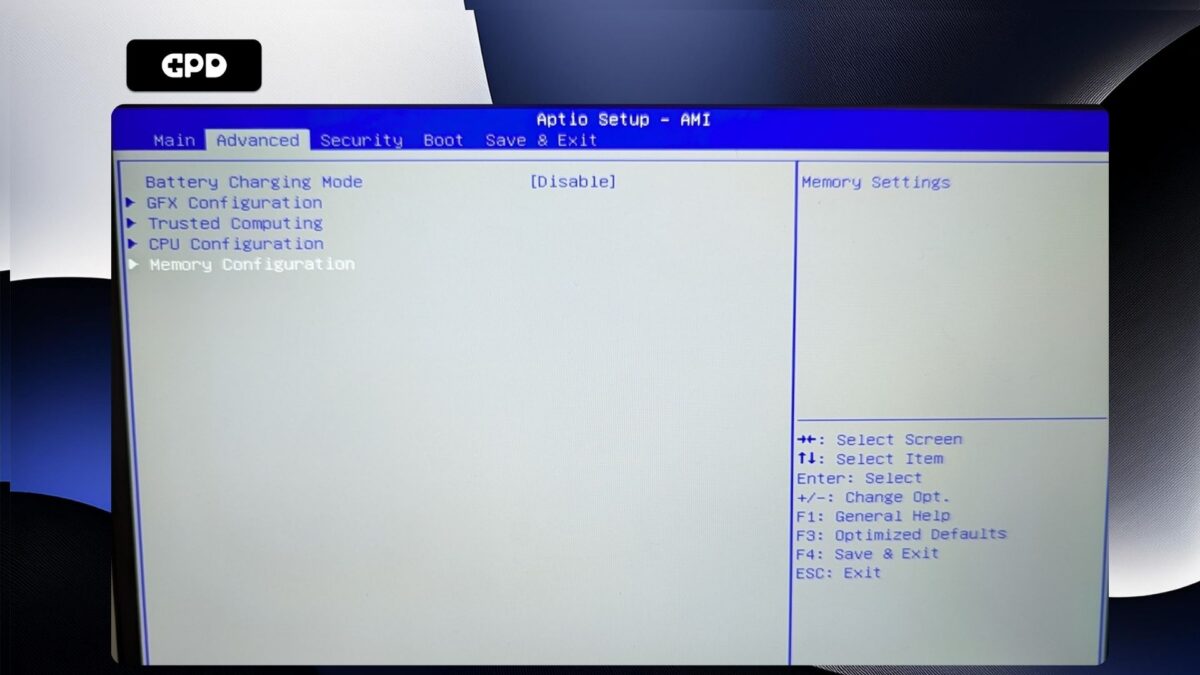
GPD WIN MAX 2 2025 -Advanced
You will only be able to select Maximum Memory Data Clock Speed, press Enter to choose it.
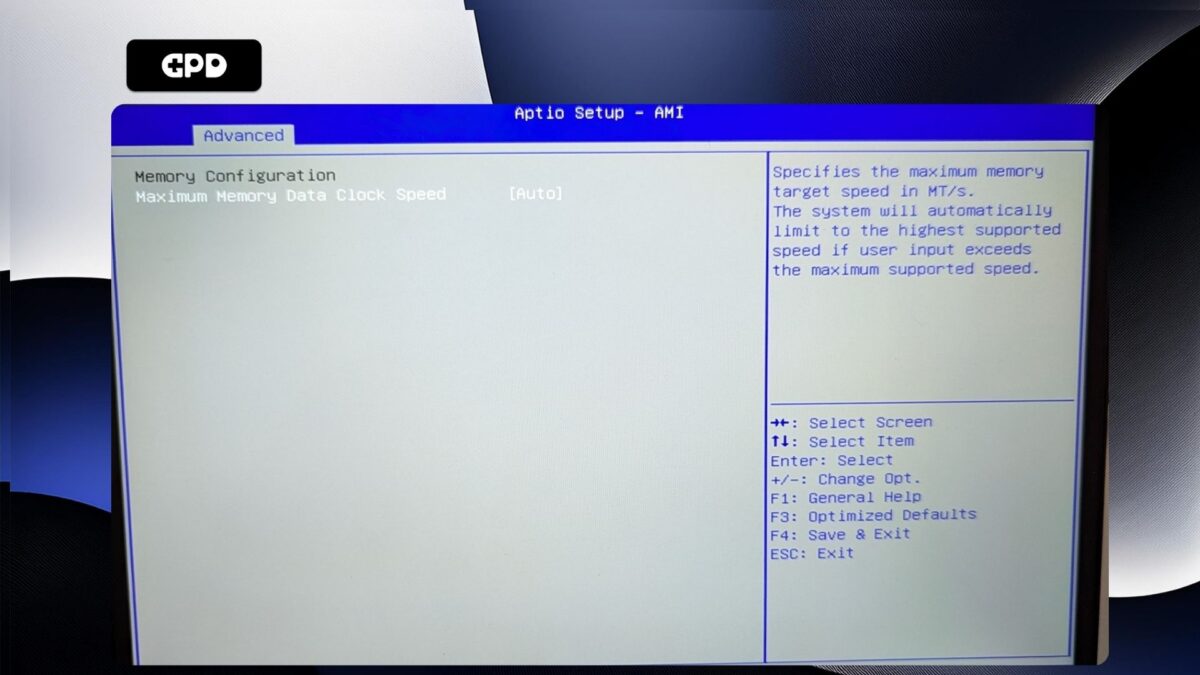
GPD WIN MAX 2 2025 – Memory Configuration
A menu with available clock speeds will display. Highlight the clock speed you want and press Enterto select it.
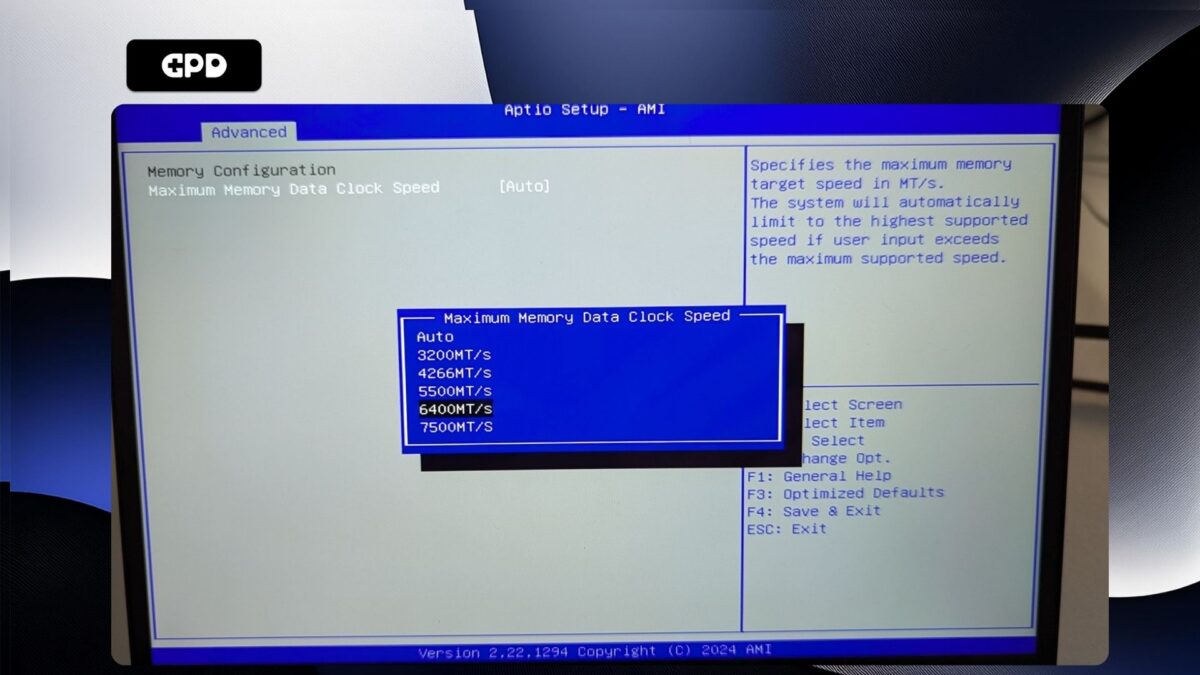
GPD WIN MAX 2 2025 – Maximum Memory Data Clock Speed
Now press the ESCkey until you return to the Advanced BIOSpage. Press the Rightarrow key to change to the Save & Exit menu. Highlight Save & Exit and then choose Yesto save the configuration and exit the BIOS.
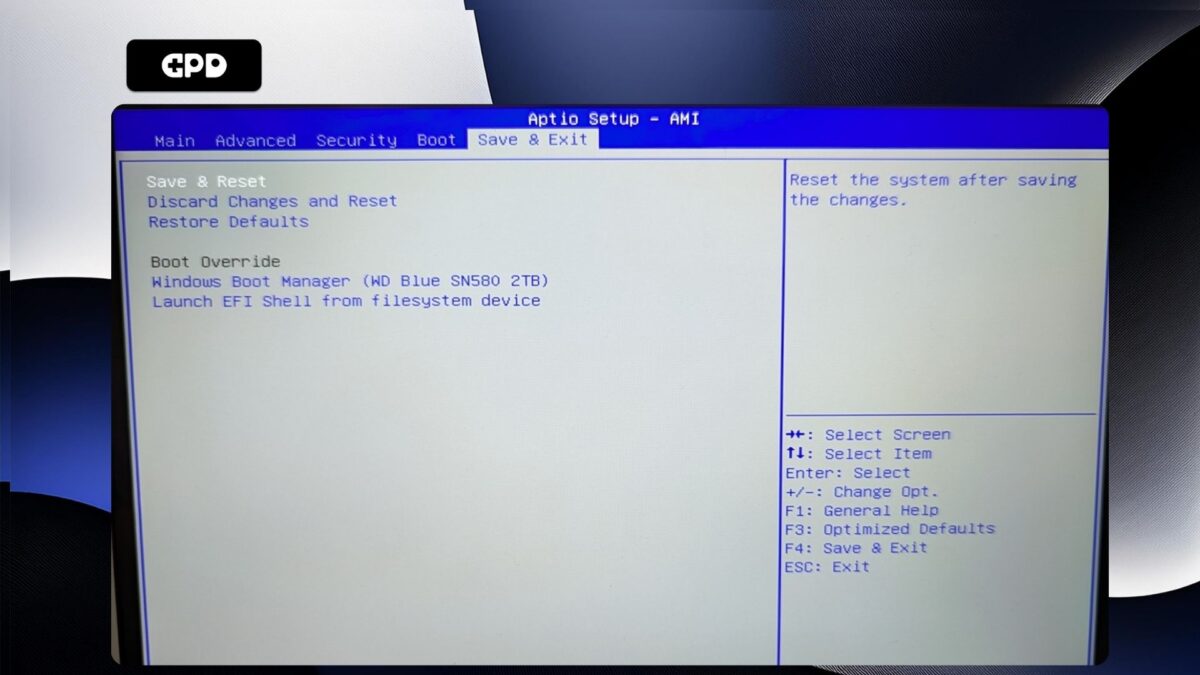
GPD WIN MAX 2 2025 – Save and Exit
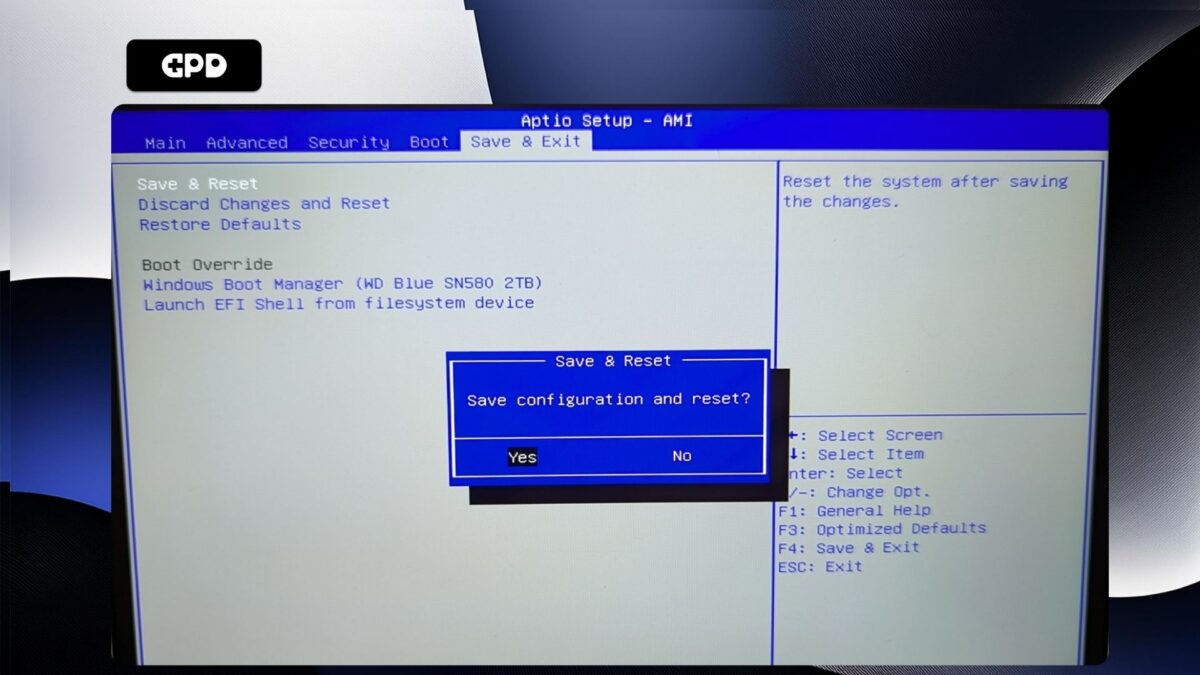
GPD WIN MAX 2 2025 – Save and Exit Confirm
Your GPD WIN MAX 2 2025 will now reboot. Occasionally it may take a little longer to boot the first time after making changes in the BIOS. Give it a few moments and you will be able to continue using your WIN MAX 2 2025.
GPD WIN Mini 2025
Power on the [GPD WIN Mini 2025](https://droix.net/product/gpd-win-mini-2025/) and tap the ESC key on the keyboard until the BIOS Main page appears.
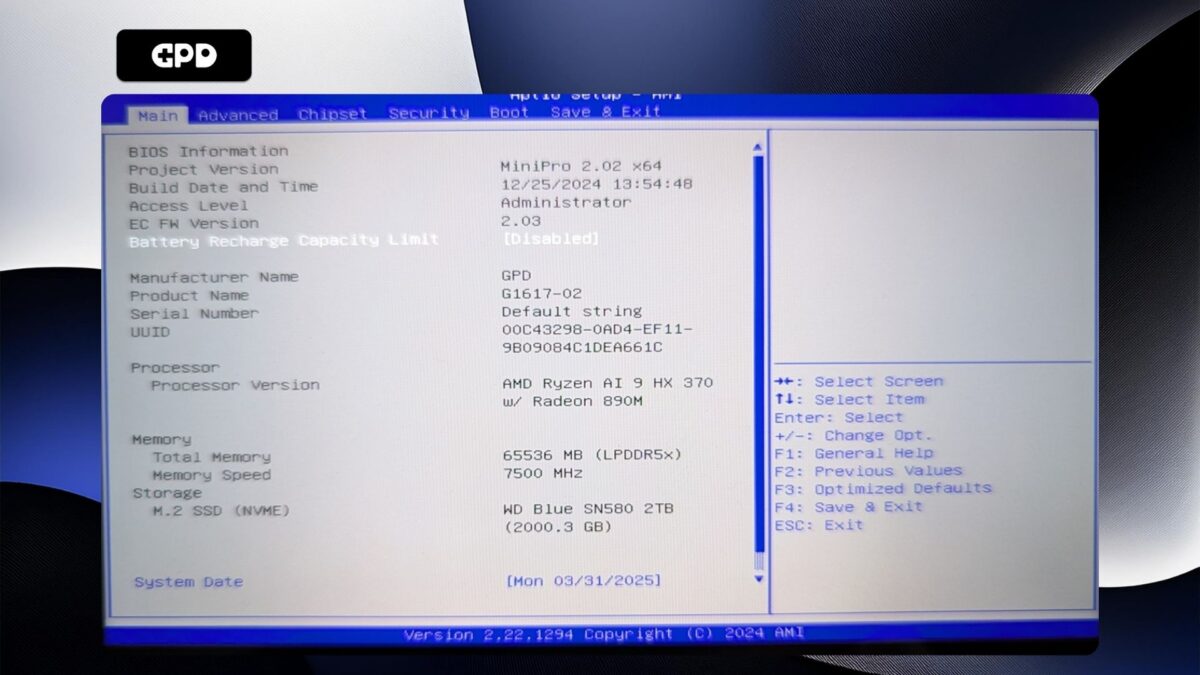
GPD WIN Mini 2025 – BIOS Main
Press the Right arrow key to change the menu to Advanced. Then press the Down arrow key to highlight AMD CBS and press the Enter key to select it.
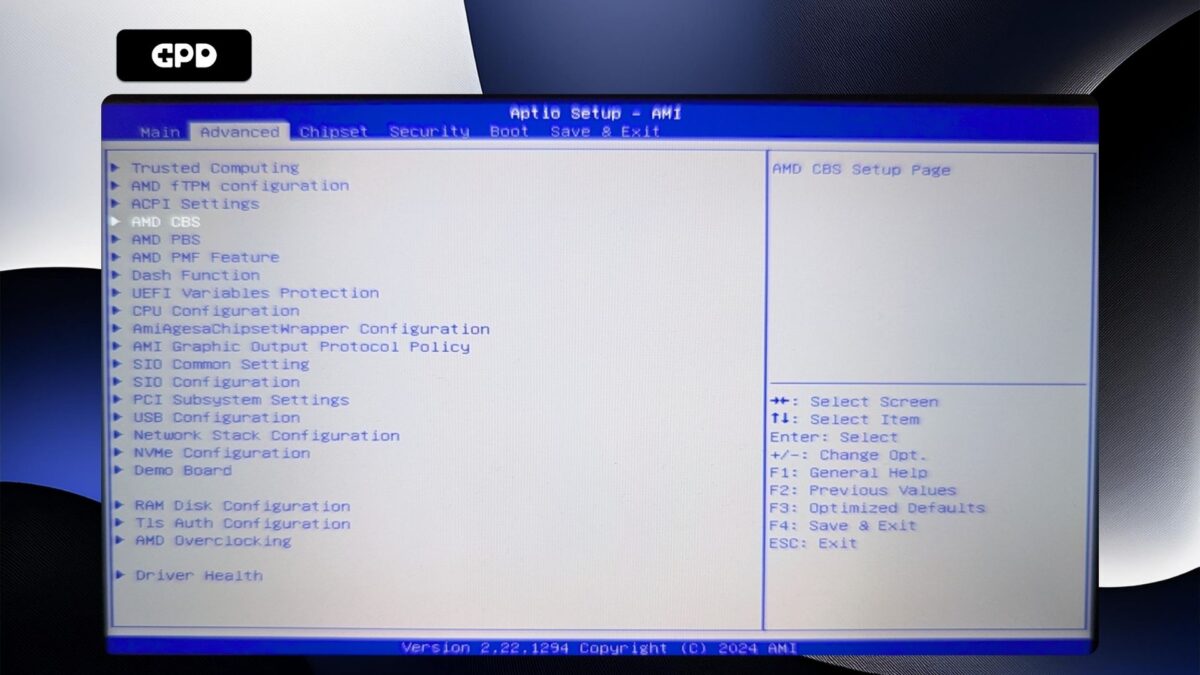
GPD WIN Mini 2025 – Advanced Menu
Press the Down arrow key to highlight UMC Common Options and press Enterto select it.
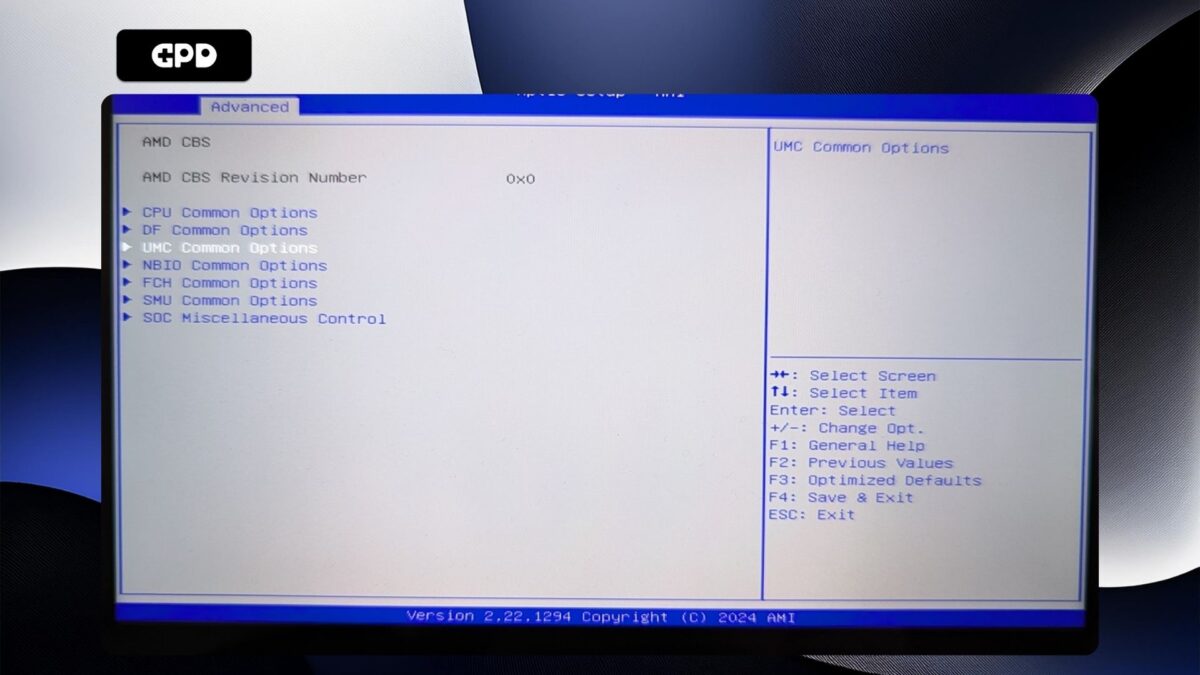
GPD WIN Mini 2025 – AMD CBS Menu
You will not be able to navigate this menu, so go ahead and press Enteron LPDDR Options.
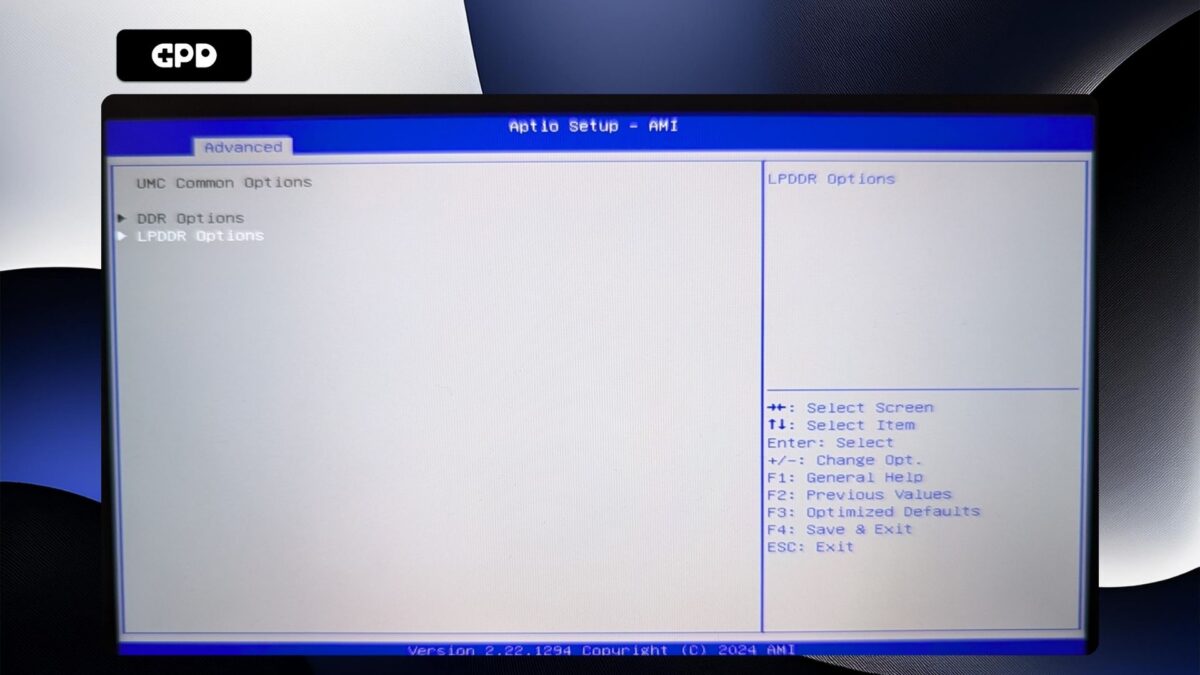
GPD WIN Mini 2025 – UMC Common Options
Highlight LPDDR Timing Configuration and press Enterto select it.
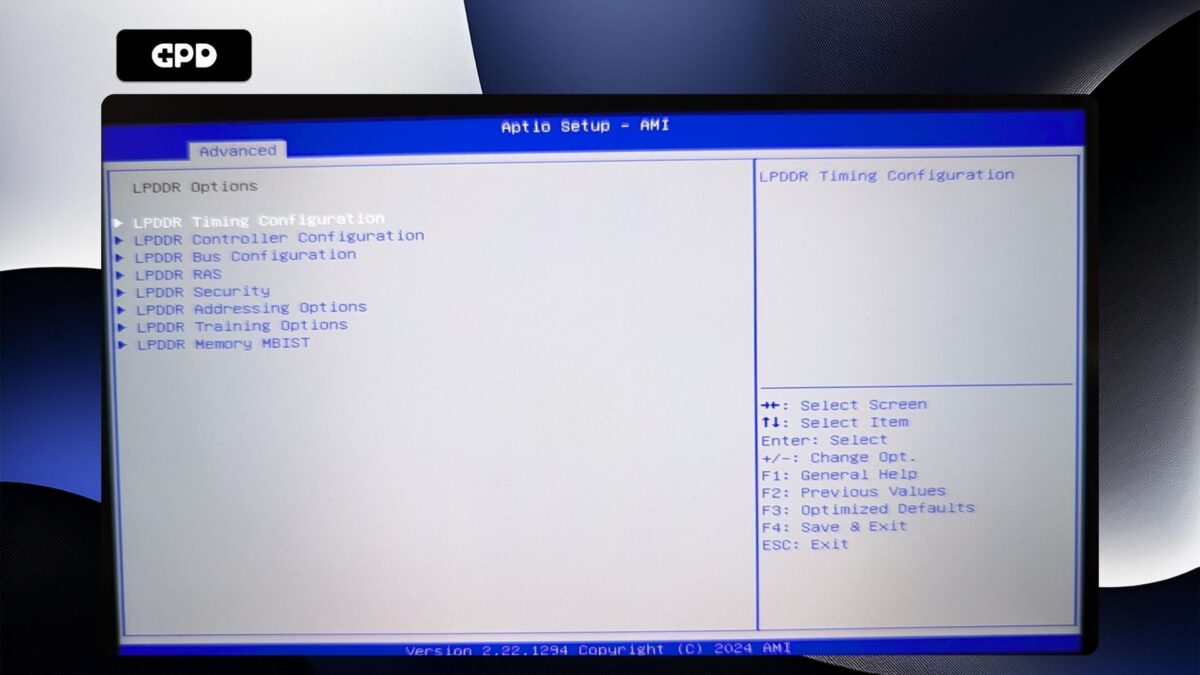
GPD WIN Mini 2025 – LPDDR Options
You will now be presented with a warning screen. Please read through it and press the Down arrow key to scroll the text. Highlight Accept and press Enter to select it.
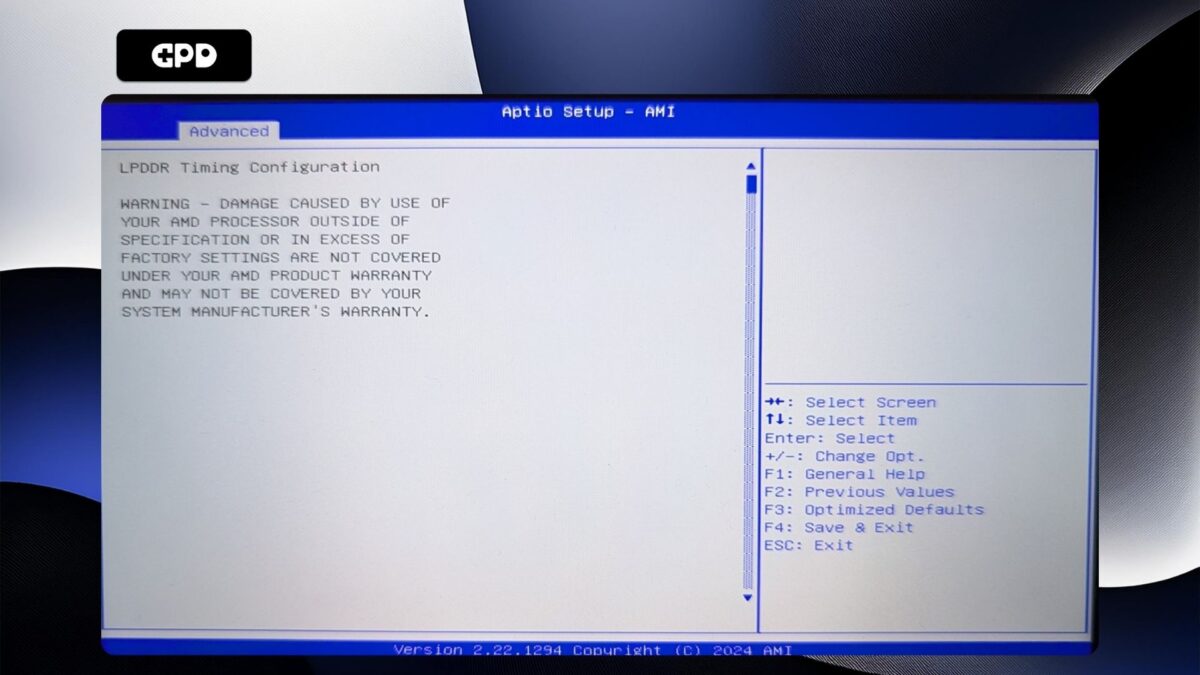
GPD WIN Mini 2025 – LPDDR Timing Configuration Page 1
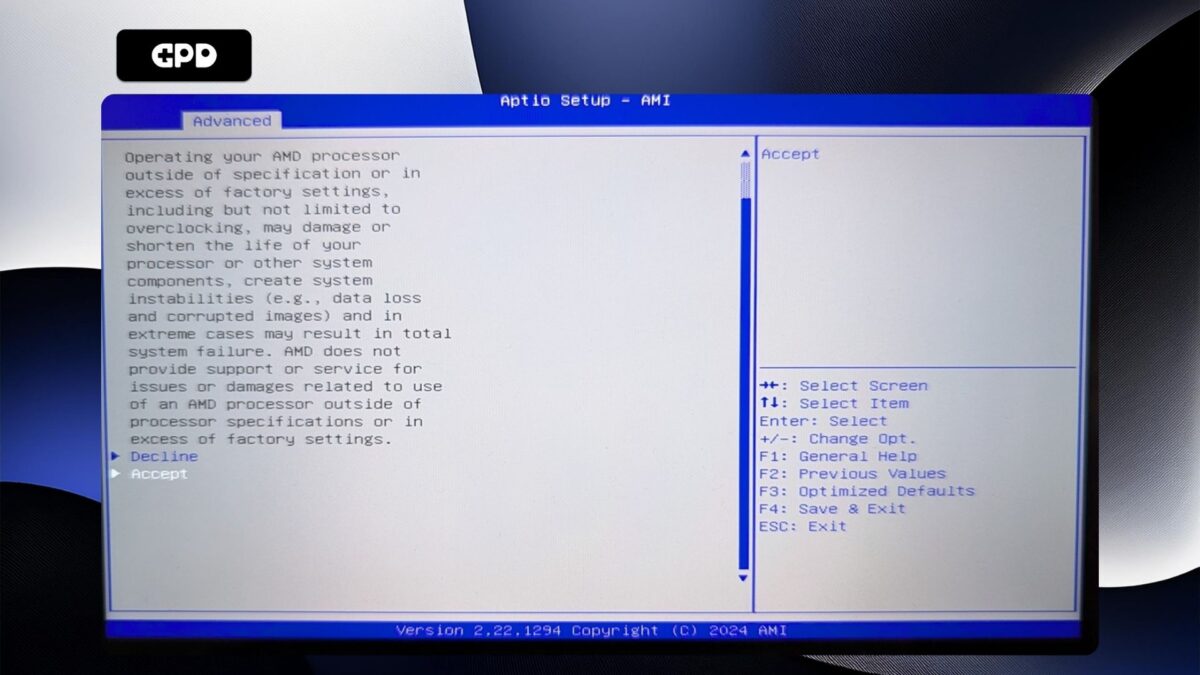
GPD WIN Mini 2025 – LPDDR Timing Configuration Page 2
Highlight Active Memory Timing Settings and press Enterto select it. Then highlight Enabledand press Enterto select it.
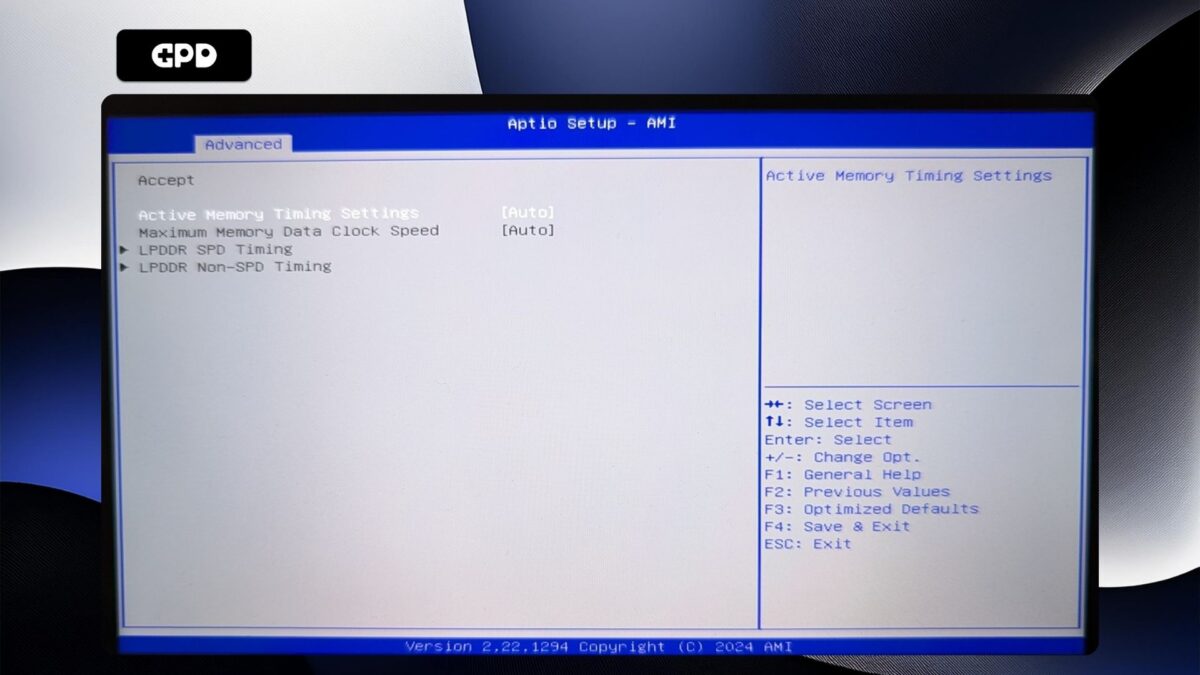
GPD WIN Mini 2025 – Active Memory Timing Settings Auto
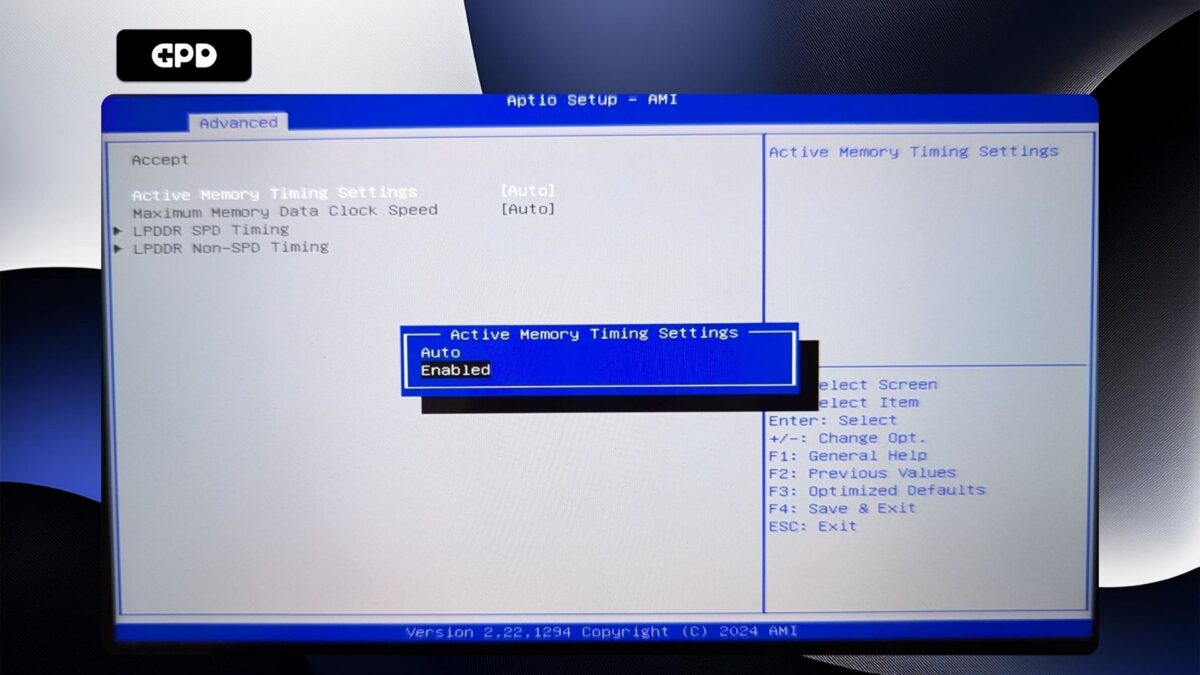
GPD WIN Mini 2025 – Active Memory Timing Settings Enabled
Highlight Maximum Memory Data Clock Speed and press Enterto select it.
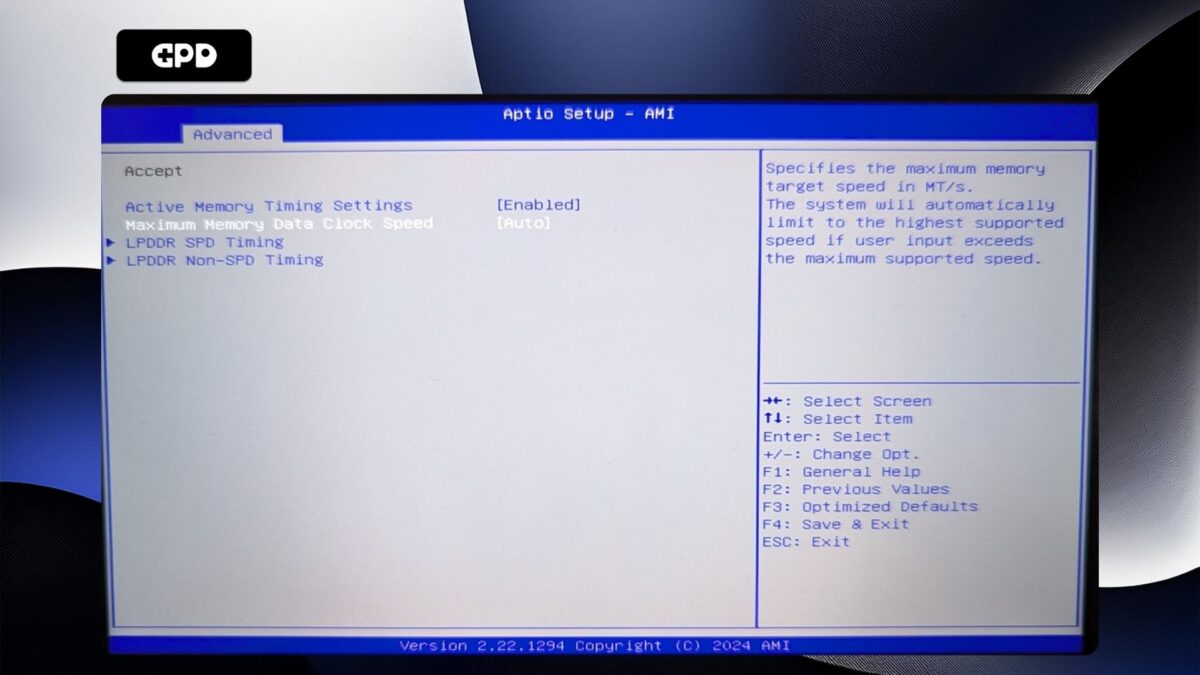
GPD WIN Mini 2025 – Maximum Memory Data Clock Speed
A menu will appear with clock speed options. Highlight the clock speed you want and press Enterto select it. Please note, DO NOT set the clock speed higher than 7500MT/s as this will cause system instability with random reboots and shutdowns.
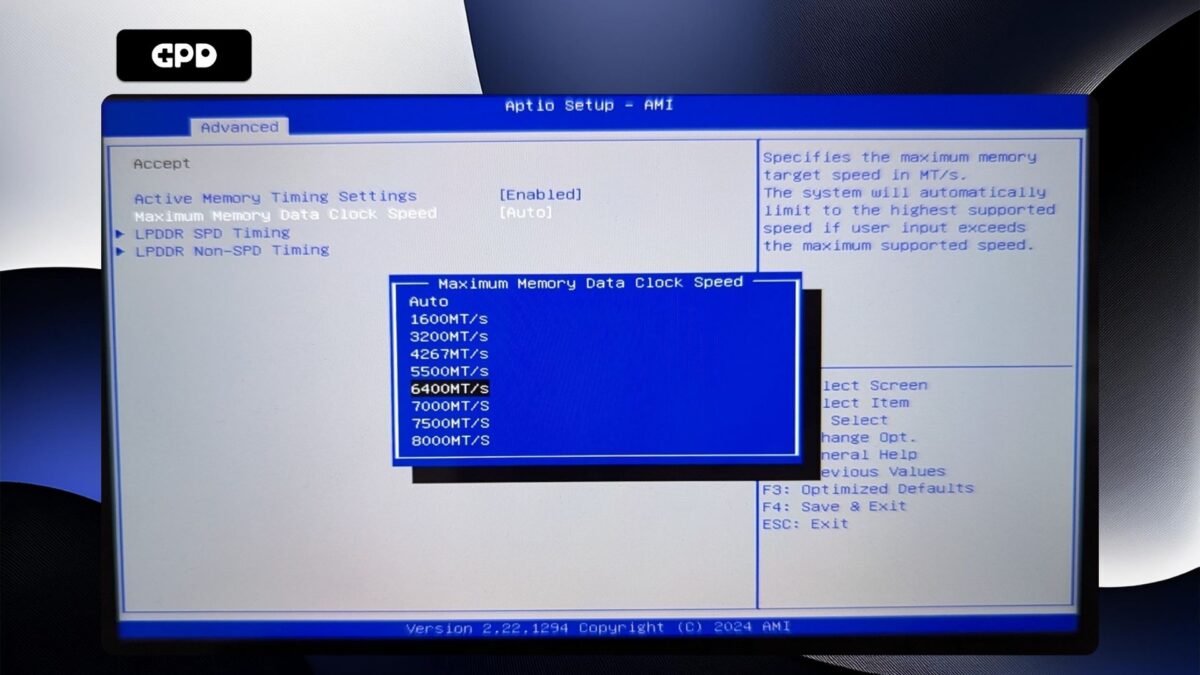
GPD WIN Mini 2025 – Adjust the Maximum Memory Data Clock Speed
Now press the ESCkey until you return to the Advanced BIOSpage. Press the Rightarrow key to change to the Save & Exit menu. Highlight Save & Exit and then choose Yesto save the configuration and exit the BIOS.
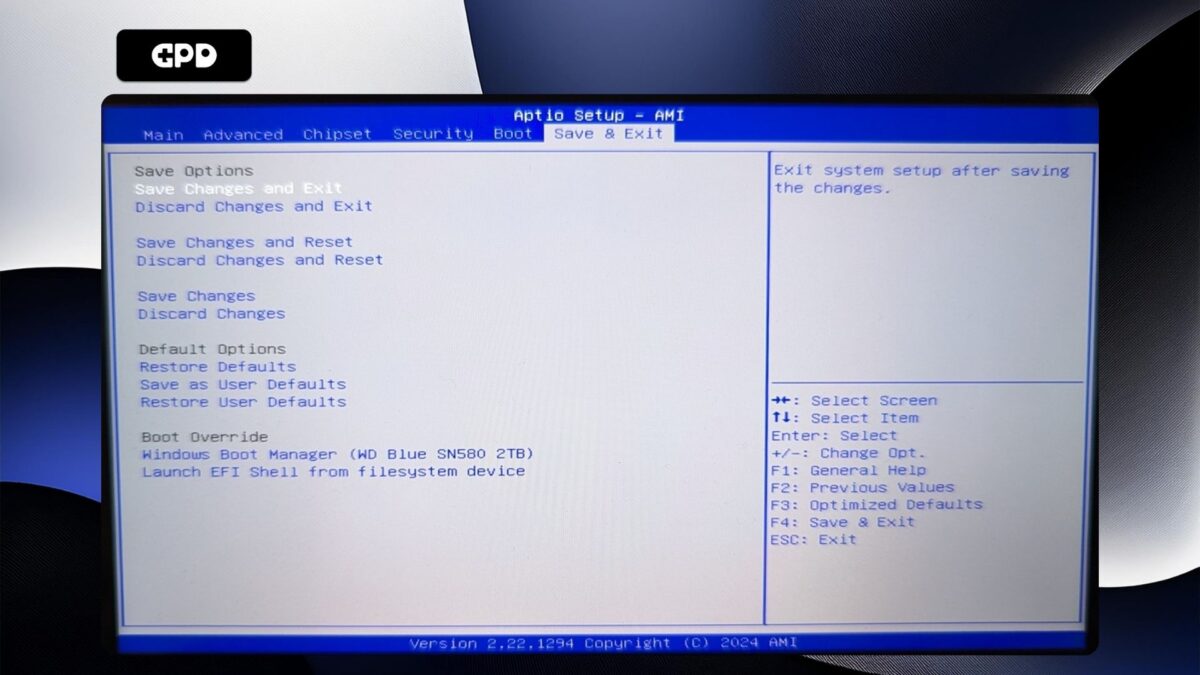
GPD WIN Mini 2025 – Save and Exit
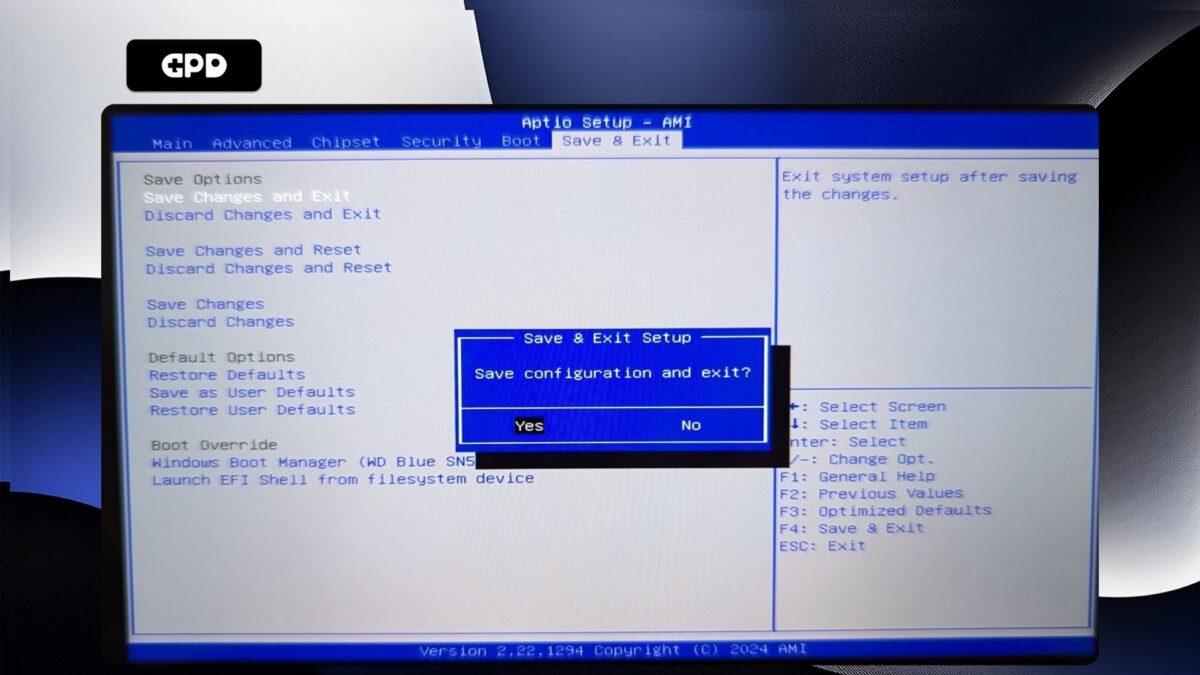
GPD WIN Mini 2025 – Save and Exit Confirm
Your GPD WIN Mini 2025 will now reboot. Occasionally it may take a little longer to boot the first time after making changes in the BIOS. Give it a few moments and you will be able to continue using your WIN Mini 2025.
GPD Duo
Power on the GPD Duo and tap the ESC key on the keyboard until the BIOS Main page appears.
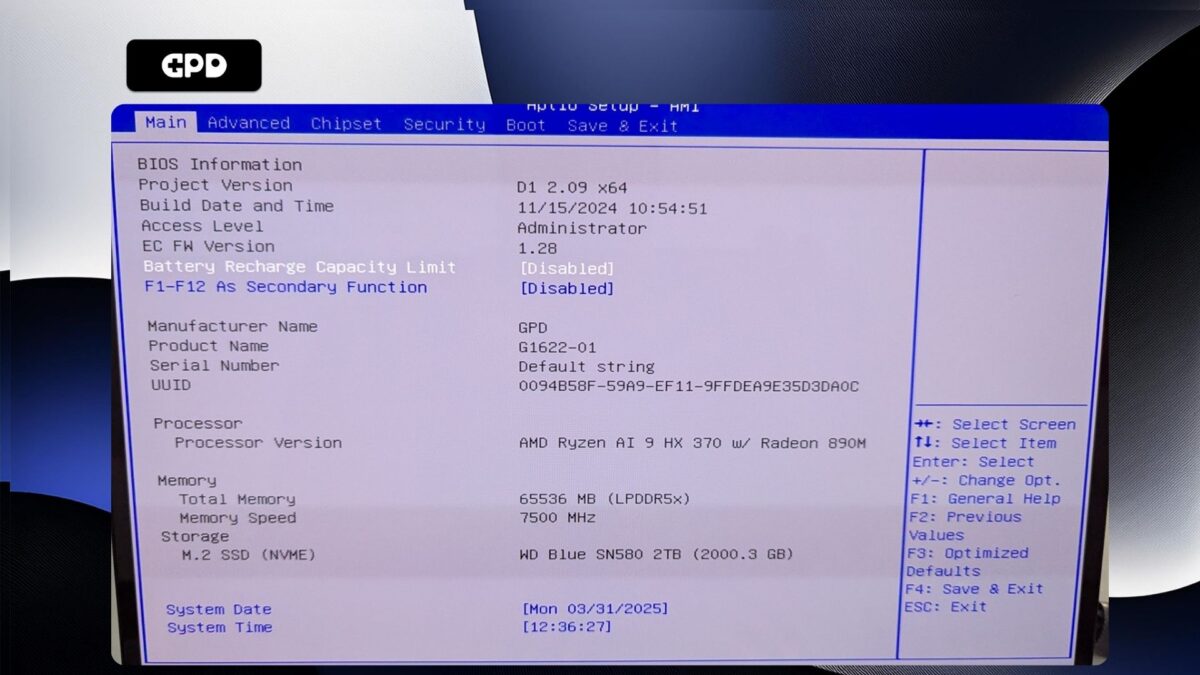
GPD Duo – BIOS Main
Press the Right arrow key to change the menu to Advanced. Then press the Down arrow key to highlight AMD CBS and press the Enter key to select it.
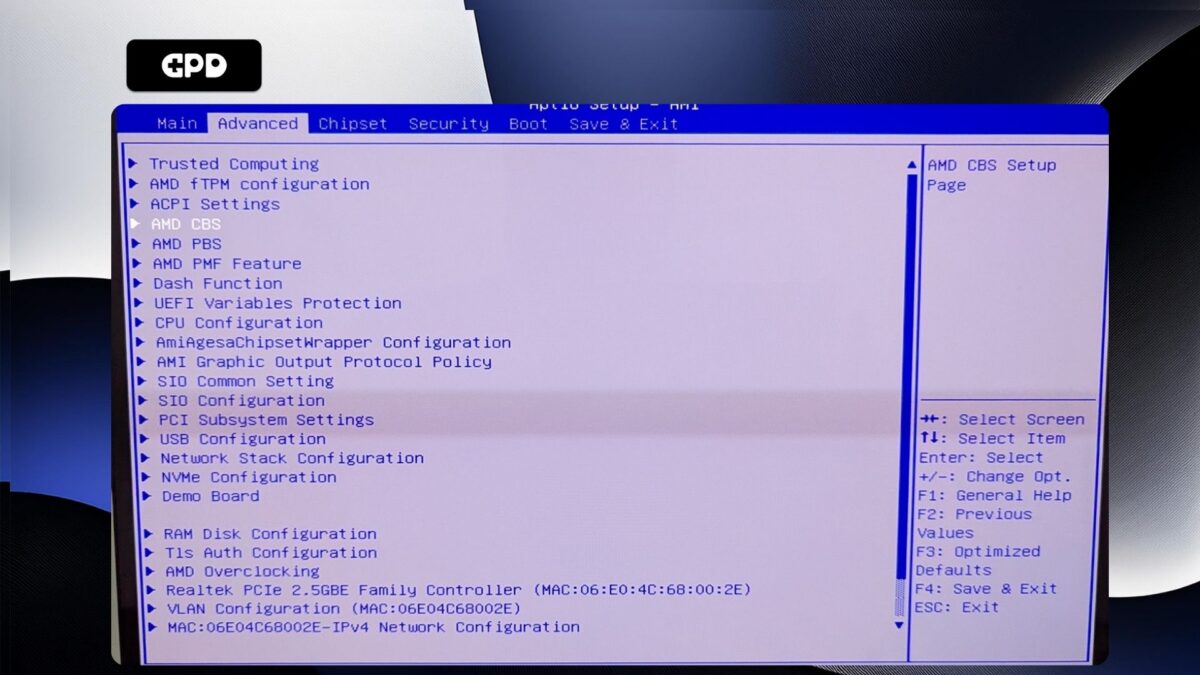
GPD Duo – Advanced Menu
Press the Down arrow key to highlight UMC Common Options and press Enterto select it.
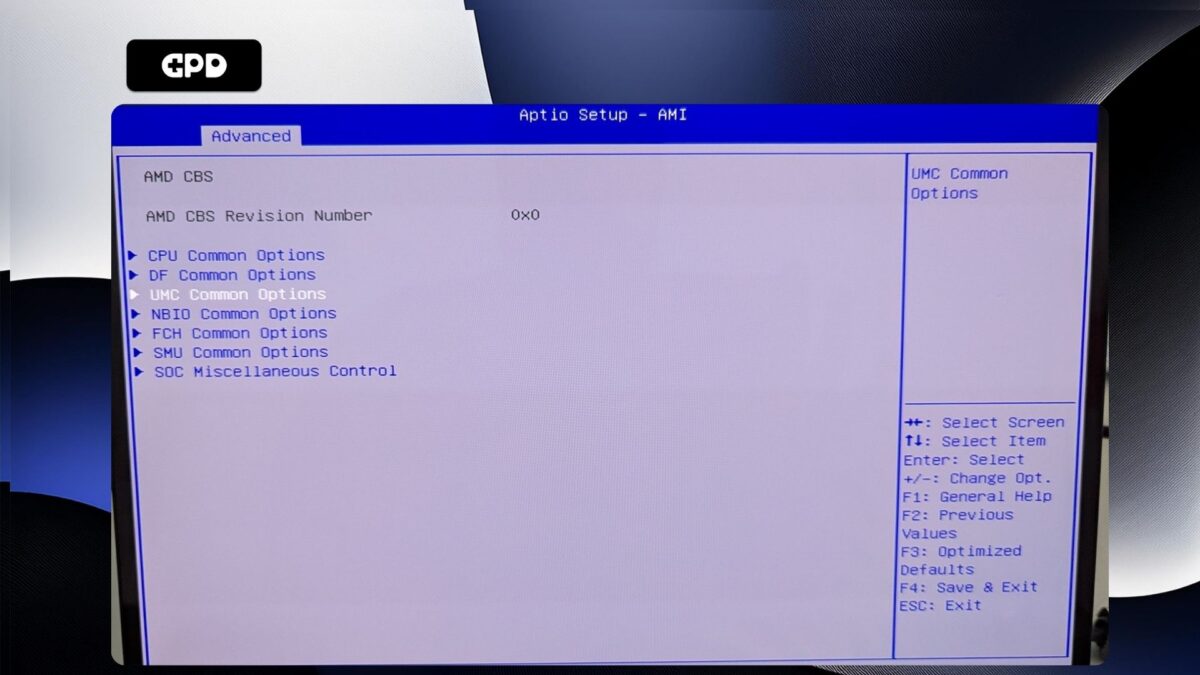
GPD Duo – AMD CBS Menu
You will not be able to navigate this menu, so go ahead and press Enteron LPDDR Options.
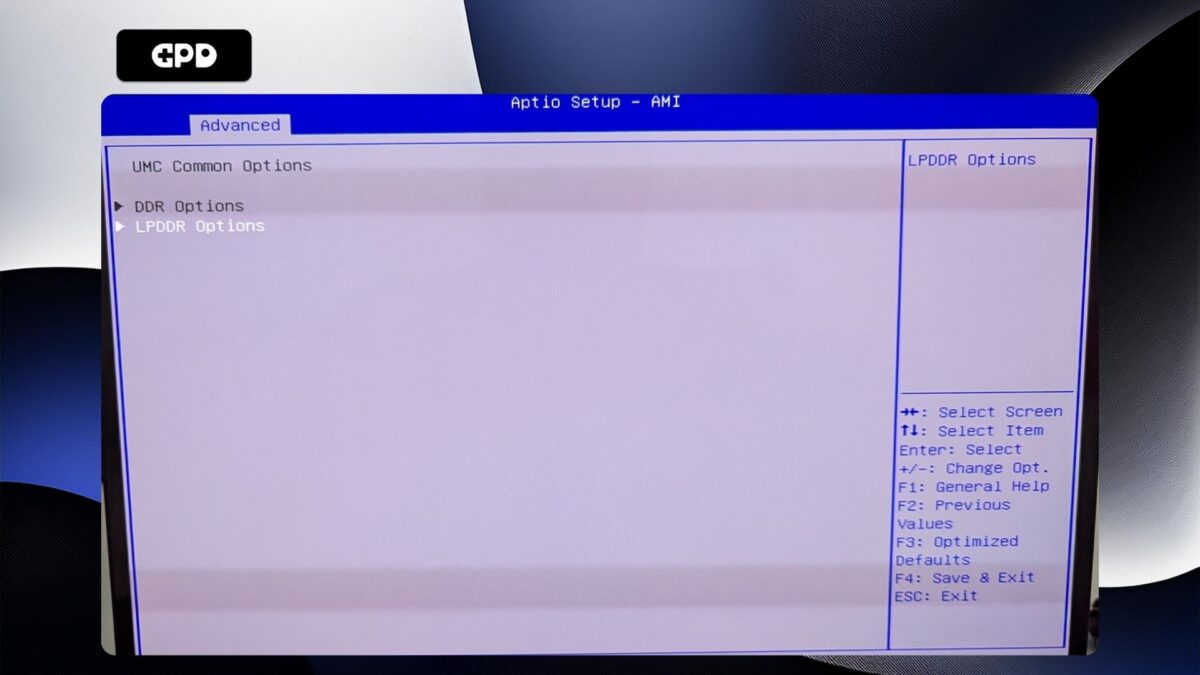
GPD Duo – UMC Common Options
Highlight LPDDR Timing Configuration and press Enterto select it.
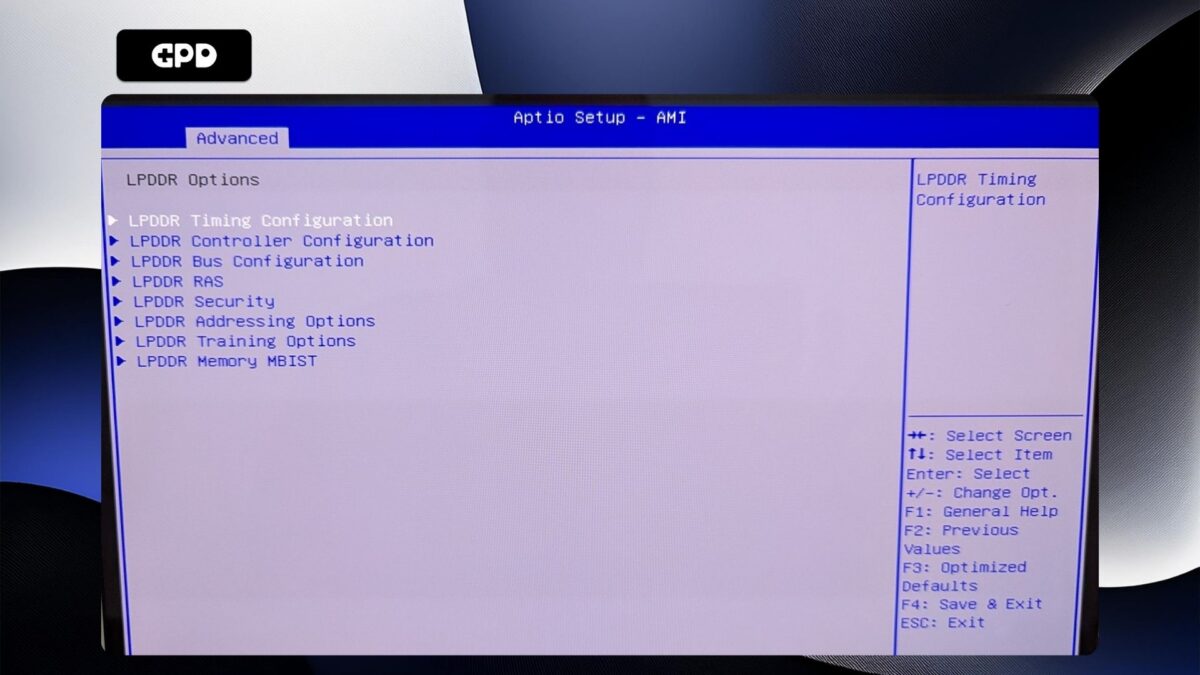
GPD Duo – LPDDR Options
You will now be presented with a warning screen. Please read through it and press the Down arrow key to scroll the text. Highlight Accept and press Enter to select it.
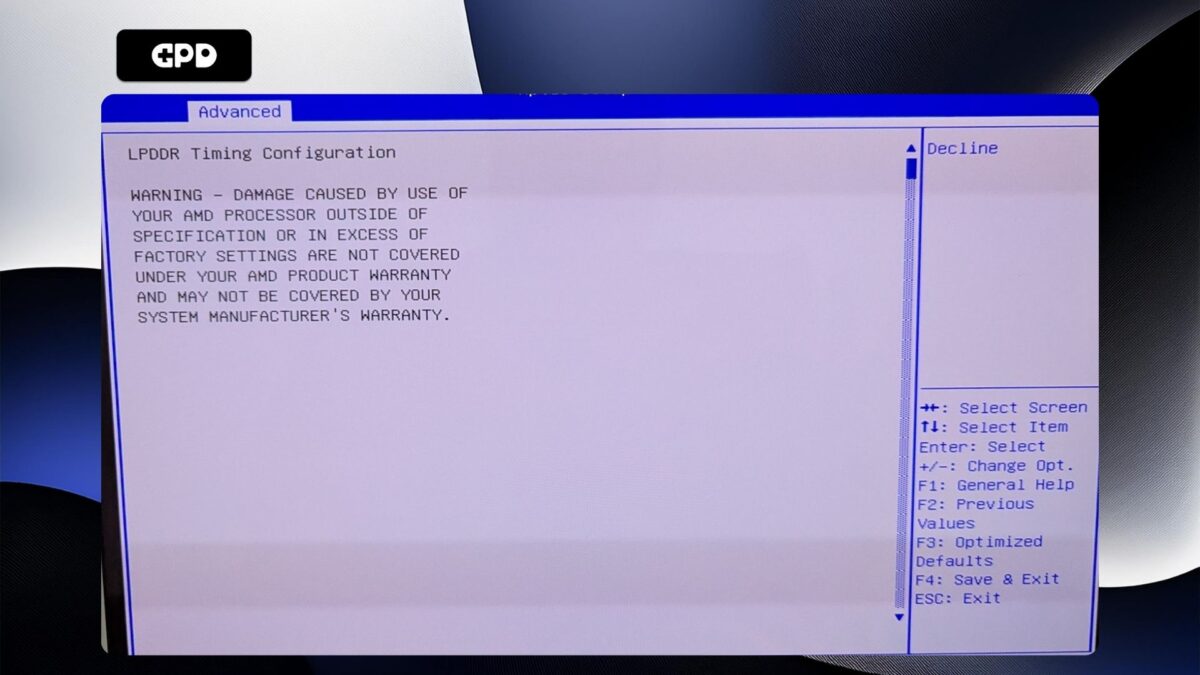
GPD Duo – LPDDR Timing Configuration Page 1
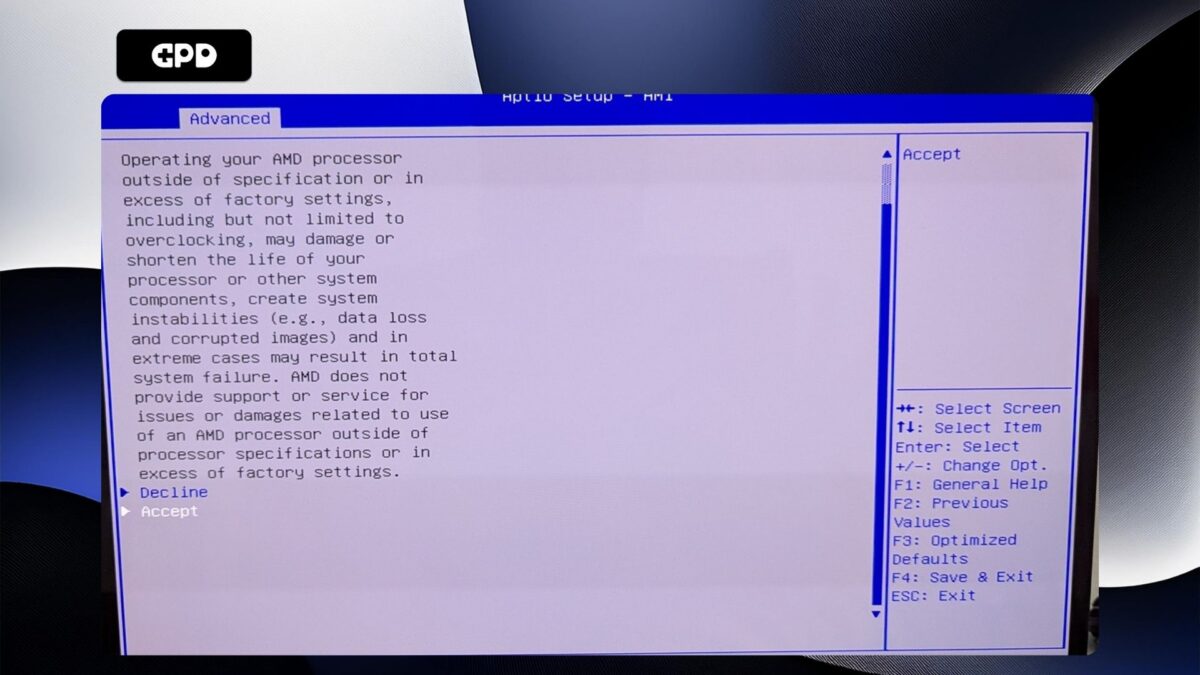
GPD Duo – LPDDR Timing Configuration Page 2
Highlight Active Memory Timing Settings and press Enterto select it. Then highlight Enabledand press Enterto select it.
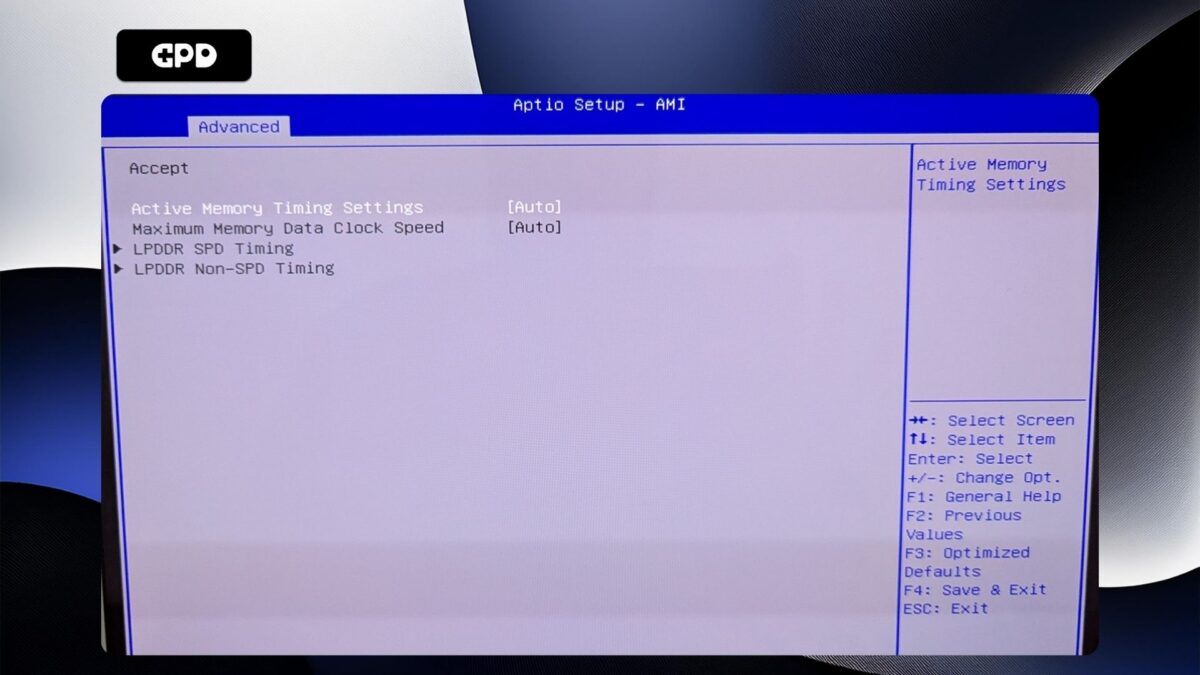
GPD Duo – Active Memory Timing Settings Auto
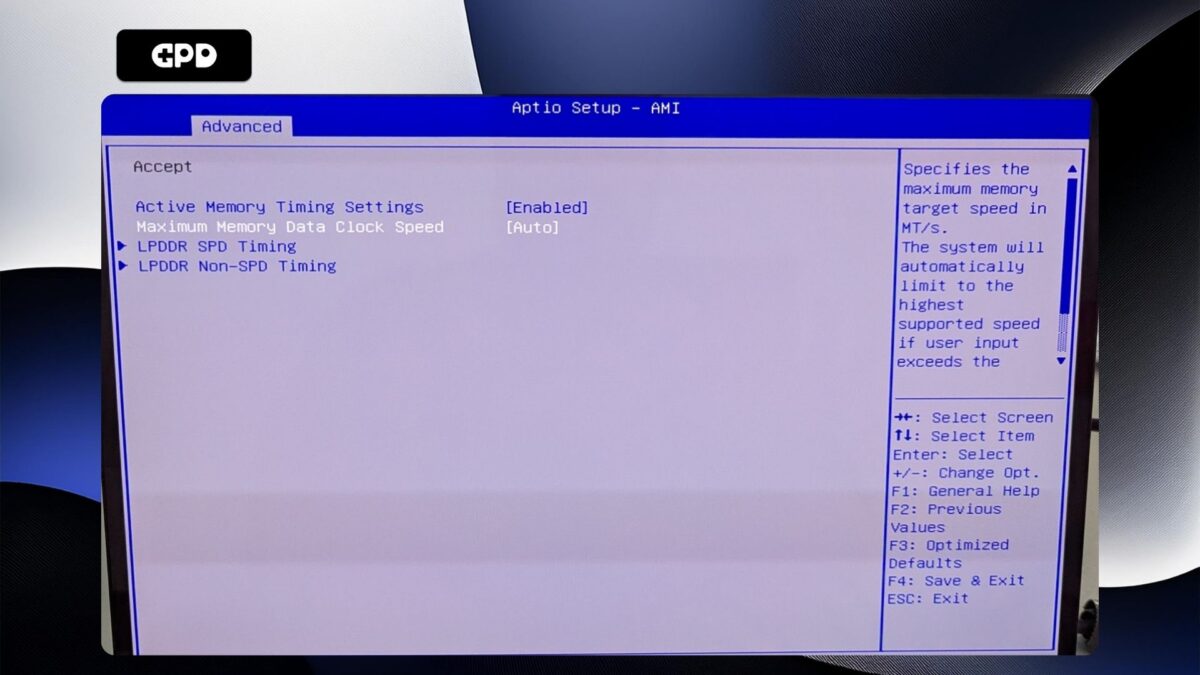
GPD Duo – Active Memory Timing Settings Enabled
Highlight Maximum Memory Data Clock Speed and press Enterto select it. A menu will appear with clock speed options. Highlight the clock speed you want and press Enterto select it. Please note, DO NOT set the clock speed higher than 7500MT/s as this will cause system instability with random reboots and shutdowns.
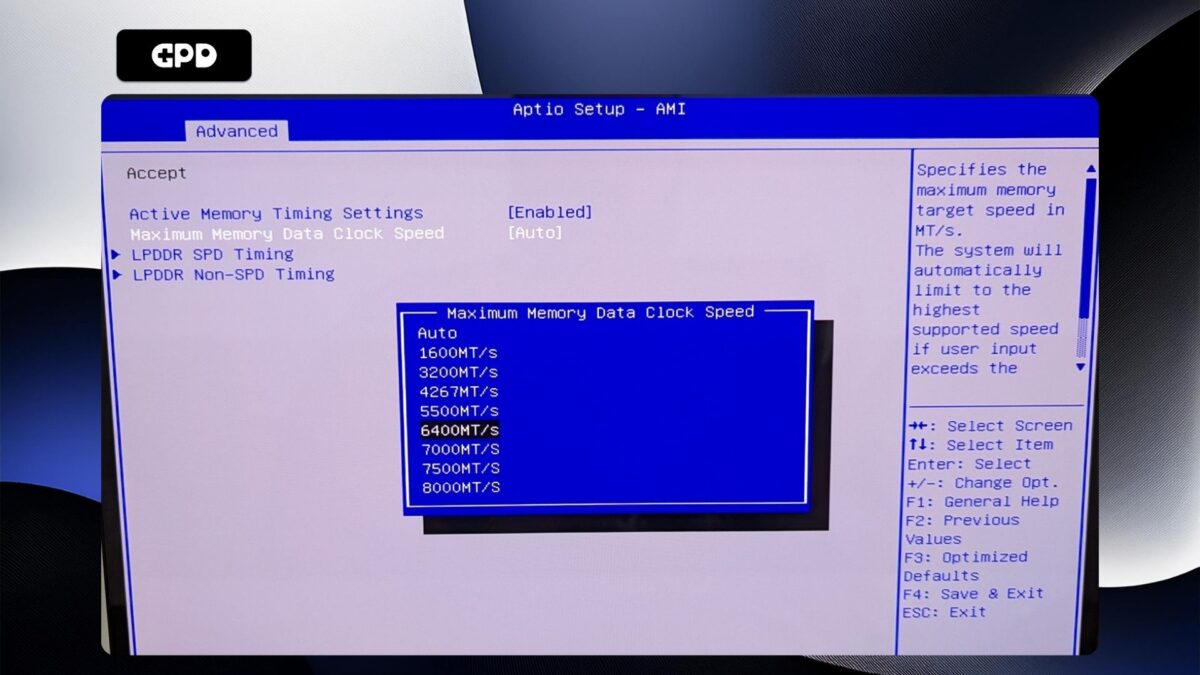
GPD Duo – Adjust the Maximum Memory Data Clock Speed
Now press the ESCkey until you return to the Advanced BIOSpage. Press the Rightarrow key to change to the Save & Exit menu. Highlight Save & Exit and then choose Yesto save the configuration and exit the BIOS.
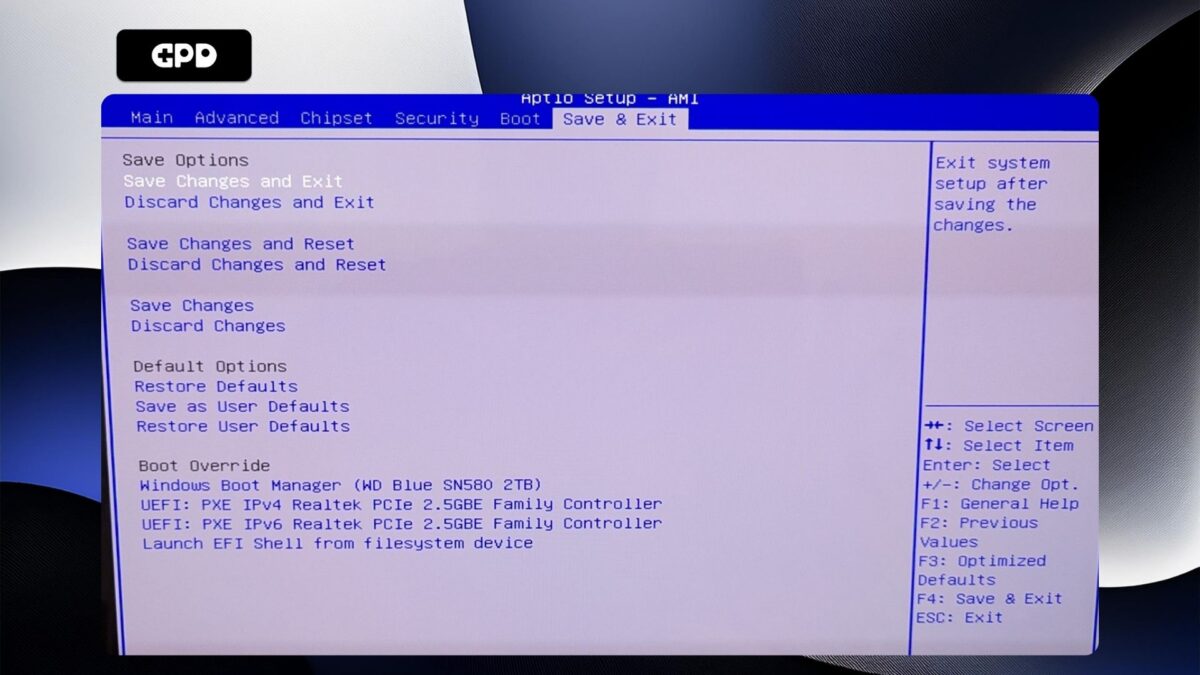
GPD Duo – Save and Exit
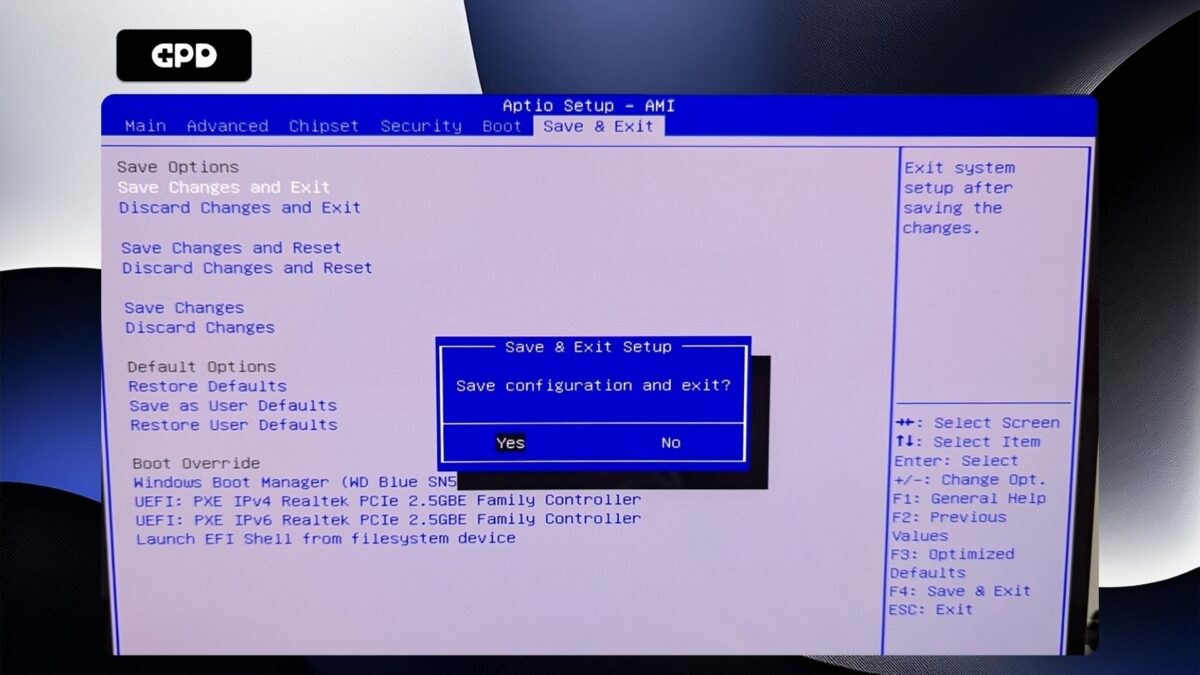
GPD Duo – Save and Exit Confirmed
Your GPD Duo will now reboot. Occasionally it may take a little longer to boot the first time after making changes in the BIOS. Give it a few moments and you will be able to continue using your Duo.