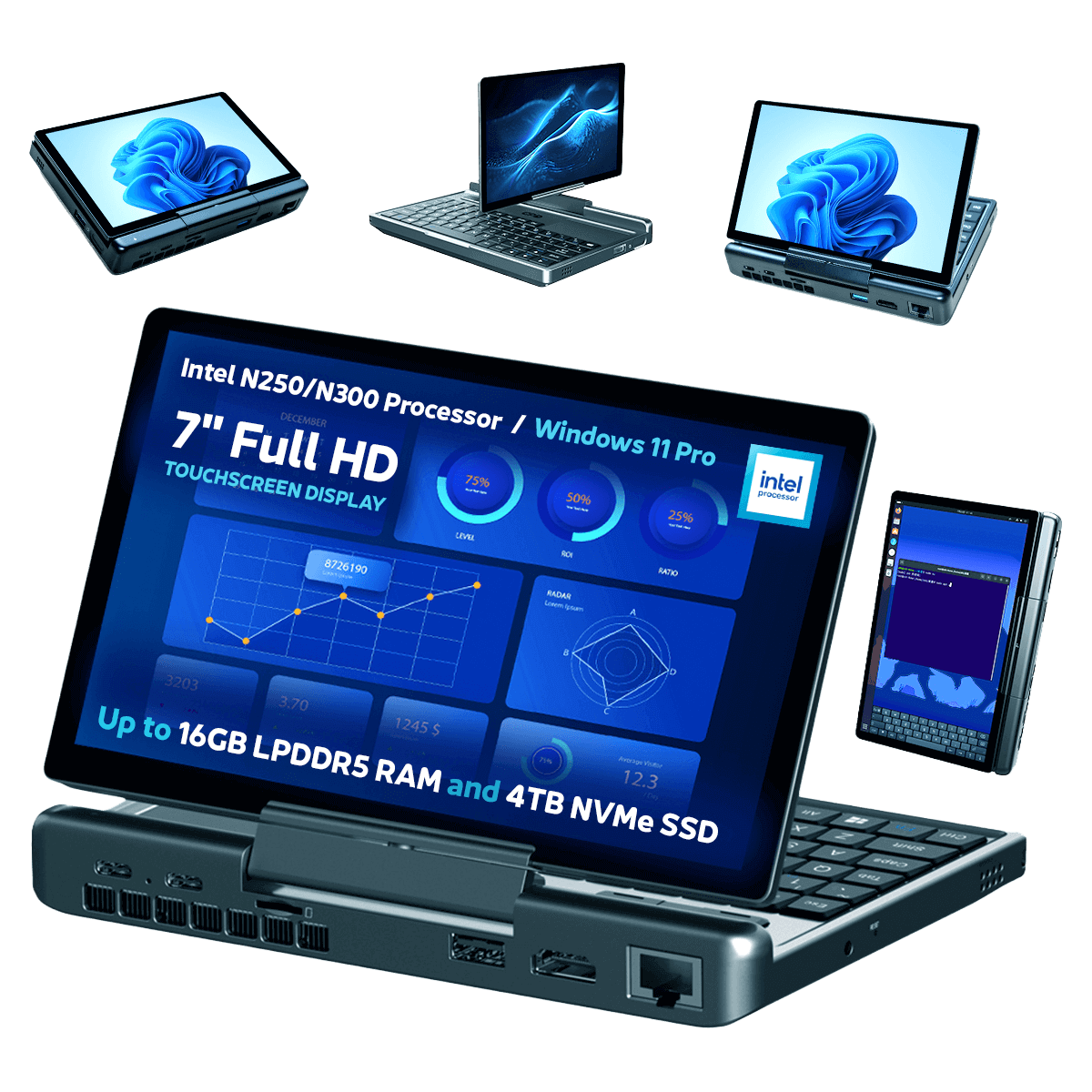
Welcome to our getting started with the GPD MicroPC 2 guide. The GPD MicroPC 2 is a compact powerhouse built around a 7-inch, 1080p rotating touchscreen that provides a versatile 2-in-1 laptop and tablet experience. It is powered by a modern Intel N-series processor (N250 or N300), 16GB of LPDDR5 RAM, and up to 4TB of M.2 SSD storage. Key features include its extensive connectivity options, with multiple USB-A and USB-C ports, full-size HDMI, and a standout integrated 2.5Gbps Ethernet port, all within a highly portable 500g device.
This ultra-mobile PC is specifically engineered for industry professionals who need a durable, self-contained computer for fieldwork. It is an ideal tool for network engineers managing on-site infrastructure, IT technicians performing diagnostics, and system administrators requiring a portable machine for server maintenance. Professionals in industrial automation and other field-based roles will find its combination of performance and built-in connectivity invaluable where carrying a full laptop and numerous adapters is impractical.
Our getting started guide aims to help you quickly set up and optimize your GPD MicroPC 2, ensuring you can make the most of its impressive features and performance right out of the box.
Inspect the GPD MicroPC 2
When you first receive your GPD MicroPC 2, we recommend performing an inspection to ensure everything is in working order:
- Check the device case/shell: Carefully examine the outer case for any cracks, dents, or other damage that may have occurred during shipping.
- Test all keyboard keys: Test the keyboard at https://keyboard-test.space/ to ensure all keys are registering correctly.
- Test all buttons: Ensure all buttons such as the volume and mouse buttons are responsive and registering properly
- Test the touchpad that it is registering finger input
- Touchscreen functionality: Test every part of the touchscreen to ensure it responds correctly to touch. Make sure you can interact with all corners and areas of the screen without any unresponsive zones.
- Verify clamshell hinge: Test the clamshell hinge that allows the screen to open and close, and that it twists and closes to tablet mode without any issues.. Ensure it operates smoothly and holds the screen securely at various angles.
- Test USB ports: Plug in common USB devices such as a mouse, keyboard, or flash drive to ensure all USB ports are functioning properly.
- Verify audio output: Test the speakers and headphone jack to ensure clear audio output.
By thoroughly inspecting your GPD MicroPC 2, you can ensure that all components are working as intended and address any issues promptly.
If you have any issues, here at GPD Store we offer our full support. Just head over to our Contact Us page and reach out.
Update GPD MicroPC 2 Windows & Drivers
NOTE: If you are attempting to update windows and are constantly being prompted to Retry, with error 0x8007005. Please see our guide on how to enable Windows Updates on GPD MicroPC 2 here to re-enable updates.
Updating Windows 11
Keeping your GPD MicroPC 2 up-to-date is crucial for optimal performance and security. Here’s how to check for and install Windows 11 updates
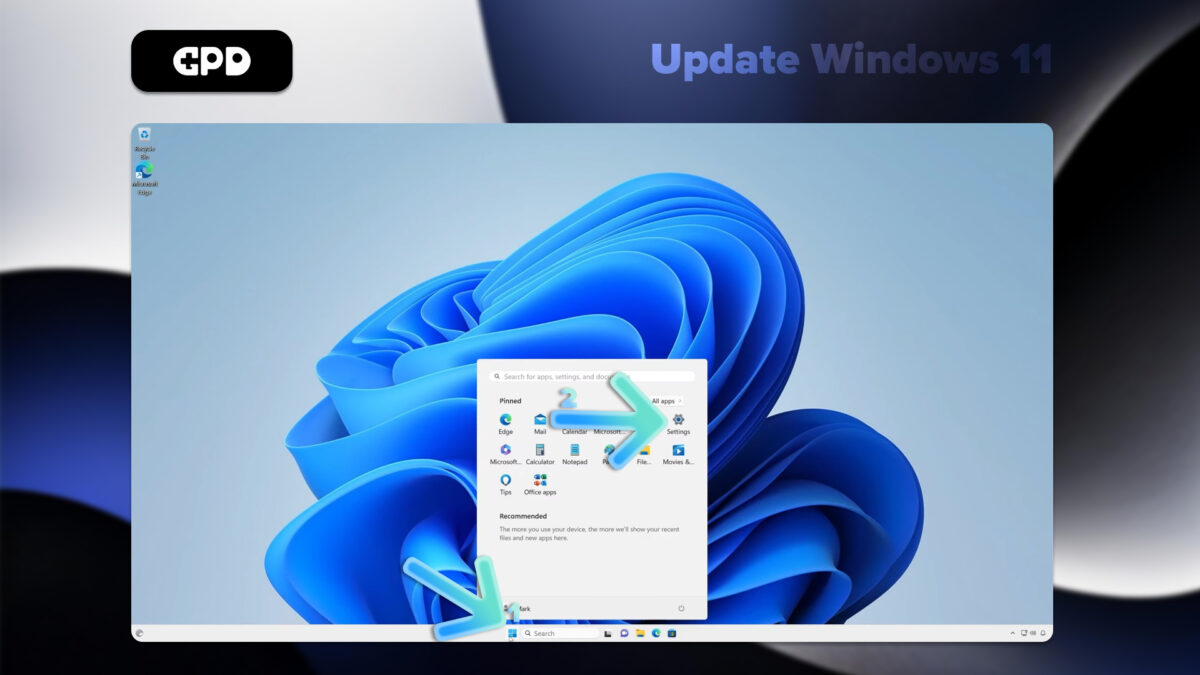
- Open the Start menu by clicking the Windows icon or pressing the Windows Key
- Select the Settings icon (gear symbol) or type “Settings” in the search bar and press RETURN(Enter).
- In the Settings window, click on “Windows Update” in the left sidebar.
- To check for available updates, click the “Check for updates” button.
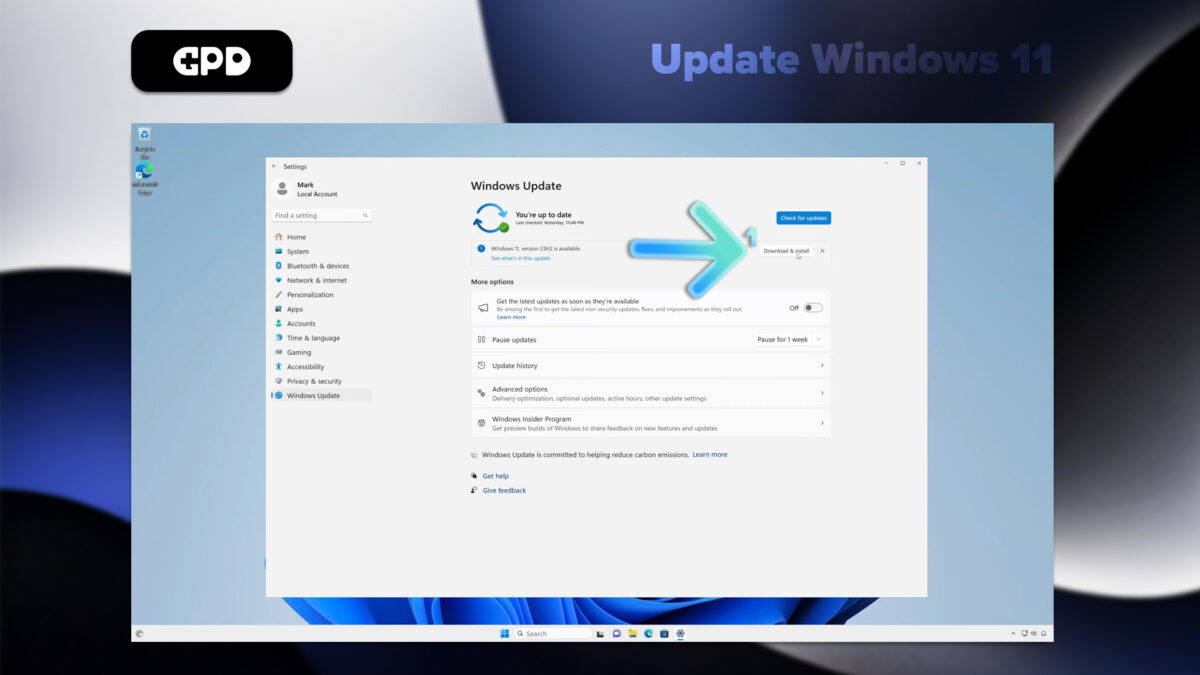
- If updates are available, Windows will begin downloading them automatically.
- Once downloaded, you may need to restart your GPD MicroPC 2 to complete the installation process.
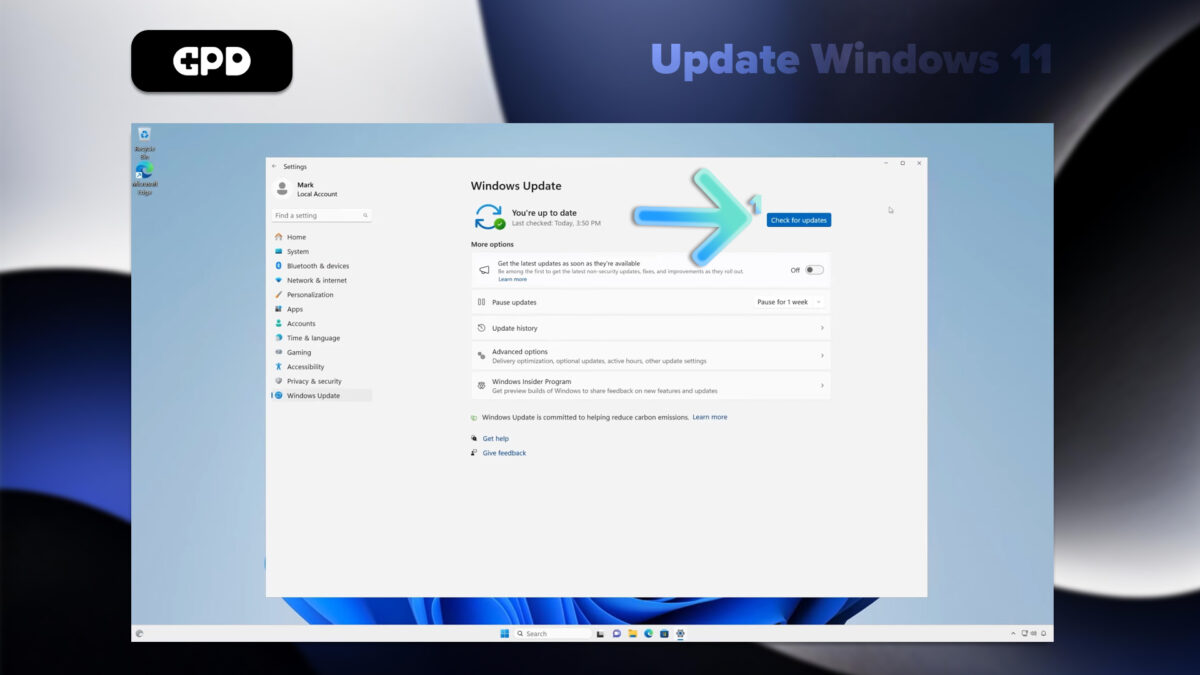
Note: Your GPD MicroPC 2 is set to automatically check for updates, but it’s a good practice to manually check periodically. You can customize update settings by clicking “Advanced options” in the Windows Update menu
How to Update Drivers on the GPD MicroPC 2
Windows Update
Windows Update is the simplest and most reliable method for updating most drivers:
- Open the Start menu and click on Settings (gear icon).
- Select “Windows Update” from the left sidebar.
- Click “Check for updates.”
Windows will automatically download and install available driver updates along with other system updates.
Device Manager
For more specific driver updates:
- Right-click the Start button and select “Device Manager.”
- Expand the category for the device you want to update.
- Right-click on the device and select “Update driver.”
- Choose “Search automatically for drivers.”
Intel Drivers Update
As the GPD MicroPC 2 is Intel based, you can download Intel Driver & Support Assistant (Intel DSA) which will keep various components of your device up to date.
- Download and install Intel DSA here
- Run the software and follow the prompts to choose what to update or install.
Note: Always download drivers from official sources to ensure system stability and security. While Windows Update covers most essential drivers, using the Intel tool can help keep Intel-specific components optimized for your GPD MicroPC 2. By regularly updating your drivers, you’ll ensure your mini laptop maintains peak performance and compatibility with the latest software and hardware
Changing the TDP on the GPD MicroPC 2
You can change the TDP from the BIOS settings, accessed when repeatedly tapping the Backspace key immediately powering on the GPD MicroPC 2. We have a detailed step by step guide on how to change the TDP on the GPD MicroPC 2 here.
How to update the GPD MicroPC 2 BIOS
You can follow our step by step guide on how to update the GPD MicroPC 2 BIOS here. Please do check beforehand which version of the BIOS your device has, before installing any BIOS updates.
Must-Have Software for the GPD MicroPC 2
To maximize the potential of your GPD MicroPC 2, consider installing these essential applications:
Productivity
Microsoft Office or LibreOffice: For document editing and creation.
OneNote: Ideal for note-taking, especially with the device’s touch screen support.
Entertainment
VLC Media Player: A versatile media player for various video and audio formats.
Utilities
7-Zip: For file compression and extraction.
ShareX: A powerful screenshot and screen recording tool.
Development
Visual Studio Code: A lightweight, versatile code editor suitable for coding on the go.
Security
Malwarebytes: Additional protection against malware and viruses.
Customization
AutoHotkey: For creating custom keyboard shortcuts and macros, which can be particularly useful on the compact keyboard of the GPD MicroPC 2.
Gaming
While the GPD MicroPC 2 is not a gaming device, it is possible to play lighter, lower demanding games.
Steam: The primary platform for PC gaming, offering a vast library of titles compatible with the MicroPC 2
RetroArch: For emulating classic games from various consoles.
Where to buy the GPD MicroPC 2