Welcome to our guide on getting started with the GPD Duo. The GPD Duo is a state-of-the-art mini laptop that merges the power of a desktop with the convenience of a pocket-sized device. Equipped with the AMD Ryzen AI 9 HX 370 processor and AMD Radeon 890M, this compact powerhouse delivers remarkable performance in a small form factor.
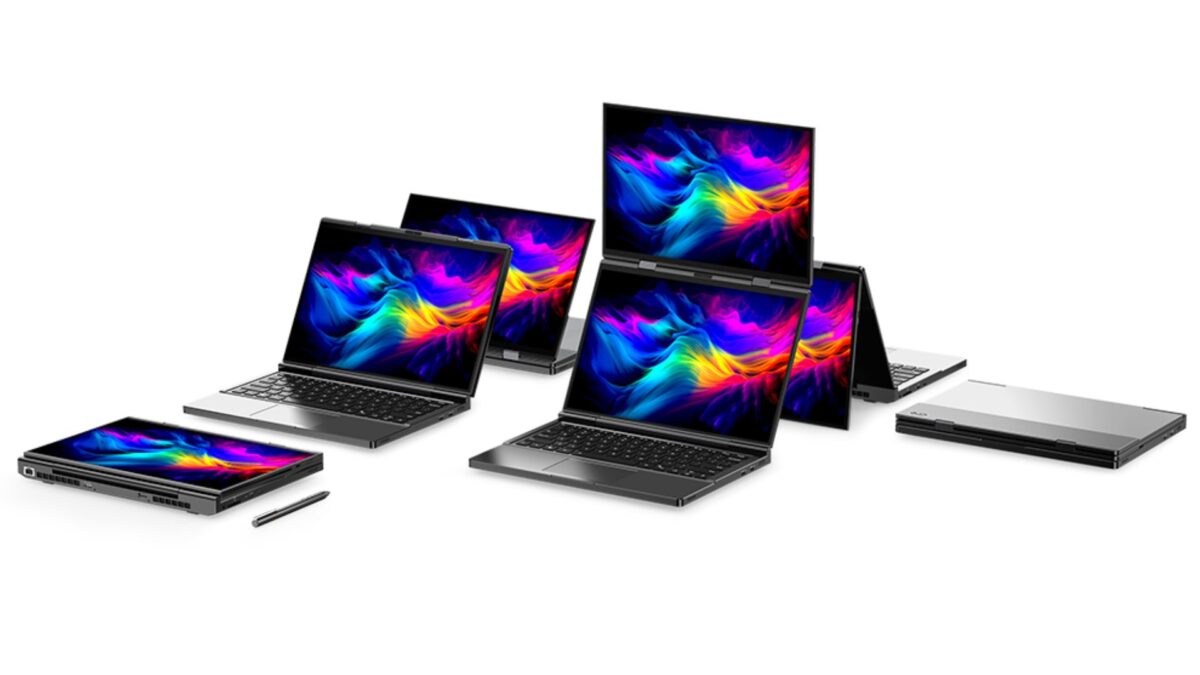
GPD Duo in its single and dual screen and tablet configurations
Designed for professionals and tech enthusiasts who need a fully functional Windows PC in an ultra-portable package, the Duo features dual 13.3-inch touchscreens and with a full keyboard. With its robust hardware and adaptable form, the GPD Duo caters to users who demand high performance and versatility in a truly pocket-sized computer.
Our getting started with the GPD Duo guide is here to ensure you hit the ground running with your new GPD Duo, from initial hardware checks and software updates to optimizing your productivity and troubleshooting common issues. This guide will help you make the most of your ultra-mobile PC, whether you’re using it for work, entertainment, or on-the-go computing tasks.
Inspecting the GPD Duo
Upon receiving your GPD Duo, we recommend conducting a thorough inspection to verify that everything is functioning as expected:
- Examine the device casing: Check the exterior for any cracks, dents, or damage that might have occurred during shipping. Pay close attention to the clamshell design and hinge mechanism.
- Test all keyboard keys: Use https://keyboard-test.space/ to confirm that each key on the keyboard is responding properly.
- Touchscreen responsiveness: Test the entire touchscreen to make sure it responds accurately. Ensure that you can interact with all areas of the screen without any unresponsive spots.
- Verify the screen folding mechanism: Open and close the screens to confirm that it operates smoothly and that the screen remains in place at different angles.
- Test the USB ports: Connect standard USB devices to verify that all ports are working correctly.
- Verify audio output: Test both the speakers and the 3.5mm audio port to ensure clear sound quality.
- Test Wi-Fi and Bluetooth: Confirm that the Wi-Fi 6E and Bluetooth connections are functioning as expected.
By thoroughly inspecting your GPD Duo, you can ensure all components are working correctly and quickly address any potential issues. If you encounter any problems, the GPD Store offers full support. Simply visit our Contact Us page and reach out for assistance.
Updating GPD Duo Windows & Drivers
Updating Windows 11
Keeping your GPD Duo updated is essential for ensuring peak performance and security. Here’s how to check for and install Windows 11 updates:
Open the Start menu by clicking the Windows icon or pressing the Windows key.
Select the Settings icon (gear symbol) or type “Settings” in the search bar and press Enter.
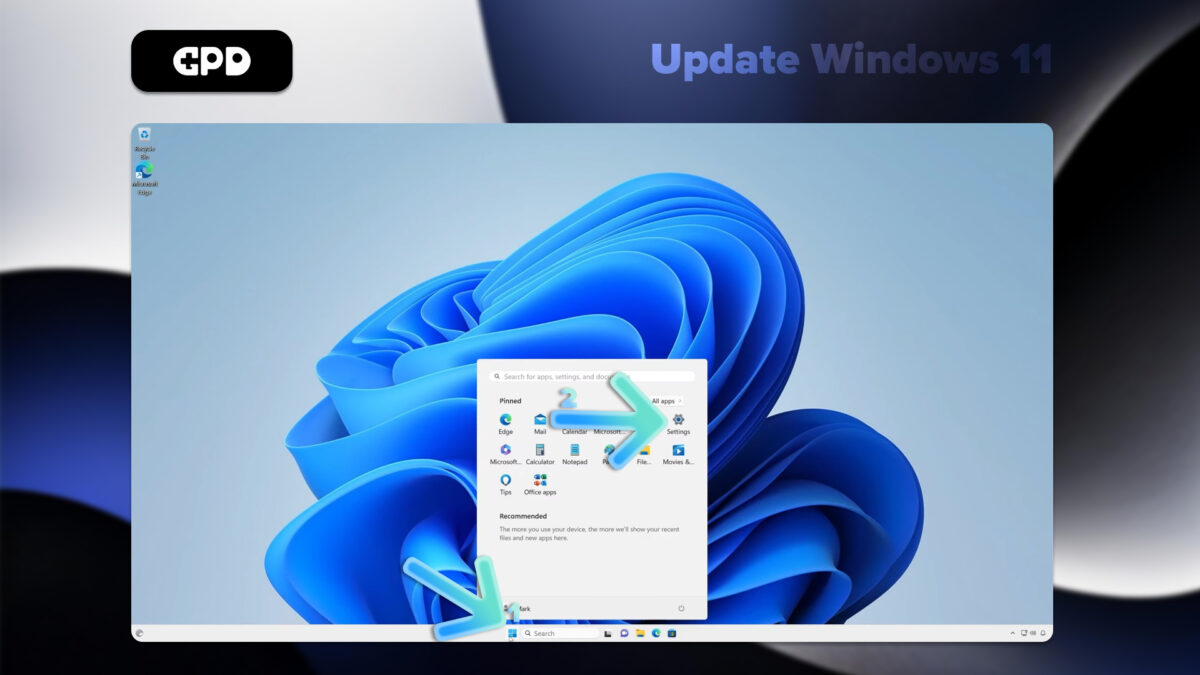
In the Settings window, click on “Windows Update” in the left sidebar.
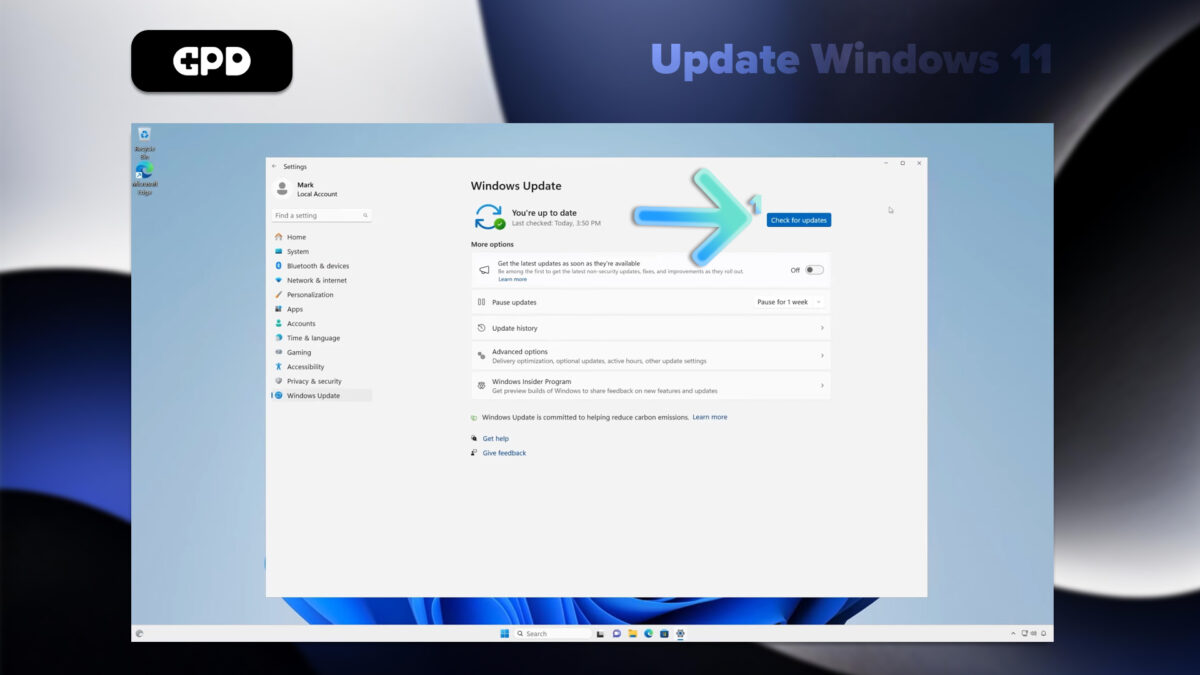
Click the “Check for updates” button to see if any updates are available.
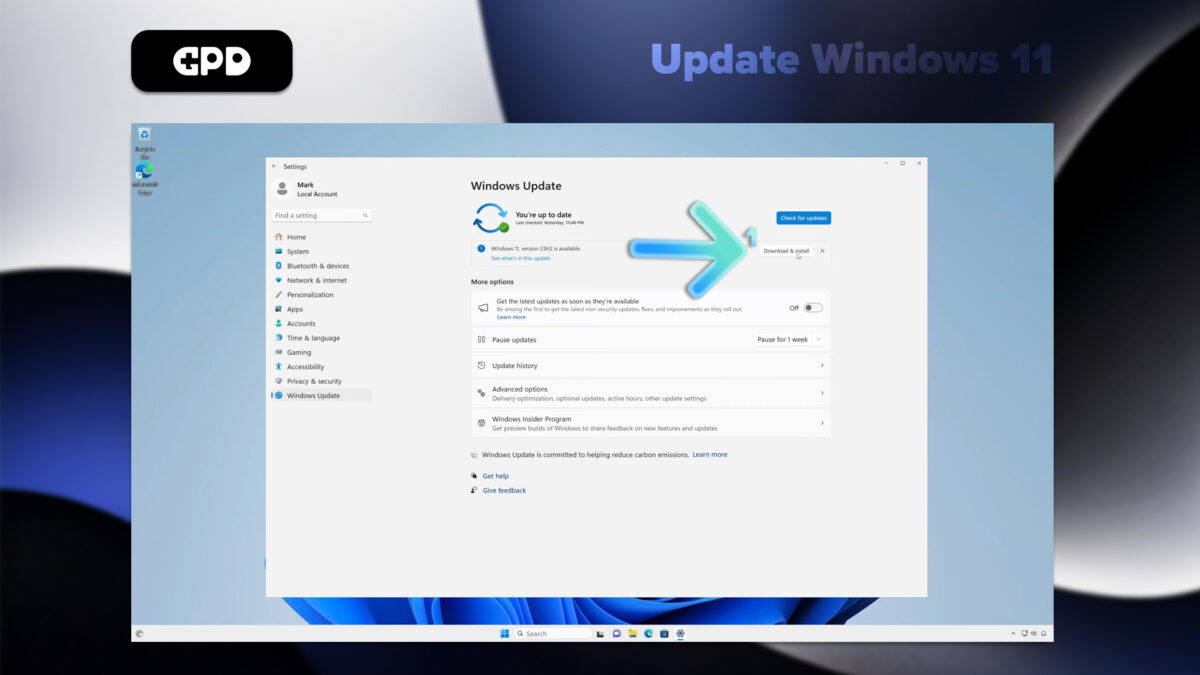
If updates are found, Windows will automatically begin downloading them.
Once downloaded, you may need to restart your GPD Duo to complete the installation.
Note: Your GPD Duo is set to automatically check for updates, but it’s a good habit to manually check periodically. You can also customize update settings by clicking “Advanced options” in the Windows Update menu.
Updating Drivers on the GPD Duo
Via Windows Update
Using Windows Update is the easiest way to ensure most drivers are up-to-date:
Open the Start menu and select Settings (gear icon).
Choose “Windows Update” from the left sidebar.
Click “Check for updates.”
Windows will automatically download and install any available driver updates along with system updates.
Via Device Manager
For more specific driver updates:
Right-click the Start button and select “Device Manager.”
Expand the category for the device you want to update.
Right-click the device and choose “Update driver.”
Select “Search automatically for drivers.”
Updating AMD Drivers
Since the GPD Duo uses AMD processors, you can update GPU and chipset drivers using AMD’s Auto-Detect tool: We have a more detailed guide on AMD graphics drivers here.
Download and install AMD Auto-Detect and Install Driver Updates from the official AMD website.
Run the software and follow the prompts to choose which drivers to update.
Note: Always download drivers from official sources to ensure system stability and security. While Windows Update covers most essential drivers, using AMD’s tool ensures AMD-specific components are optimized for your GPD Duo.
GPD Duo Video Input
The GPD Duo’s top display can act as a portable monitor and accept video via the USB-C. Learn more in out GPD Duo video input guide here.
Must-Have Software for the GPD Duo
To get the most out of your GPD Duo, consider installing the following applications:
Performance OptimizationGPD MotionAssist: Configure TDP settings, gyro controls, and other device-specific features.
Gaming
Steam: A key platform for PC gaming with a vast library of titles compatible with the Duo.
RetroArch: An emulator for classic games from various consoles.
Productivity
Microsoft Office or LibreOffice: For document editing and creation.
OneNote: Ideal for note-taking, especially with the touch screen.
Entertainment
VLC Media Player: A versatile media player supporting various video and audio formats.
Utilities
7-Zip: For file compression and extraction.
ShareX: A powerful tool for screenshots and screen recording.
Development
Visual Studio Code: A lightweight and versatile code editor suitable for development on the go.
SecurityMalwarebytes: Offers additional protection against malware and viruses.
Customization
AutoHotkey: Useful for creating custom keyboard shortcuts and macros, especially on the compact keyboard of the Duo.
Reminder: Adjust in-game settings for optimal performance, balancing visuals with frame rates to get the best experience on the GPD Duo.
Must Have Accessories For Your GPD Duo
GPD G1 eGPU Docking Station
The GPD G1 is a powerful accessory designed to elevate the performance of the GPD Duo. By incorporating an external GPU and expanded connectivity options, it transforms the Duo into a desktop-class system, perfect for gaming and productivity.
Equipped with the AMD Radeon RX 7600M XT GPU, the GPD G1 delivers desktop-level graphics power, enabling the device to handle demanding games and applications with ease.
The docking station offers multiple display output options, including HDMI 2.1 and DisplayPort 1.4a, allowing for multi-monitor setups and providing smooth, high-refresh-rate gaming experiences.
In addition to enhanced graphics, the GPD G1 adds extra USB ports and a high-speed SD card reader, expanding your connectivity and storage capabilities.
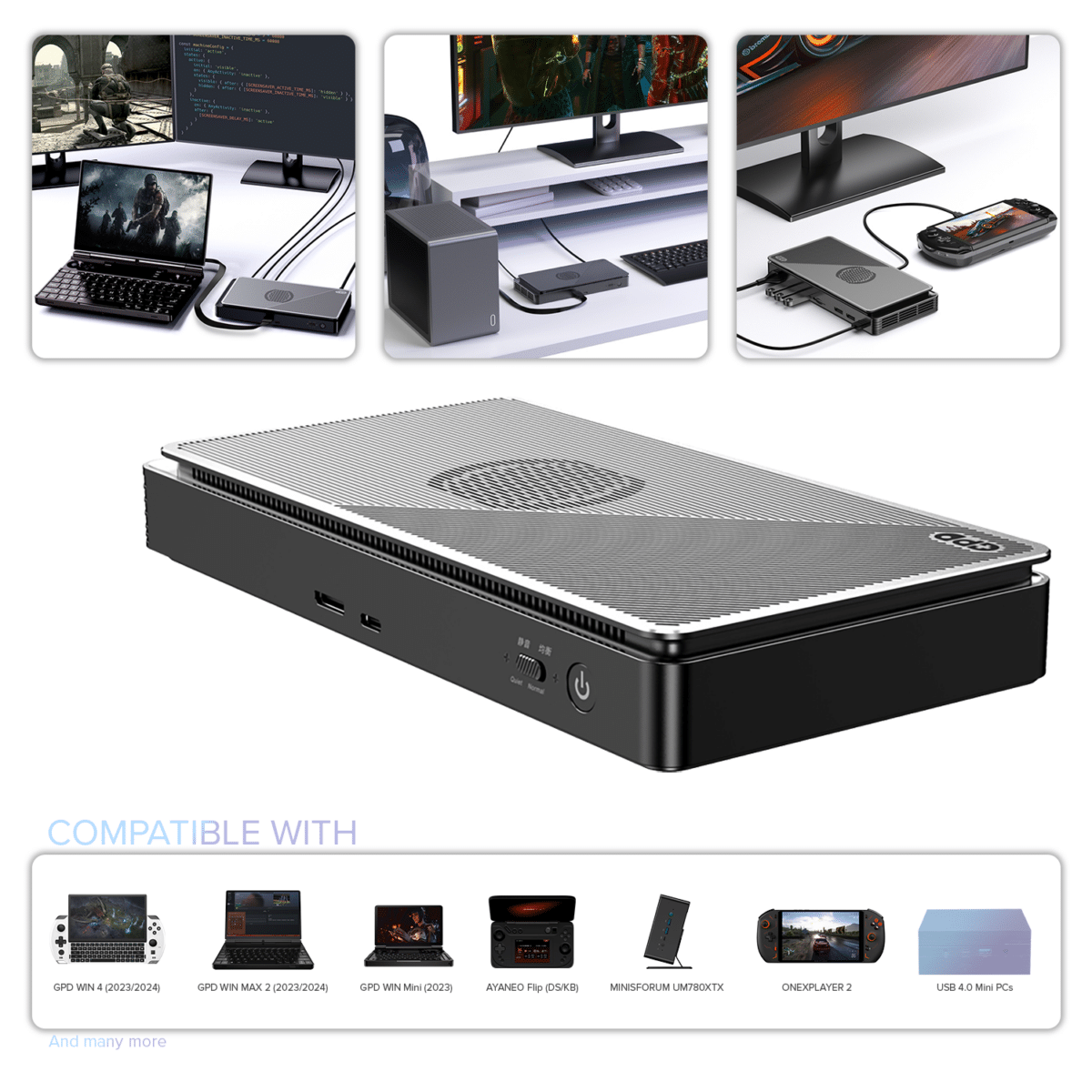
GPD G1 (2024) eGPU Docking Station
- GPU: AMD Radeon™ RX 7600M XT eGPU
- COMPATIBILITY: OCuLink, USB 4, Thunderbolt 3 & 4
- OCULINK: PCI Express Connectivity
- USB 4: up to 40 Gbps
- Designed for: GPD WIN MAX 2, WIN 4, WIN Mini, ROG Ally X
PAYMENT INFO
We use the latest technology in Payment Processing, which allows you to checkout via your Debit/Credit Card, or PayPal for a fast and secure experience.
WARRANTY
2 Years Warranty from DROIX Global for your peace of mind
QUALITY ASSURANCE & PRE-DISPATCH TESTING
Ensuring Customer Satisfaction at the Highest Standard: Every device undergoes rigorous testing and a multi-point quality assurance check before it is shipped. Our dedicated team verifies performance, functionality, and component integrity to guarantee your GPD device is in perfect working order upon arrival, providing you with confidence and peace of mind.
PRICING, TAXES AND SHIPPING
Note:
- United States Customers: The displayed price does NOT include TAX nor duties. Liability to clear customs and pay any associated tax/duties lies on the customer.
- EU Customers: The displayed price includes applicable TAX, which may be up to 25% depending on your country.
- Canada Customers: The displayed price includes applicable taxes, which may include 5% GST and additional Provincial Sales Taxes (PST), Harmonized Sales Tax (HST), or Quebec Sales Tax (QST), depending on your province.
For EU Customers ONLY: Express DDP (Delivered Duty Paid). This means:
- All customs duties and taxes are included in the price displayed on the product page.
- You will not need to pay any additional charges upon delivery.
- In the rare event of customs-related issues, our team will handle the customs clearance process on your behalf to ensure a smooth delivery experience.
Important Information About Returns:
- If you decide to return your order or request a refund, please be aware that taxes and duties paid on your behalf under DDP terms cannot be refunded.
Please refer to our Terms & Conditions for detailed information.
CUSTOMER SUPPORT
Got a question? We’re a short text away from having your issue sorted!
Please refer to our Terms & Conditions for detailed information.
WHAT’S INCLUDED
- 1x GPD G1 2024
- 1x Power Adapter
- 1x USB Type-C Cable
- 1x User Manual
$690.95
GPD Stylus
The GPD Stylus is a versatile and well-crafted accessory, designed to complement GPD models like the GPD Duro, Pocket 3 and Win Max 2, and compatible with other laptops and tablets. Constructed from durable aluminum alloy, it offers an ergonomic, lightweight design that provides a comfortable grip, making it ideal for extended use.
With a high-sensitivity, 4096-level pressure-sensitive tip made of soft rubber, the stylus allows for precise control, whether you’re writing notes, creating illustrations, or editing photos. This advanced pressure sensitivity delivers smooth, natural interactions that feel as intuitive as writing on paper, with detailed control for both fine and bold lines. Additionally, the rubber tip protects your screen from scratches, keeping it clean and in excellent condition.
Portable and practical, the GPD Stylus includes a top buckle for easy attachment to pockets or cases, making it convenient to carry around. Whether you’re navigating apps or letting your creativity flow, this stylus adds a seamless blend of functionality and convenience, enhancing your experience with any GPD device.
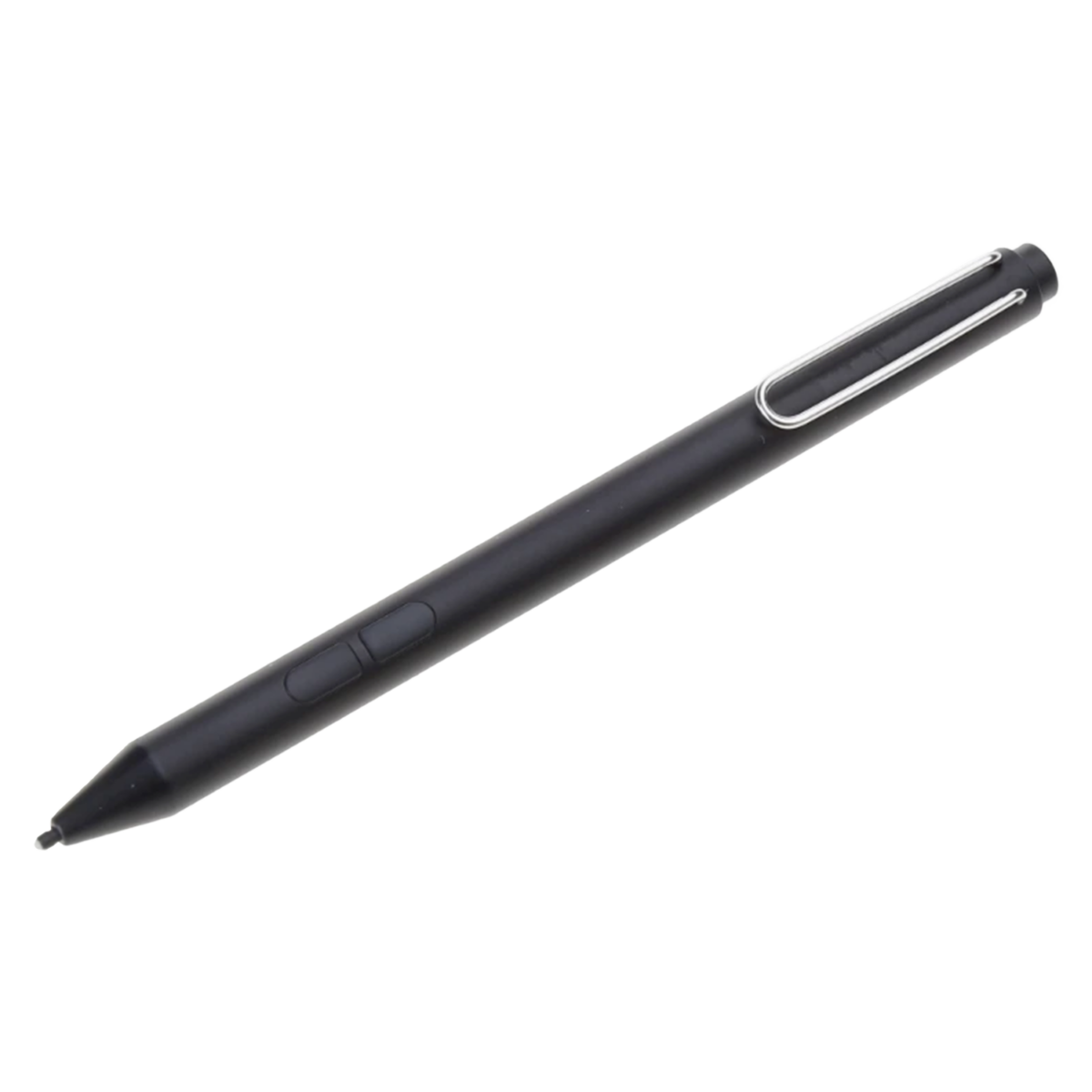
GPD Stylus for GPD Pocket 3 & WIN MAX 2
- Works with GPD Pocket 3 & GPD WIN MAX 2
- 4096-level Pressure Sensitivity
- Sleek & Ergonomic
- Metal Buckle
- Memo writing and character input
PAYMENT INFO
We use the latest technology in Payment Processing, which allows you to checkout via your Debit/Credit Card, or PayPal for a fast and secure experience.
WARRANTY
2 Years Warranty from DROIX Global for your peace of mind
QUALITY ASSURANCE & PRE-DISPATCH TESTING
Ensuring Customer Satisfaction at the Highest Standard: Every device undergoes rigorous testing and a multi-point quality assurance check before it is shipped. Our dedicated team verifies performance, functionality, and component integrity to guarantee your GPD device is in perfect working order upon arrival, providing you with confidence and peace of mind.
PRICING, TAXES AND SHIPPING
Note:
- United States Customers: The displayed price does NOT include TAX nor duties. Liability to clear customs and pay any associated tax/duties lies on the customer.
- EU Customers: The displayed price includes applicable TAX, which may be up to 25% depending on your country.
- Canada Customers: The displayed price includes applicable taxes, which may include 5% GST and additional Provincial Sales Taxes (PST), Harmonized Sales Tax (HST), or Quebec Sales Tax (QST), depending on your province.
For EU Customers ONLY: Express DDP (Delivered Duty Paid). This means:
- All customs duties and taxes are included in the price displayed on the product page.
- You will not need to pay any additional charges upon delivery.
- In the rare event of customs-related issues, our team will handle the customs clearance process on your behalf to ensure a smooth delivery experience.
Important Information About Returns:
- If you decide to return your order or request a refund, please be aware that taxes and duties paid on your behalf under DDP terms cannot be refunded.
Please refer to our Terms & Conditions for detailed information.
CUSTOMER SUPPORT
Got a question? We’re a short text away from having your issue sorted!
Please refer to our Terms & Conditions for detailed information.
WHAT’S INCLUDED
- 1x GPD Stylus
20.95Price range: 20.95