Congratulations on purchasing your 15.6″ portable monitor! We’ve prepared a getting started with your 15.6″ 4K portable monitor guide that we highly recommend reviewing. It includes important information on what to check, as well as how to set up and use your monitor.
If you have any issues or questions about your portable monitor
At GPD Store, we take pride in offering excellent customer service both before and after your purchase. If you have any questions or experience any issues with a product you’ve bought from us, please feel free to contact us. We’re always here and happy to assist, ensuring your concerns are addressed and any issues resolved promptly.
Checking the contents
Before using your portable monitor, ensure that all the contents that should be included are present. Contents may vary between models, so please check the Box Contents section on the product listing for your specific portable monitor to confirm everything is accounted for.
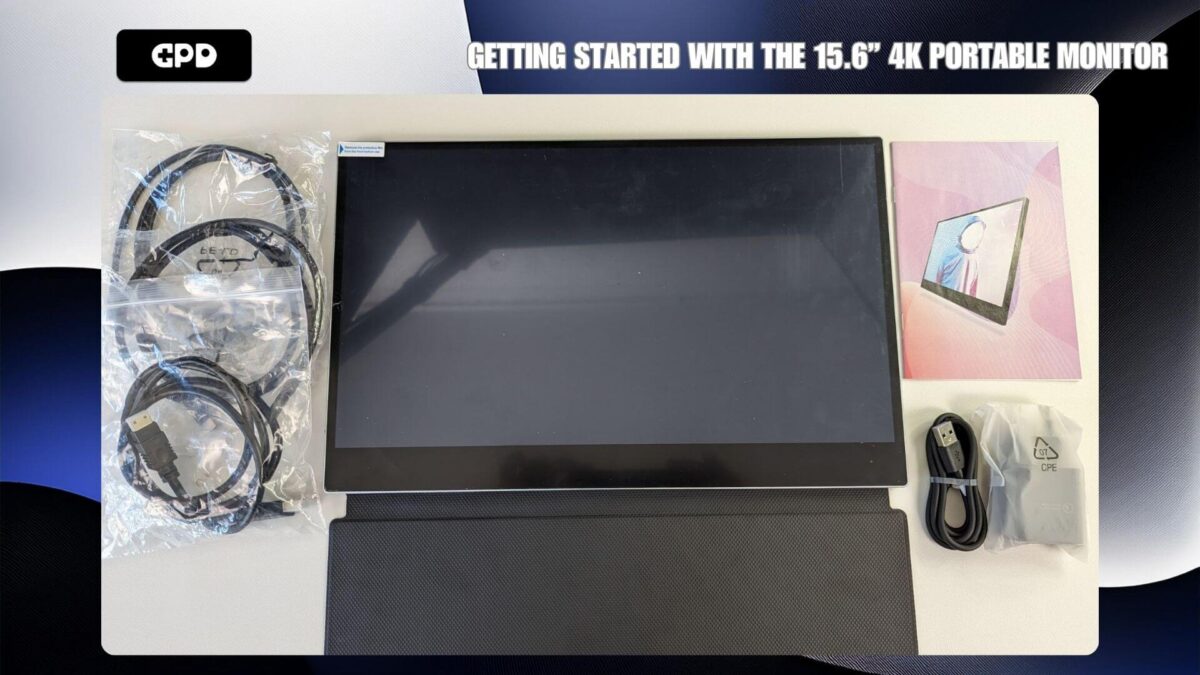
Portable monitor and accessories (Your model may differ)
If anything is missing or you are unsure, don’t hesitate to reach out to our customer service team, and we will be glad to help.
Powering the monitor
If you have the battery variant of the portable monitor, you can use the built-in battery to power it. The battery can also be recharged via the USB port.
For models without a battery (or if you prefer not to use the battery), there are two methods for powering the monitor:
- Use the included USB Type-C charge cable and power adapter to power the monitor.
- A device such as a mini PC or handheld gaming PC with a USB 3.0 port or higher may be able to both power the monitor and display content using a single USB cable. Be sure to check your device’s compatibility.
iPhone devices require a lightning-to-HDMI adapter to connect to the monitors for full functionality, due to a lack of a USB-C port. The iPhone 15, which features a USB-C port, is an exception and supports direct connection but will lack touch functionality.
Connecting a device to the portable monitor
There are two ways to connect your device to the portable monitor: HDMI or USB Type-C. The method you choose will depend on the output options your device supports.
HDMI is the most common and widely compatible option, allowing you to connect almost any modern device. You can use the included HDMI to Mini HDMI cable to connect your device to the monitor.
USB Type-C is an excellent option for connecting compatible devices, such as a GPD mini laptop or handheld gaming PC, to a portable monitor. Check your device’s user manual to confirm if it supports video output through the USB Type-C port. Some devices have multiple USB Type-C ports, but only one may support video output. In addition, you may be able to power the monitor through the same USB cable from your device, providing a convenient all-in-one connection.
A very useful connection guide on the 15.6″ can be found below showing the various ways to connect your device. There are also videos for Adobe, Stylus and non-battery models at their respective URLs.
Navigating the portable monitor menus
You can access the monitor’s menu by pressing the rocker button located on the left side. You can navigate the menu using the rocker and the power button, or more easily by interacting with the touch screen directly.
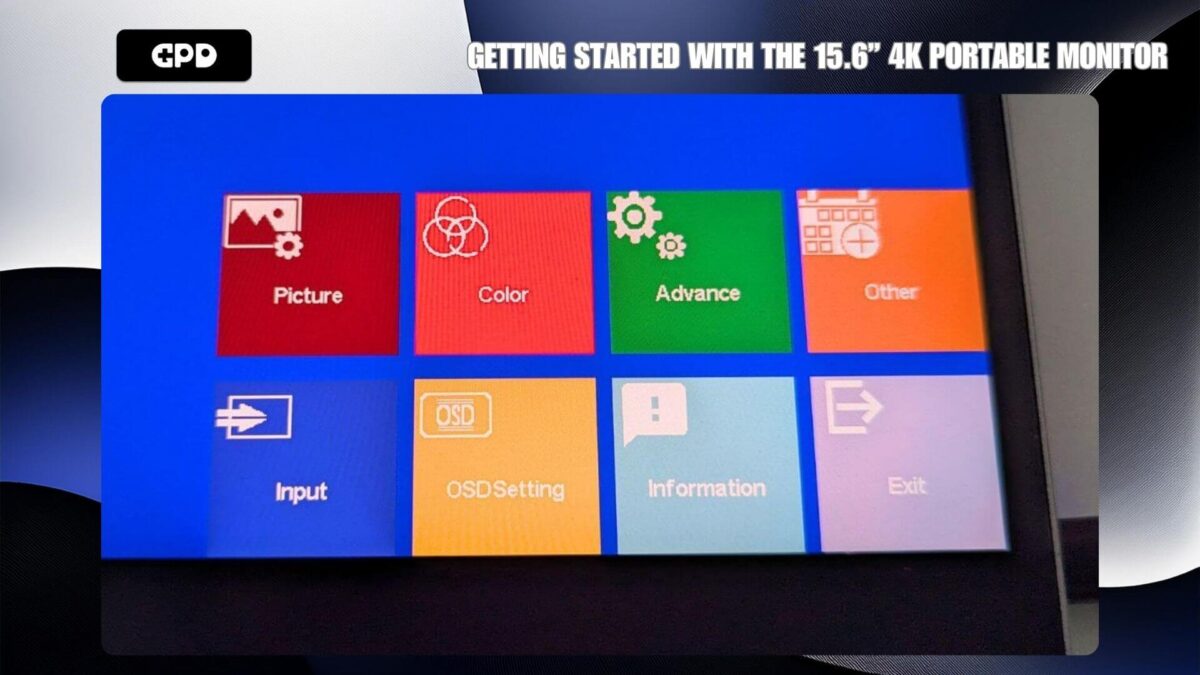
Portable monitor main menu
To configure the monitor to your preferences, simply tap the respective boxes on the screen to adjust the settings.
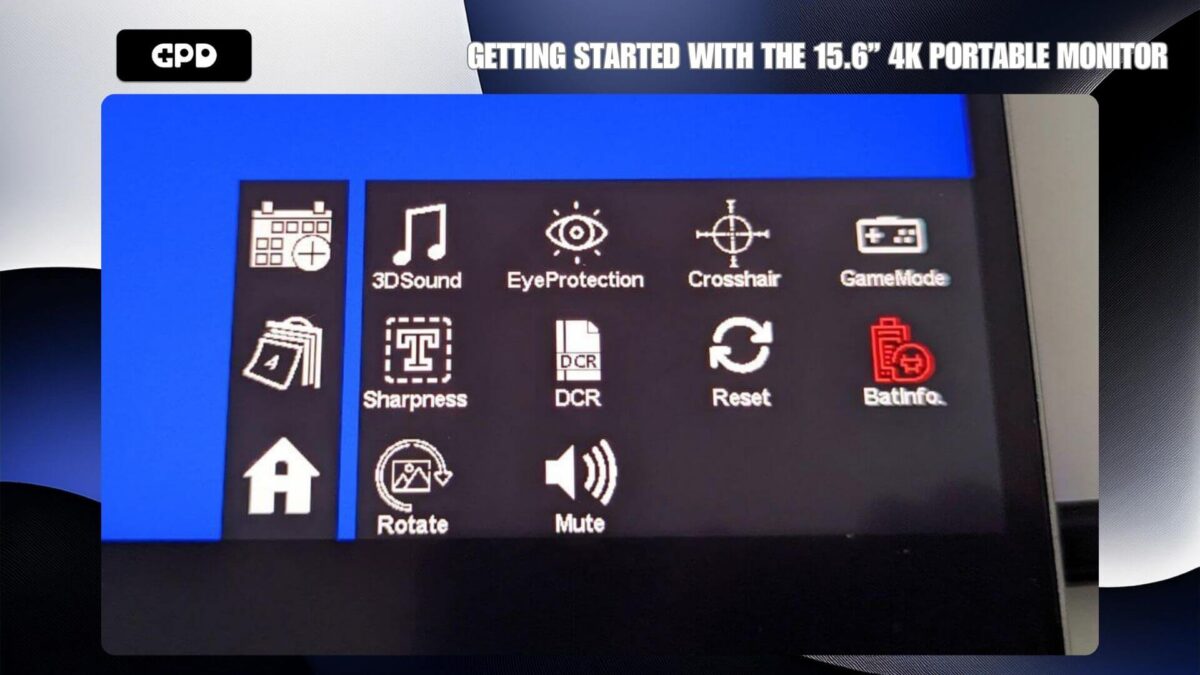
Portable monitor settings
Using data cables to communicate with your device
The included USB Type-C to Type-C and USB Type-C to USB-A cables allow you to connect supported devices, such as a Windows mini PC or handheld gaming PC, enabling touchscreen functionality on your Windows device.
If your device supports USB Type-C, you can use the same cable for powering the monitor, displaying content, and enabling touchscreen functionality.
If you’re using HDMI for the video connection, you can connect the included USB Type-C to USB-A cable to your device’s USB port to enable touchscreen support.
With a micro USB breakout cable (not included), you can connect it to the monitor via the micro USB port. This allows you to attach peripherals such as a mouse or keyboard, and they will function as if they were directly connected to your device when using the USB Type-C connection.
Windows Display Settings
A common question we receive is why the display looks lower quality than expected. This is typically due to using the incorrect screen resolution. The portable monitor supports up to 4K resolution, so using a lower resolution, such as 720P, may result in a less sharp image.
To adjust the display resolution, type “Display Settings” into the Windows search bar and select it from the results.
If the monitor’s settings show “Duplicate these displays,” we recommend changing it to “Extend the displays” (so your desktop spans across two monitors) or “Show only on the portable monitor” (usually display 2) to achieve the best resolution.
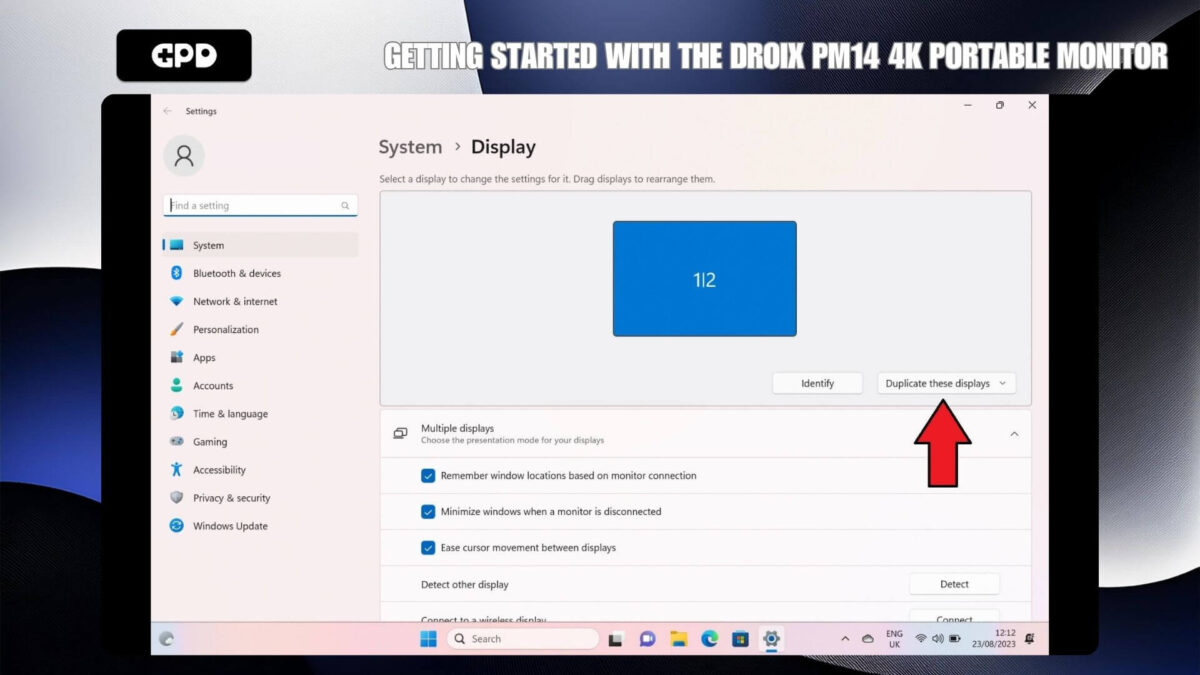
Changing how the displays are outputting
Once you’ve chosen your display setting, the monitor may briefly show a black screen while switching resolutions. It will then display your usual desktop if set to “Show only on the portable monitor,” or a blank desktop if using the “Extend the displays” option.
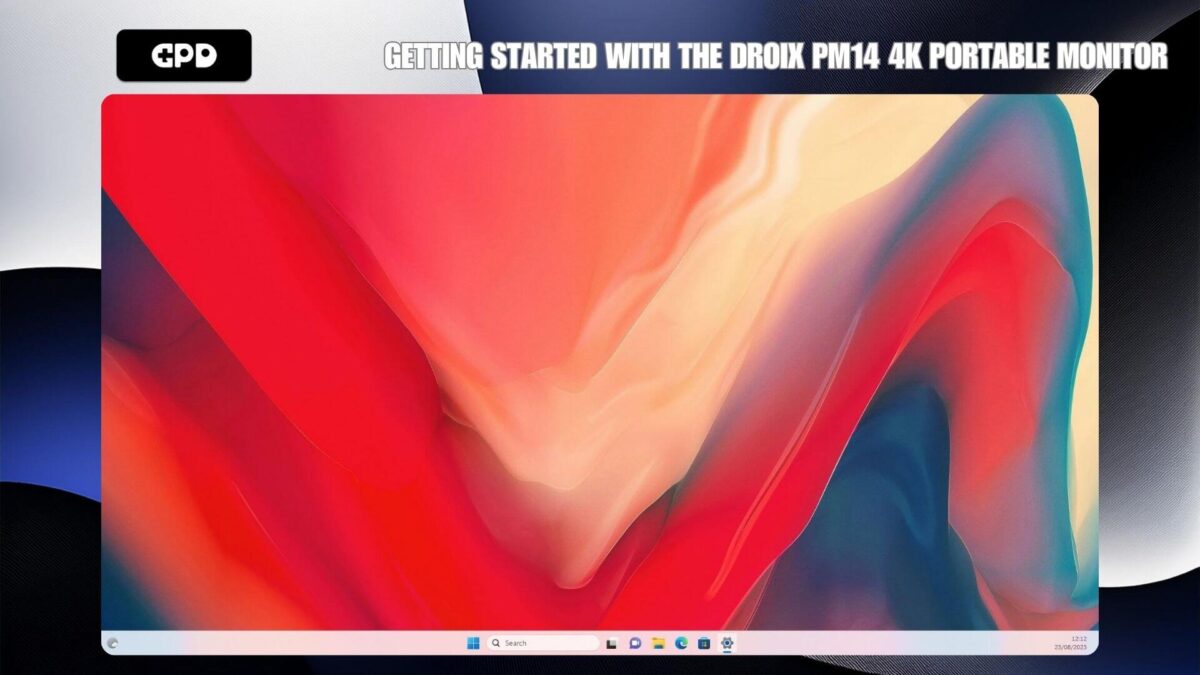
The desktop is now extended
Since this is a 4K monitor, you can now increase the screen resolution to the highest level your device supports.
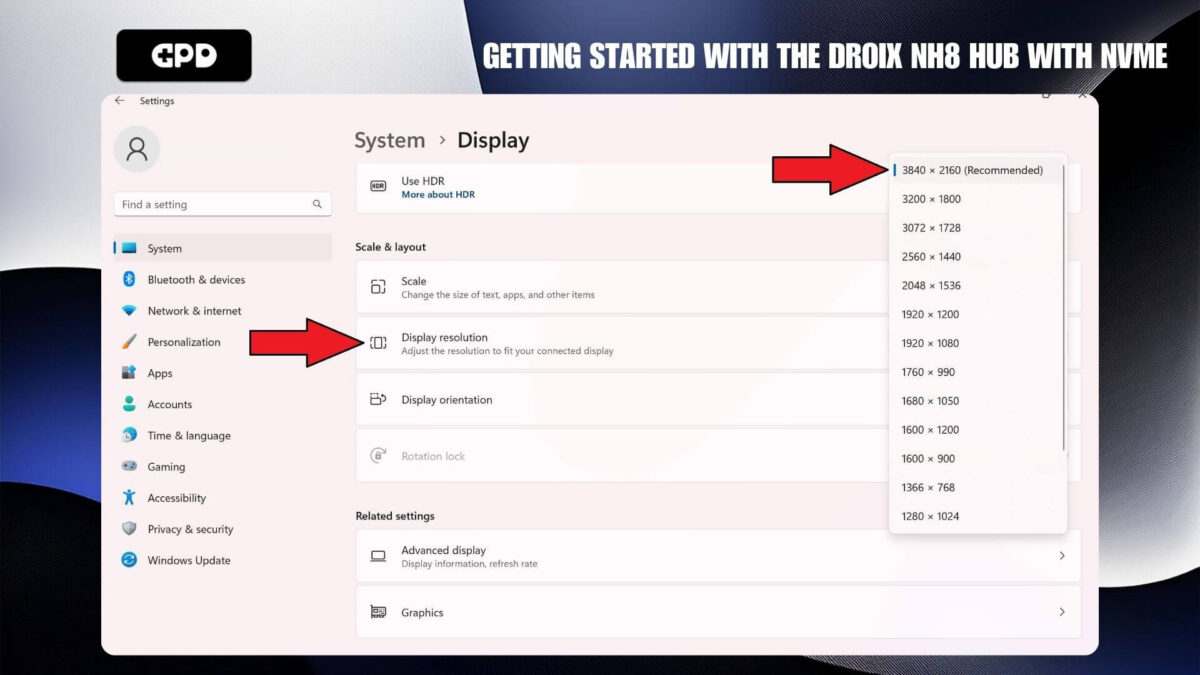
Select the highest Display Resolution
If you experience any display issues, we recommend checking the refresh rate. Make sure it is set to 30 or 60Hz. To do this, go to the Advanced Display settings menu and adjust the refresh rate to 60.00 Hz, for example.
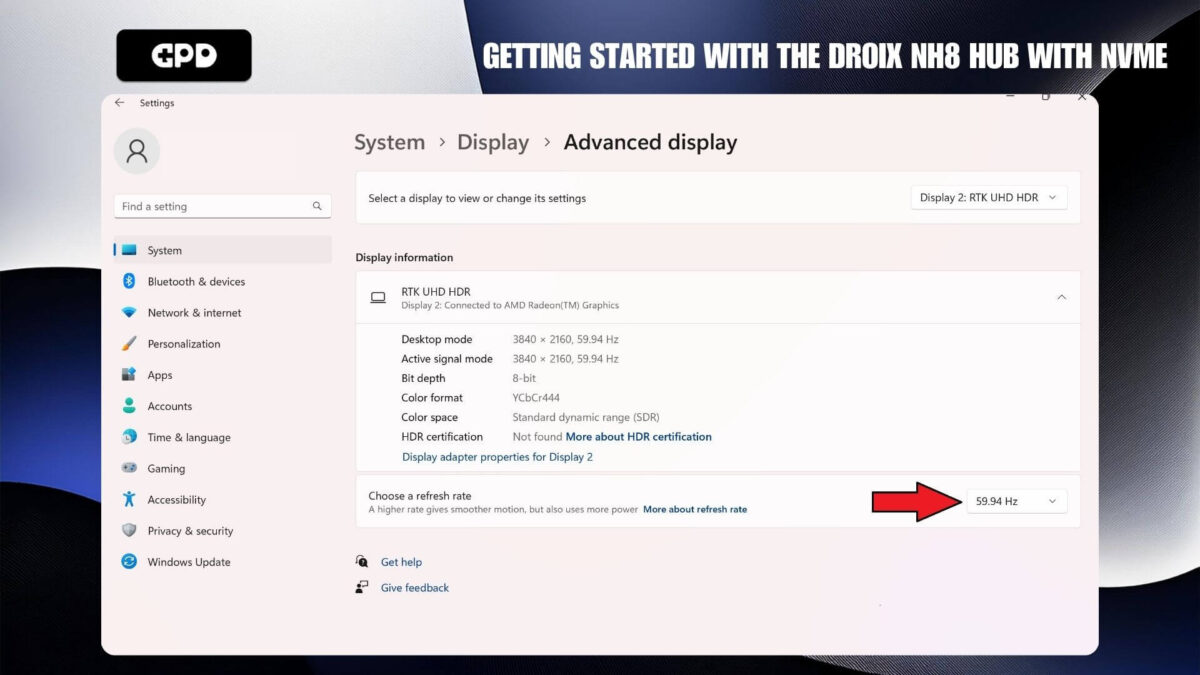
Select the highest Refresh Rate
Display Troubleshooting
If your monitor is flashing, displaying a black screen, or remaining in standby mode, the most common issue is insufficient power. Please check that enough power is being supplied to the monitor. If the problem continues, we recommend reaching out to DROIX Customer Support for quick and efficient assistance.
When connecting to a phone, ensure the monitor is plugged into the provided power adapter.
Portable Monitor without Battery
For the version of the portable monitor that doesn’t have a built-in battery, it needs to be powered to function. This model has two dedicated ports: one for power and one for data transfer (such as video and audio). Make sure you are using the correct cables for each function. The different cables are outlined below:
- The supplied USB-A to USB-C cable is used solely for supplying power and cannot transfer data.
- The supplied USB-C to USB-C cable is for transferring data, including video.
| Device | Power | Data | Result |
|---|---|---|---|
| PC | – | HDMI | Doesn’t Work |
| PC | Power Adapter | HDMI | Works |
| PC | USB-C to USB-C | HDMI | Doesn’t Work |
| PC | USB-A to USB-C | HDMI | Works |
| PC | USB-A to USB-C | USB-C to USB-C | Works |
If no power supply is available, a mobile device may be able to power the monitor, provided the device has sufficient battery capacity. However, we recommend using the provided power supply when connecting a mobile phone to the monitor to ensure stable performance.
Screen Brightness
The initial brightness of the monitor is set to 30%. To increase the brightness or volume above 70%, make sure the monitor is connected to an external power supply that provides at least 5V/2.0A.