Congratulations on your purchase of the new DROIX SD1 Docking Station! You’ve just taken the first step toward enhancing your handheld gaming PC experience. This Getting Started guide will help you unlock the full potential of your DROIX SD1, from its three USB 3.0 ports to 4K gaming at 60Hz, along with a 1000Mbps ethernet connection. We’re here to assist you at every stage. So, get ready as we embark on this exciting journey to elevate your gaming adventures!
At GPD Store, we strongly support the Right to Repair. If you encounter any issues and feel confident enough to handle the repairs yourself, we encourage you to do so! Of course, GPD Store Customer Support is always available to help with any questions or assistance you might need.
What’s in the Box?
As you prepare to set up, make sure you have all the necessary components and accessories. While unboxing, be sure to handle the docking station carefully to avoid any potential damage. Inside the box, you should find:
- 1x DROIX SD1 Docking Station

Getting started with the DROIX SD1 Docking Station
If anything is missing or you’re unsure about any items, feel free to contact GPD Store Customer Service, and we’ll be happy to assist you.
Testing Your Hardware
After completing the initial setup, it’s important to test your DROIX SD1 Dock to ensure everything is functioning as expected. If a specific test doesn’t work properly, try using different cables to determine whether the issue lies with the cable or the dock. During troubleshooting, make sure all cables are securely connected to the appropriate ports.
DROIX SD1 Docking Station
- Physical Damage: Inspect the dock’s outer casing for any signs of damage.
- Dock Connection: Connect your handheld device to the DROIX SD1 Dock. To verify that the device is recognized, refer to either the PD port test or the HDMI test.
- USB-C PD Port: Plug your charger into the PD port at the back of the dock to ensure your device is charging.
- USB-A 3.0 Ports: Plug various USB devices into each USB Type-A port and confirm that each one is recognized and functioning as expected.
- HDMI Port: Turn on both your device and display, then switch to the correct HDMI input. If the display shows an image, the port is working correctly.
- Ethernet Port: Ensure the ethernet cable is plugged into both the dock and your router or modem. Then check if your handheld device has internet access through the ethernet connection.
Other Troubleshooting
- Device Not Charging: Some devices have multiple ports, but only certain ones are dedicated for charging. Make sure you’re using the correct port as per your device’s manual.
- No Display: Some devices have specific ports for charging that do not transfer data. Try using different ports and consult your handheld product manual to understand which ports are used for charging and which are for data transfer.
What you can do with the DROIX SD1 Docking Station
Ensure that your DROIX SD1 docking station is placed on a flat, stable surface. Any uneven surfaces or accidental bumps could potentially affect or damage both the dock and the handheld device connected to it. As you follow the steps in this guide, refer to the image below for the location of each port/connection on the SD1 Docking Station.
Dock Your Handheld Device
Start by connecting your handheld gaming device using the attached USB Type-C cable on the SD1 (see image below). Place your device into the dock for a seamless connection.
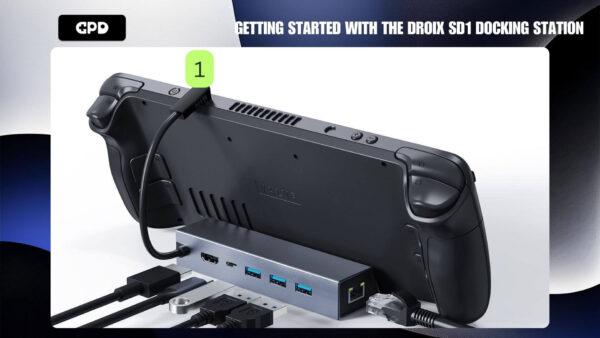
USB-C Cable
Connect Your Display
To enhance your gaming experience on a larger screen, connect an HDMI cable between your SD1 Dock and your display (refer to the image below). This could be a TV, monitor, projector, or another screen! Be sure to switch the display input to the correct HDMI source if necessary. The SD1 supports up to 4K resolution at a 60Hz refresh rate, offering an immersive experience for games or media in the best quality. Please note, the HDMI cable is not included in the package.
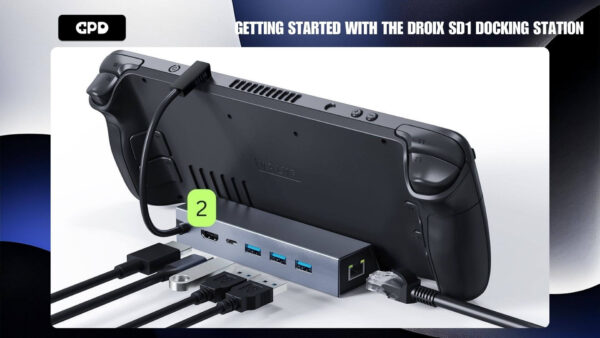
HDMI Port
Power & Charge Your Device
Next, ensure your device stays powered and charged during your gaming sessions. Connect a charger to the USB-C PD port at the back of the SD1 Docking Station (see image below). The SD1 supports up to 100W charging, so your device won’t run out of power mid-game. This rapid charging feature is also great for giving your handheld a quick boost before taking it on the go. Note that the charger is not included with the dock, but you can use the charger that came with your handheld device or invest in a 100W charger for faster charging.
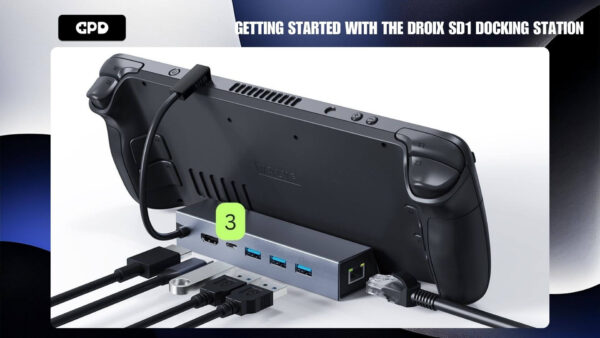
USB-C PD Port
Once you’ve completed this setup, you’re ready to enjoy your favorite games on the big screen without delay. But there’s more to explore to get the most out of your SD1 Dock!
USB-A 3.0 Ports
The DROIX SD1 Docking Station comes with three USB-A 3.0 ports located at the back of the device (see image below). These ports allow you to connect a wide range of peripherals like controllers, headsets, keyboards, mice, and other USB devices. This enhances your gaming experience and transforms your Windows handheld into a versatile tool, allowing you to browse the internet, watch videos, shop, and engage in general PC activities beyond gaming.
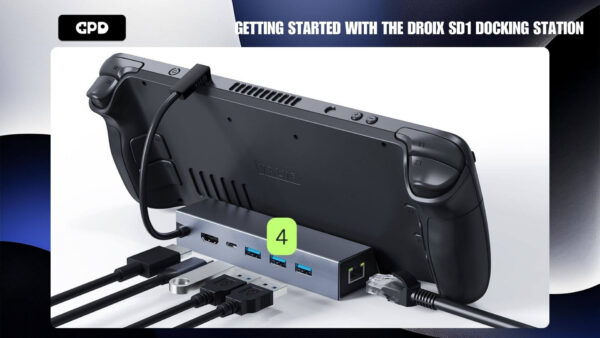
USB-A 3.0 Ports
Ultra-fast Internet Connection
For a direct, ultra-fast, and stable internet connection, connect an ethernet cable to the dock. This reduces latency and improves performance during online gaming or streaming. The ethernet port is located on the side of the SD1 Dock (see image below). Please note, the ethernet cable is not included.
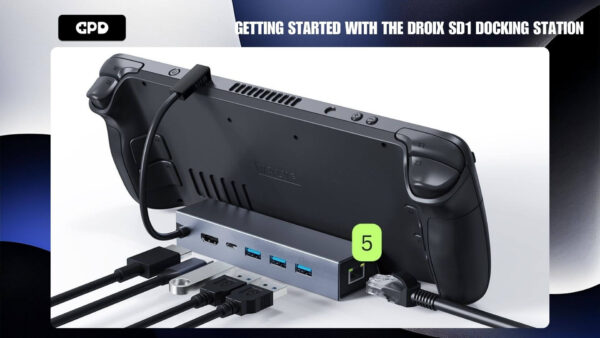
Ethernet Port
Device Settings
Windows Display Settings
The DROIX SD1 docking station truly elevates visual quality and smoothness, supporting up to 4K resolution and a 60Hz refresh rate via its HDMI port. This ensures your games look incredible and run smoothly. If both your device and display support higher resolutions, we highly recommend setting them to the maximum available resolution and refresh rate. Doing so will significantly enhance your gaming experience, allowing your games’ graphics to shine and ensuring smoother gameplay.
Keep in mind that increasing the resolution and refresh rate may lead to higher battery consumption. This is important to consider when using your device in handheld mode. To balance performance and battery life, you may want to adjust these settings based on your current needs.
To adjust your display settings in Windows 11:
- Type ‘Display Settings’ in the Windows search bar and open it.
- Change the Display Resolution to the highest available option.
- Select Keep Changes.
- Select the Advanced Display option.
- Change the Refresh Rate to the highest available option.
- Select Keep Changes.
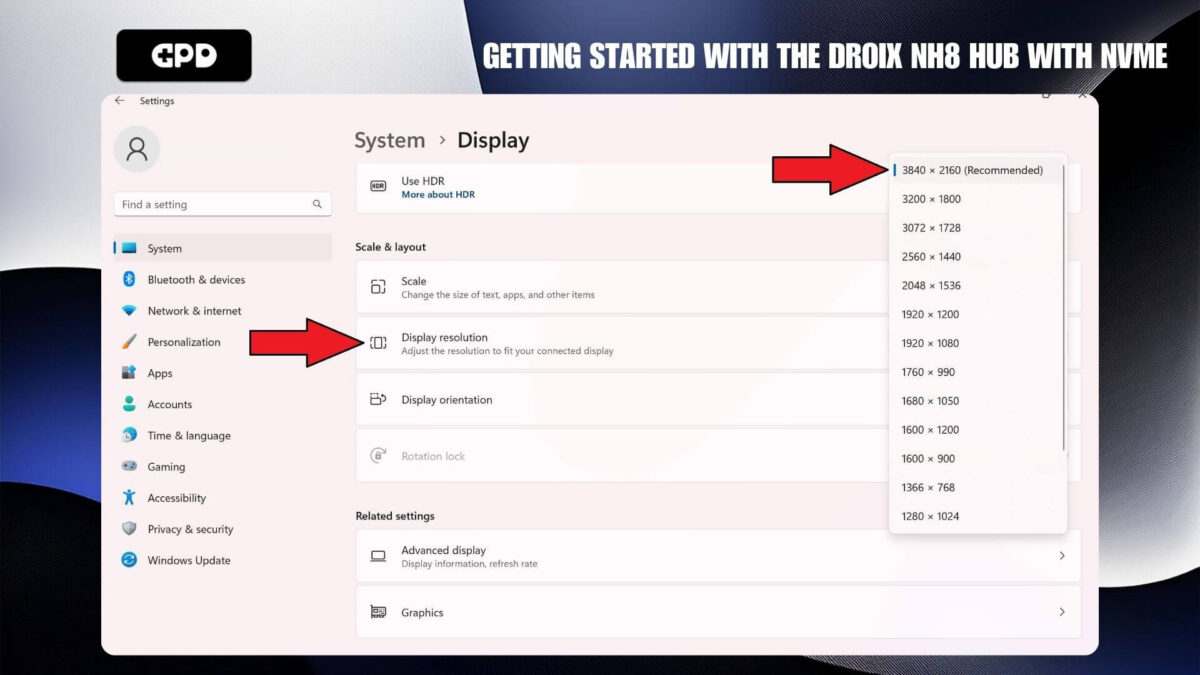
Select the highest Display Resolution
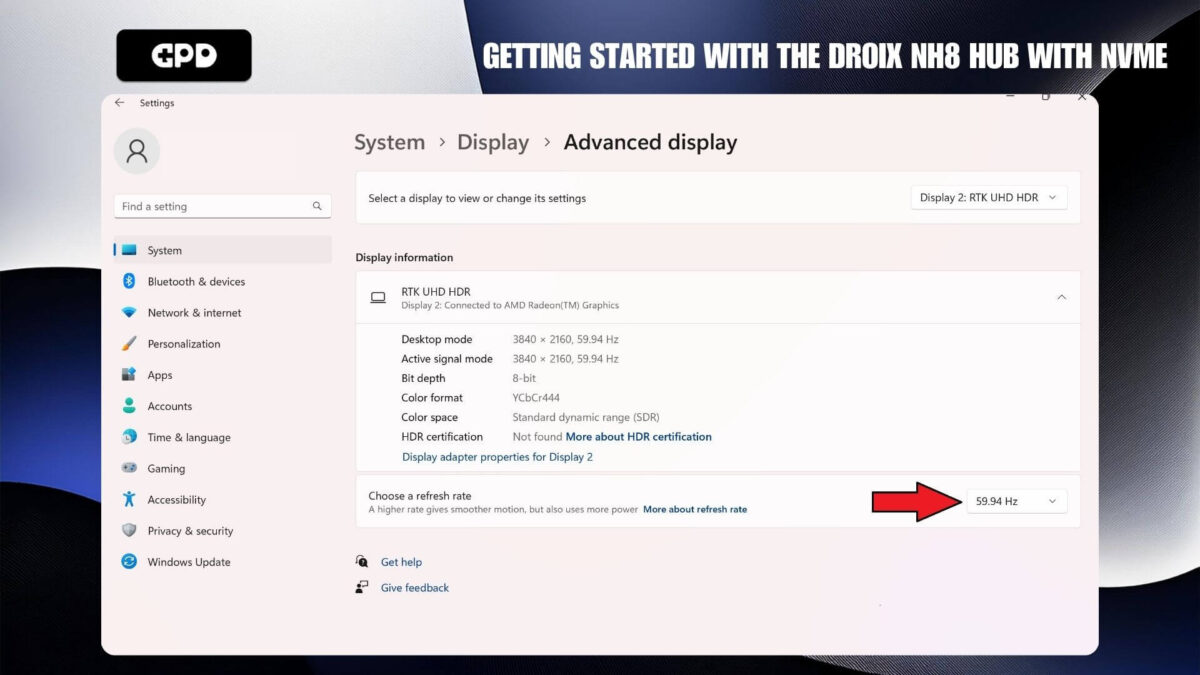
Select the highest Refresh Rate
Handheld Compatibility
The DROIX SD1 docking station supports a wide range of handheld devices, but it’s important to know which ones are compatible. Below is a list of supported devices as well as some that we’ve tested. We’ve also included notes for certain devices to help if you’re experiencing any difficulties.
Supported Devices:
- Steam Deck
- ROG ALLY
- GPD WIN 4 – Requires the front screen to be lifted.
- GPD WIN 4 (2023) – Requires the front screen to be lifted.
- ONEXPLAYER 2
- AOKZOE A1 Pro – Must be positioned vertically.
Not Supported:
- AYN Loki: Not supported – no top port.
- AYN Loki MAX: Not supported – no top port.
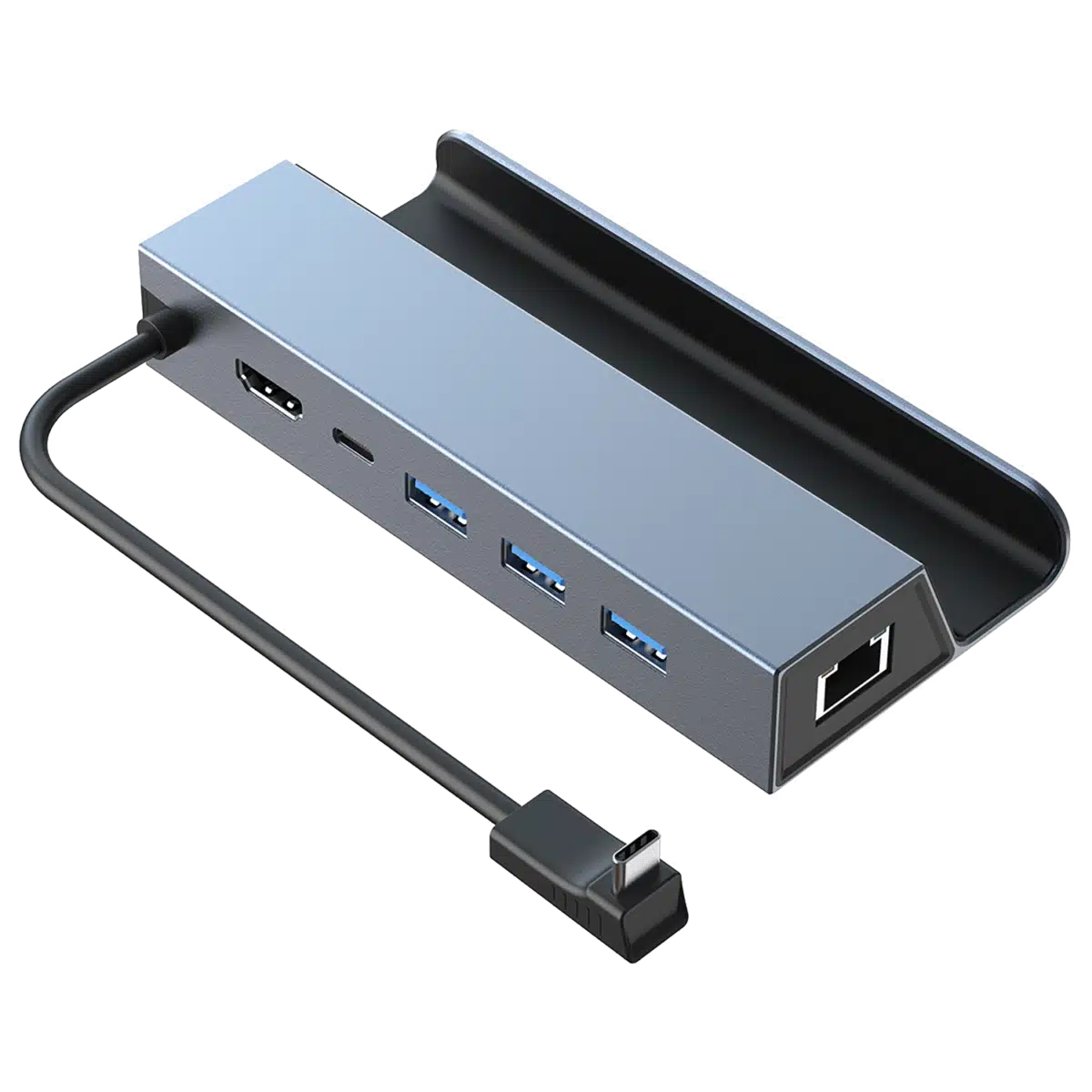
SD1 Docking Station
- SD1 Docking Station
- Gigabit Ethernet
- 100W PD USB-C
- HDMI Output
- Compatible with GPD WIN 4 2024 & Many More
PAYMENT INFO
We use the latest technology in Payment Processing, which allows you to checkout via your Debit/Credit Card, or PayPal for a fast and secure experience.
WARRANTY
2 Years Warranty from DROIX Global for your peace of mind
QUALITY ASSURANCE & PRE-DISPATCH TESTING
Ensuring Customer Satisfaction at the Highest Standard: Every device undergoes rigorous testing and a multi-point quality assurance check before it is shipped. Our dedicated team verifies performance, functionality, and component integrity to guarantee your GPD device is in perfect working order upon arrival, providing you with confidence and peace of mind.
PRICING, TAXES AND SHIPPING
Note:
- United States Customers: The displayed price does NOT include TAX nor duties. Liability to clear customs and pay any associated tax/duties lies on the customer.
- EU Customers: The displayed price includes applicable TAX, which may be up to 25% depending on your country.
- Canada Customers: The displayed price includes applicable taxes, which may include 5% GST and additional Provincial Sales Taxes (PST), Harmonized Sales Tax (HST), or Quebec Sales Tax (QST), depending on your province.
For Our USA Customers: Orders are dispatched DAP (Delivered At Place). While customers are responsible for payment of any applicable tariffs, we draw on our extensive experience shipping from the UK to ensure you pay the least possible charge. Based on our records, these charges typically do not exceed 10% of the item value.
For EU Customers ONLY: Express DDP (Delivered Duty Paid). This means:
- All customs duties and taxes are included in the price displayed on the product page.
- You will not need to pay any additional charges upon delivery.
- In the rare event of customs-related issues, our team will handle the customs clearance process on your behalf to ensure a smooth delivery experience.
Important Information About Returns:
- If you decide to return your order or request a refund, please be aware that taxes and duties paid on your behalf under DDP terms cannot be refunded.
Please refer to our Terms & Conditions for detailed information.
CUSTOMER SUPPORT
Got a question? We’re a short text away from having your issue sorted!
Please refer to our Terms & Conditions for detailed information.
WHAT’S INCLUDED
- 1x SD1 Docking Station
~~32.95.27.95.