Want to know when new emails arrive, if that download has finished or whether your character has finished healing in the game?
Some devices running Android 5 hide the notifications away. If you have a remote control that can easily move an on screen cursor, click at the top of the screen and drag down (so don’t left go of the OK/Left Mouse Button key until you’ve finished swiping down).
If a bar doesn’t appear, you can still use “Heads-up Notifications”, see https://play.google.com/store/apps/details?id=codes.simen.l50notifications for more information about the app.
To use this new notification system:
- Open the Play Store app on your DroidBOX device. If you’ve not signed in and used it before, you might want to click over to https://droix.net/first-run-of-googles-play-store first.
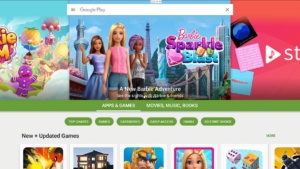
- In the search bar at the top, enter these words:
heads-up notifications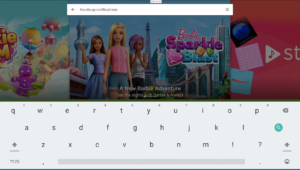
- You will see multiple results, it is the app by simen.codes that we are looking at
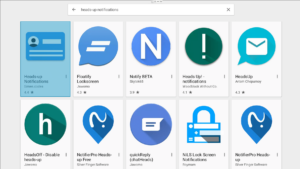
- Once clicked on, select the Install button
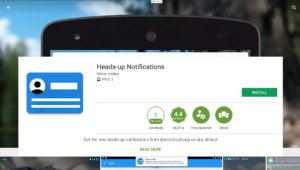
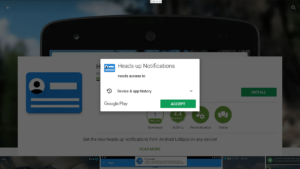
- Make sure you are happy accepting the permissions it requests (Android 5 users, Android 6 users will be asked when the app is opened)
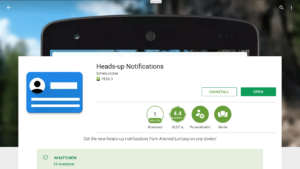
- Following the application’s installation, click the Open button
What Now?
You will now need to follow the on screen instructions…
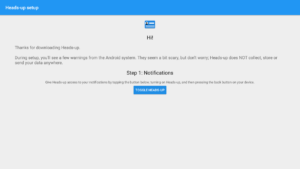
Click the Toggle Heads-Up button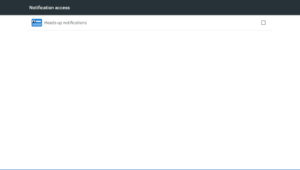
Tick the Heads-up notifications entry in the Notification Access area shown on your screen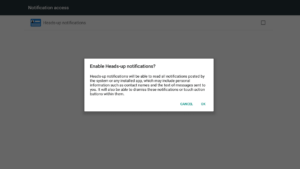 Click OK when asked if you’re sure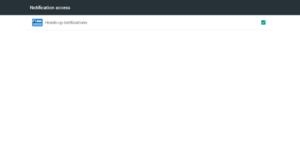
The same screen will return, but the box should be ticked now
Click the Return button on your remote (it looks a bit like an arrow limbo dancing)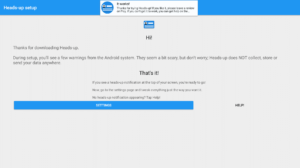
You should now see a confirmation on your screen that the system is working, with this confirmation itself being the proof!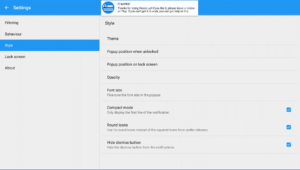 If you want to fine tune the settings (to make it easier to dismiss the notifications or other behaviour), click the Settings button and you will see a lot of tweaking can be done.
- You’re finished! You can press Return or the Home button on your remote.